
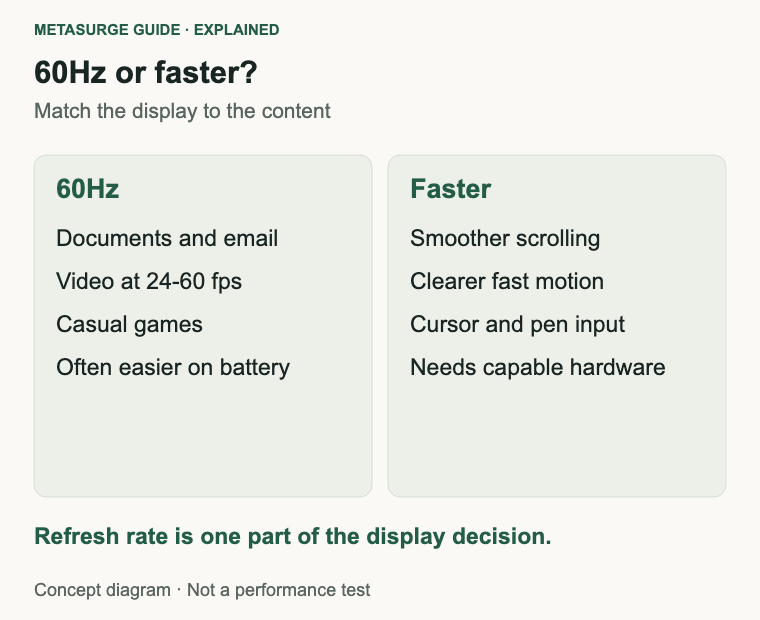
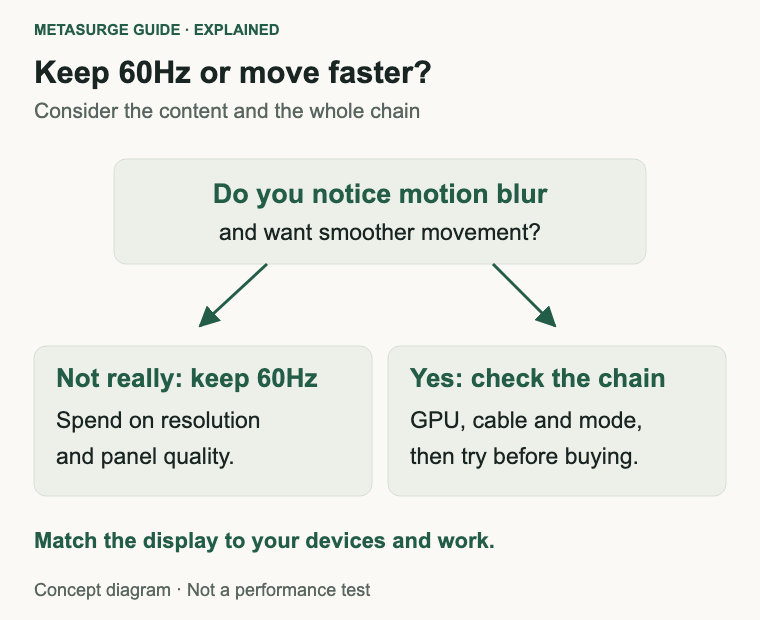
For documents, browsing, video calls and most television, 60Hz is still enough. A 144Hz monitor makes motion look smoother, and that can be genuinely pleasant for scrolling, cursor movement and fast games, but it will not sharpen text, improve colour or make a slow computer faster. If you have never noticed motion blur or stutter on your current screen, a faster panel is unlikely to transform your working day.
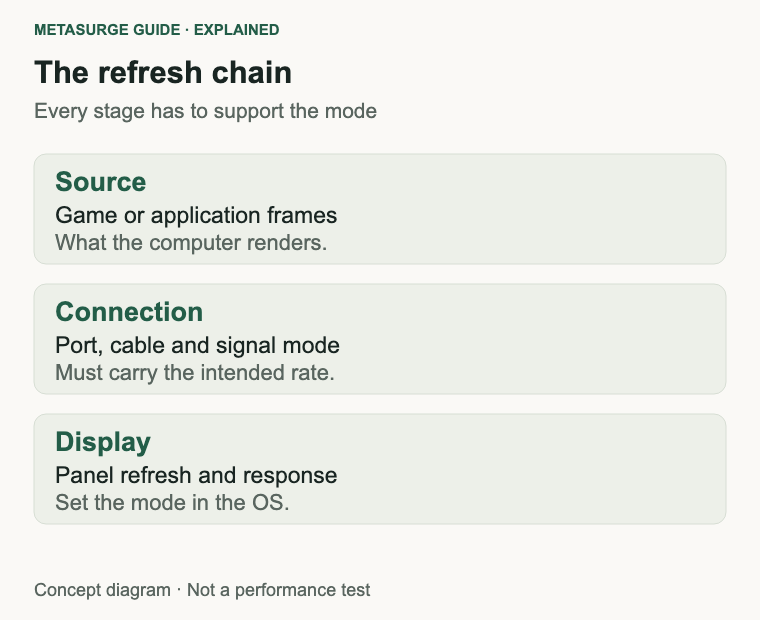
The honest answer depends on what you do and what else is in the chain. A high refresh rate only helps when the computer produces enough frames, the cable and port carry the signal, and the monitor is actually set to the faster mode. Many disappointing upgrades are configuration problems rather than bad hardware.
What refresh rate actually changes
Refresh rate is the number of times per second the display updates the image. A 60Hz screen refreshes 60 times a second; a 144Hz screen refreshes 144 times. A higher number means the position of a moving object or cursor can be updated more often, which can look smoother and can reduce the visible gap between frames.
It is not the same as response time, which describes how quickly a pixel changes colour, or frame rate, which is how many frames the computer renders each second. A monitor can accept a 144Hz signal while the game runs at 60 frames per second. In that case you see smoother screen updates, but not more game information.
Refresh rate also does not change resolution, colour accuracy, contrast or text rendering. If your complaint is blurry text, washed-out colour or an uncomfortable setup, a faster monitor is the wrong first fix. Those problems belong to resolution, scaling, panel type, colour settings and ergonomics.
A simple way to think about it is motion sampling. More updates per second give your eye more snapshots of a moving scene. Whether you notice the difference depends on the content, your sensitivity to motion and how close you sit to the screen.
There is also a difference between the rate the screen accepts and the rate the content provides. A 144Hz display showing a 24-frame-per-second film does not turn the film into 144 unique frames. It may repeat frames more evenly, and it can make camera panning look slightly smoother, but the source still contains 24 frames each second. The same applies to a desktop animation that was authored at a lower rate.
The panel’s own behaviour matters alongside the refresh rate. A fast refresh rate can still look smeary if the pixels take too long to change, and a panel with slow response can show overshoot or ghosting when it is pushed harder. Specifications rarely tell the whole story, which is why a demonstration with real motion is more useful than a number on a box.
| Refresh rate | What it is commonly used for | What it does not fix |
|---|---|---|
| 60Hz | Office work, video, casual games, budget monitors | Motion clarity in fast games |
| 120Hz | Laptops, tablets, mixed work and play | Slow hardware or a poor connection |
| 144Hz and above | Fast games, smooth scrolling, competitive play | Text sharpness, colour or comfort |
Where 60Hz is still enough
Most desktop applications are not designed around high frame rates. Writing, reading, spreadsheets, email and video calls look fine at 60Hz. Video is usually produced at 24, 25, 30, 50 or 60 frames per second, so a 60Hz display can show those frame rates without needing a faster panel.
If you work on a laptop, 60Hz may also be the better battery choice. Microsoft notes that lowering the refresh rate can reduce display power use, and Windows 11’s dynamic refresh rate feature is designed to move between rates depending on the task. That only works on hardware that supports it, but the principle is useful: a faster rate is not free.
People also adapt quickly. Many users who move from 60Hz to 144Hz notice the difference at first, then stop thinking about it. Going back can be more noticeable than going forward. That does not make 60Hz bad; it means the benefit is partly relative and partly personal.
A 60Hz 4K monitor can be an excellent work display because it puts budget into resolution and panel quality rather than refresh rate. If your days are mostly text and static content, that trade can make more sense than paying for a faster panel with a lower resolution or worse colour.
Consider the source as well. A work laptop connected to a dock, a streaming box or a console may be limited by its output rather than by the display. If the device sends a 60Hz signal, buying a faster monitor will not change what you see until the source supports it. Match the display to the devices you will actually connect, not to a future upgrade you may never make.
Where 120Hz, 144Hz and faster help
The benefit is clearest in motion. Fast games, panning cameras, racing and first-person titles can look clearer and feel more responsive when the screen updates more often. Scrolling long documents and moving the mouse can also feel smoother, which is why high-refresh laptops and phones have become common.
The biggest perceptual step is usually from 60Hz to 120Hz, where the increase in updates is large enough that many people notice it immediately. Moving from 120Hz to 144Hz is a smaller change, and some people cannot tell the difference without comparing side by side. That does not mean the faster panel is pointless, but it does mean the number alone should not decide a purchase.
Microsoft’s guidance notes that higher refresh rates can improve gaming by reducing motion blur and tearing, and can make browsing and pen input feel more fluid. Those are reasonable general claims, but they are not a promise that every person will notice the same improvement or that it will reduce fatigue.
Variable refresh rate, often marketed as VRR, G-SYNC or FreeSync depending on the ecosystem, lets the display adapt its refresh rate to the frame rate the computer is producing. That can reduce tearing and stutter when frame rates fluctuate. It is not a substitute for enough graphics performance, and it needs support from the monitor, the graphics card, the cable and the settings.
Beyond 144Hz, the returns become smaller for most people. A 240Hz or 360Hz monitor can suit competitive players and fast-motion content, but the difference from 144Hz is less dramatic than the jump from 60Hz. At those speeds, frame pacing, game settings and display response become more important than the headline number.
Check the whole chain before upgrading
Start with the graphics output. Confirm that your computer or dock can drive the resolution and refresh rate you want. A laptop that outputs 60Hz over HDMI at 4K may still support a higher rate at a lower resolution or through a different port. The manual and the manufacturer’s specifications are more reliable than a guess.
Check the cable and port version. Older HDMI or DisplayPort implementations may not carry the combination you want, especially at high resolution. Use a cable rated for the mode, and prefer a direct connection over an unknown adapter or hub when testing.
Then check the operating system setting. In Windows, open Settings, System, Display, Advanced display to see the current resolution and refresh rate and to choose another rate. The refresh rate list shows an asterisk next to modes that require a different resolution, so a mode you cannot select may not be the monitor’s fault.
Look at variable refresh rate support in the same place. If the display and graphics card support VRR, enable it and test a few games or applications. If you use Windows 11’s dynamic refresh rate, note that it requires VRR and a panel capable of at least 120Hz, and it can limit the maximum rate in some games.
Finally, test before you commit. If possible, view a high-refresh display with motion you recognise, such as a game you play or a long web page you scroll. A store demo with a looping video is better than nothing, but it is not the same as your own workload. Check the return policy if you buy online.
Choose by your use, not the specification
If your work is mostly documents, spreadsheets, video calls and streaming, a good 60Hz monitor with a comfortable size, sensible resolution and a panel you like is a sound choice. Put the budget into ergonomics, resolution and colour rather than a refresh rate you may not notice.
If you split your time between work and games, a 120Hz or 144Hz display with VRR is a reasonable middle ground. Confirm that your graphics card can produce enough frames in the games you play, and that the monitor supports the resolution and connection you need. A faster panel does not compensate for a struggling GPU.
If you play competitive games seriously, a higher refresh rate can be part of a sensible setup, alongside a capable computer, a suitable mouse and a display with low enough response time for your needs. It is one factor among several, not a shortcut to better results.
The two product examples in this guide illustrate different priorities rather than a ranked choice. The Alienware AW2725DM is a 27-inch QHD monitor with a documented 180Hz mode, aimed at motion-heavy use. The LG UltraFine 32U720A-B is a 32-inch 4K monitor documented at 60Hz, aimed at everyday work and a larger, sharper desktop. Their size, resolution and panel differences mean you cannot treat them as a controlled comparison.
Consider what you would give up. A faster 1440p panel may be a better fit than a slower 4K panel for games, while a 4K 60Hz panel may be better for documents and photo work. Neither is universally superior.
Frequently asked questions
Is 144Hz worth it for office work?
Only if you notice and value smoother scrolling and cursor movement. For static documents and video, the benefit is small. Resolution, panel quality and comfort are usually better places to spend the difference.
Can I use 144Hz with a 60Hz laptop?
Only if the laptop’s graphics output, port and cable support the mode. Many laptops can drive a higher refresh rate at a lower resolution, but some are limited to 60Hz at 4K. Check the specifications before buying a monitor.
Does a 144Hz monitor make games run faster?
No. The game’s frame rate depends on the computer’s graphics performance and settings. A faster monitor can display more updates and make motion smoother, but it cannot create frames the computer is not producing.
Is 60Hz bad for your eyes?
There is no universal rule that 60Hz is harmful. Some people are sensitive to flicker or motion, and comfort varies. Take breaks, adjust brightness and lighting, and choose a display that feels comfortable for your own use.
Relevant examples to explore
Editorial examples, separate from Best Sellers rankings. Within each group, products are ordered by Amazon Best Sellers position captured 17 October 2026; positions can change.
As an Amazon Associate MetaSurge Guide earns from qualifying purchases. Check current details, price and availability on Amazon before buying. Country detection by DB-IP.
Sources and editorial approach
This guide uses Microsoft’s guidance on changing the refresh rate in Windows, Dell’s AW2725DM specifications and LG’s 32U720A-B specifications, checked on 17 October 2026. Refresh-rate experiences vary with content, hardware and personal sensitivity. No measured frame rates, response times or controlled comparisons are claimed.
Where to go next
Browse the Monitors guide to compare resolution, panel types and refresh rates. Match the monitor to your computer’s output and to the work you actually do, rather than buying the fastest number on the shelf.