
The short answer
IPS is a sensible starting point for general desk work and mixed use, especially when consistent viewing angles matter. VA is worth considering if you want stronger native contrast for films and darker scenes. OLED is attractive for deep blacks and fast pixel transitions, provided its text presentation, care requirements and static-content risks fit your routine.
Those are starting points, not a quality ranking. Panel type doesn’t tell you the monitor’s resolution, refresh rate, colour calibration, ports or stand. Compare those details and the actual model before deciding that one acronym is automatically worth more money.
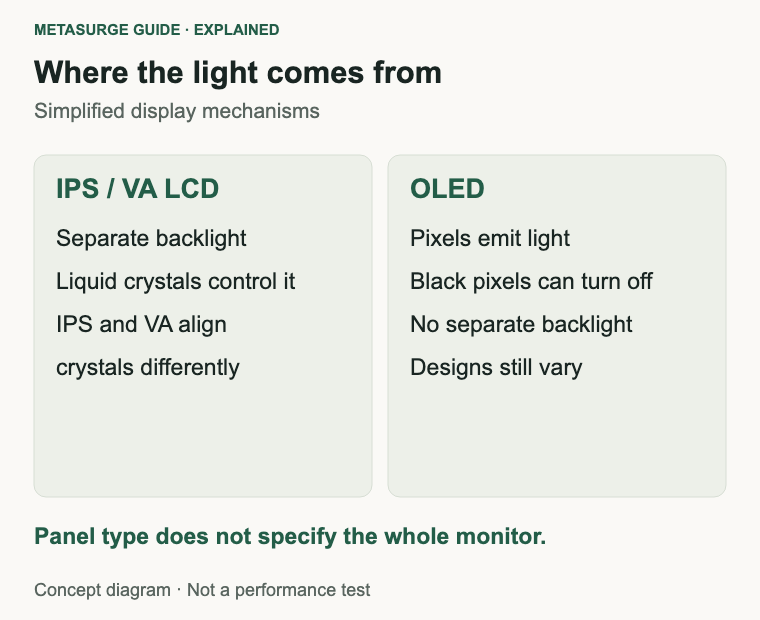
IPS and VA are LCD; OLED makes its own light
IPS, short for in-plane switching, and VA, short for vertical alignment, are two ways of arranging the liquid crystals in an LCD panel. An LCD uses a backlight, with the panel controlling how much light passes through. The different arrangements help explain typical differences in contrast and viewing angles.
OLED uses light-emitting pixels rather than a separate backlight. A pixel can turn off for black, so bright objects can sit beside dark areas without depending on a backlight zone to serve both. That is the basis of its strong dark-scene contrast, not a promise that every OLED looks ideal in every room.
You’ll see names such as QD-OLED and different OLED subpixel structures. They are variations within the broader self-emissive group. They can have different text rendering and brightness behaviour, so don’t treat one older OLED experience as proof of what every newer panel will look like.
“LED monitor” usually refers to an LCD with LED backlighting; it isn’t a direct alternative to IPS or VA. Mini-LED also describes a backlight approach, not the liquid-crystal alignment. An IPS or VA monitor can therefore have a more sophisticated backlight than another monitor with the same panel label.
A practical comparison
| Question | IPS LCD | VA LCD | OLED |
|---|---|---|---|
| Main attraction | Consistent viewing angles | Stronger typical native contrast | Pixel-level light control |
| Dark-scene check | Black level and glow | Dark transitions and viewing position | Room reflections and near-black detail |
| Work check | Text, resolution and layout | Text and angle consistency | Text structure and static-content routine |
| Gaming check | Actual response and refresh rate | Actual response, especially dark motion | Response, refresh and connection support |
| Ownership check | Whole-monitor features | Whole-monitor features | Care features and exact warranty terms |
These are tendencies and buying checks, not measured scores. There are substantial differences within each group. A carefully chosen LCD can suit a particular desk better than an OLED, while a fast gaming IPS model can differ considerably from an ordinary office IPS monitor.
Contrast: look at your room and your content
Contrast describes the difference between bright and dark parts of an image. VA commonly offers higher native contrast than conventional IPS, helping dark scenes look less grey. OLED’s ability to switch pixels off provides a different level of control over black areas.
The comparison changes with the environment. Reflections, daylight and your chosen brightness affect the result you see. A screen that looks dramatic in a dark demonstration can be distracting opposite a bright window. Check the surface finish and reflection handling alongside the panel technology.
Don’t confuse native panel contrast with local dimming. A backlit LCD may use dimming zones to improve contrast across the picture. The number, layout and behaviour of those zones affect the result; the IPS or VA label alone doesn’t tell you how well the backlight follows small bright objects.
If films and atmospheric games are a major part of your use, watch a familiar dark scene if you can. Look for visible shadow detail as well as deep black. Making the darkest areas disappear isn’t useful if you also lose details you wanted to see.
Viewing angles and sharing the screen
IPS commonly maintains a more consistent image when viewed from the side than VA. That can be useful when sharing a screen, sitting slightly off-centre or looking across a wide display. OLED also commonly offers wide viewing angles, although individual screen treatments and products still differ.
For a monitor directly in front of one person, a narrower angle may matter less. Try moving your head and looking from the centre to the edges. On a large screen, your viewing angle to the corners differs from your angle to the middle even while you remain seated in the same place.
Curvature can influence that relationship, but it doesn’t turn every panel into the same viewing experience. Check the size and distance you intend to use. Don’t choose a curved VA model solely from a showroom view at a distance that won’t resemble your desk.
Motion: refresh rate and response time differ
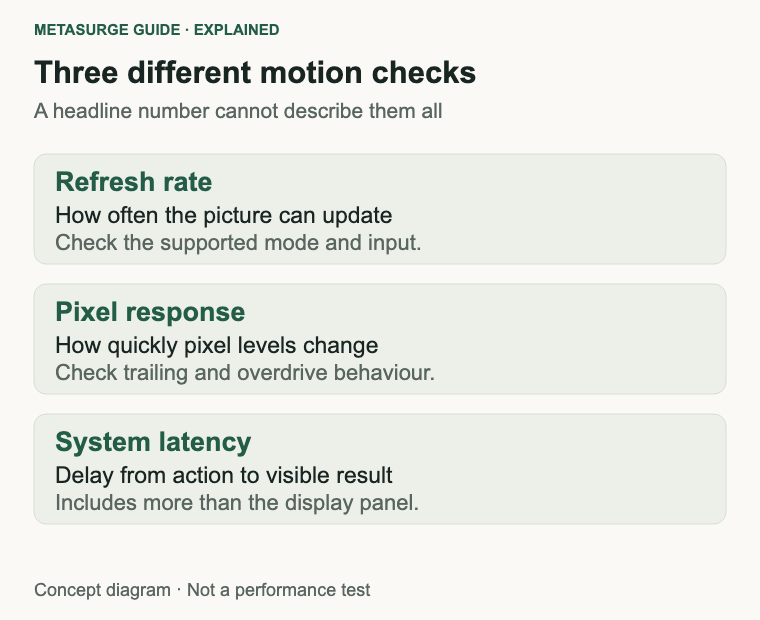
Refresh rate tells you how often the monitor can update the picture. Pixel response describes how quickly pixels change between levels. A high refresh rate doesn’t guarantee every pixel transition finishes cleanly, and a fast response specification doesn’t establish the total delay from your mouse action to what you see.
OLED’s fast pixel transitions can be appealing for games. IPS and VA performance varies with the panel and implementation. Some VA models can show trailing in dark transitions; that is a model-specific check rather than a reason to reject every VA screen. Modern fast LCD designs should be assessed on their actual behaviour.
Look beyond the lowest advertised response-time number. Different transitions, settings and measurement methods can produce different results. Aggressive overdrive, a setting intended to speed transitions, can introduce visible overshoot or bright trails. The most extreme mode is not necessarily the one you will want to use.
Check performance at the refresh rates you actually reach. A computer that runs a demanding game below the monitor’s maximum needs sensible behaviour there too. For a console, confirm supported modes over the relevant input instead of assuming the highest refresh rate on the box applies through every port.
Text clarity matters for documents and coding
For desk work, first compare resolution with physical size. The same panel type can be used in monitors with very different pixel densities. More densely packed pixels can render finer detail, but scaling and comfortable text size also affect the final workspace you use.
Subpixel layout is another factor. Each pixel contains colour-producing elements, and their arrangement can affect how text edges look. OLED designs use different layouts, including newer structures intended to improve text presentation. Avoid the blanket claim that all OLED text is poor, or that every OLED is indistinguishable from a familiar LCD.
Try a document, spreadsheet or editor with the text size and scaling you normally use. Look at small characters, coloured edges and fine lines from your normal seated distance. A game screenshot or full-screen video won’t answer that question for a monitor used mainly for reading.
Also confirm the operating system is using the intended resolution and an appropriate connection. A low-resolution output setting or unsuitable scaling can make a good monitor look disappointing. Don’t diagnose every text problem as a panel limitation before checking the source settings.
OLED care and static desktop content
OLED pixels can age unevenly, and prolonged static elements can contribute to permanent image retention commonly called burn-in. That deserves consideration if your routine involves the same taskbar, application panels or dashboard for long periods. It doesn’t mean every OLED will develop a visible problem after the same amount of use.
Manufacturers provide measures such as pixel shifting, cleaning cycles and screen-dimming features to reduce risk. Read the instructions for the exact model, including what happens during standby. Don’t disable care features simply because an occasional reminder interrupts you, without understanding the intended maintenance routine.
Check warranty wording separately. Coverage, exclusions and required usage conditions can vary by model and region. A general statement that the brand offers a warranty doesn’t establish whether it covers burn-in on the AU unit you’re buying, or for how long.
For a desk that displays mostly static business applications, an LCD may be a simpler ownership choice. For varied work and evening gaming, an OLED may still make sense if you like its text and accept its care routine. The useful comparison is your normal week, not just the best-looking demonstration scene.
Colour work and HDR need more than an acronym
Wide colour coverage is not the same as accurate colour. A monitor can display a wide range while needing an appropriate mode or calibration for the task. For photo, design or video work, check the colour space you need, documented calibration and available controls rather than buying on IPS or OLED alone.
For ordinary office applications, overly vivid colour may not improve usefulness. Investigate whether the monitor provides a suitable standard colour mode and whether the controls behave as expected. A store’s bright display mode may have been chosen to attract attention rather than reflect the mode you’ll use at home.
HDR, or high dynamic range, also depends on the display’s capabilities and the content. Accepting an HDR signal doesn’t establish bright highlights, convincing blacks or good tone mapping. Compare evidence about actual HDR behaviour, including the backlight on an LCD or brightness behaviour on an OLED.
Keep these checks proportional to your work. You don’t need a colour-production workflow to read email, and you don’t need to pay for HDR if you mainly use ordinary desktop applications. Spend on capabilities you will use and can support with the connected computer.
The rest of the monitor can decide the purchase
Check stand height, tilt and the footprint on your desk. A suitable panel attached to an awkward fixed stand may be less useful than another monitor with better adjustment. If you plan to use an arm, confirm mounting compatibility, weight and clearance rather than assuming every monitor will fit it.
Ports need the same attention. A USB-C socket may provide video, charging or data in different combinations. Check the exact functions, power delivery and supported display modes. If you use a dock, confirm the whole laptop-to-dock-to-monitor path instead of reading only the monitor specification.
For mixed work and gaming, think about how you switch sources and connect peripherals. Inputs, a USB hub or a supported KVM function may solve a daily inconvenience that no panel upgrade would address. Compare those features after narrowing the display technology choices.
A quick decision checklist
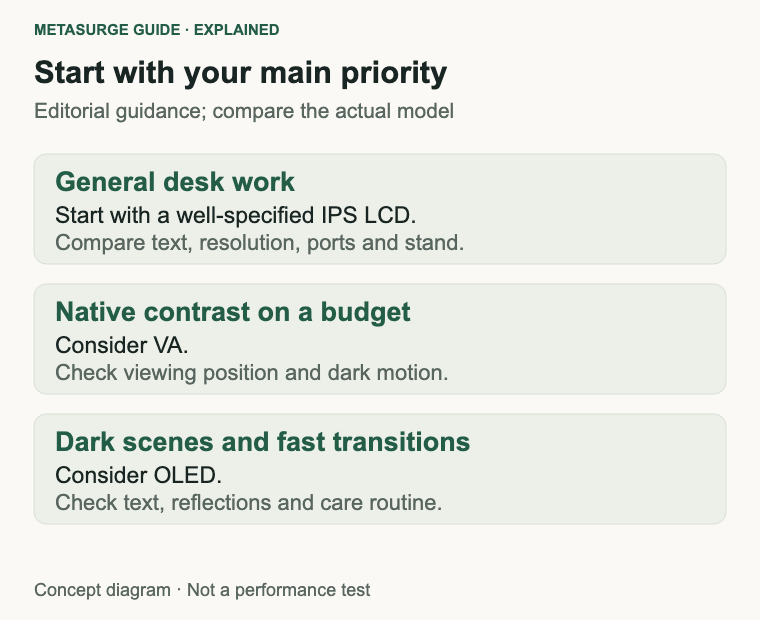
- For mostly documents and general work, start with a well-specified IPS LCD and compare alternatives.
- For contrast on a limited budget, consider VA while checking viewing angles and motion.
- For dark-scene gaming, investigate OLED while assessing text, reflections and care.
- Match resolution, size and scaling to your reading distance.
- Check motion at the settings and frame rates you will use.
- Confirm ports, stand adjustment, software modes and AU warranty terms.
The right stopping point is a monitor that meets your actual work and leisure needs. Panel type helps narrow the shortlist; it doesn’t replace checking the product. Avoid paying for a headline advantage that comes with a trade-off you notice for most of the day.
Frequently asked questions
Is IPS always better than VA for gaming?
No. Compare actual motion behaviour, refresh support and your game preferences. Typical IPS and VA tendencies don’t establish the performance of every model.
Is OLED unsuitable for office work?
Not automatically. Assess text at your normal scaling and consider static content, care features and warranty conditions. An LCD may be simpler for a mostly static desktop routine.
Does Mini-LED mean the screen isn’t IPS or VA?
No. Mini-LED describes a backlight approach. IPS and VA describe the LCD panel arrangement, so those descriptions can appear together.
Does a high refresh rate guarantee low input lag?
No. Refresh, pixel response and total system delay are different properties. Check the monitor’s actual behaviour with your source and intended settings.
Relevant examples to explore
Editorial examples, separate from Best Sellers rankings. Within each group, products are ordered by Amazon Best Sellers position captured 17 October 2026; positions can change.
As an Amazon Associate MetaSurge Guide earns from qualifying purchases. Check current details, price and availability on Amazon before buying. Country detection by DB-IP.
Sources and editorial approach
Mechanism and tendency checks use LG’s display explanation and Dell’s monitor guide. Text considerations use LG’s subpixel discussion; OLED care uses ASUS’s panel guide and Dell’s refresh guidance. Sources checked on 15 October 2026. Recommendations are editorial interpretation. Manufacturer marketing and response-time figures aren’t independent MetaSurge measurements.
Where to go next
Explore the MetaSurge monitor category once you know your main trade-offs. The three examples above represent panel families, with different sizes and resolutions; they aren’t a controlled comparison or a ranked recommendation.