
When Wi-Fi works near the router but struggles in particular rooms, investigate the local wireless path before upgrading the internet plan. Distance, walls, placement, interference, the client device and any link between mesh units can all affect the result.
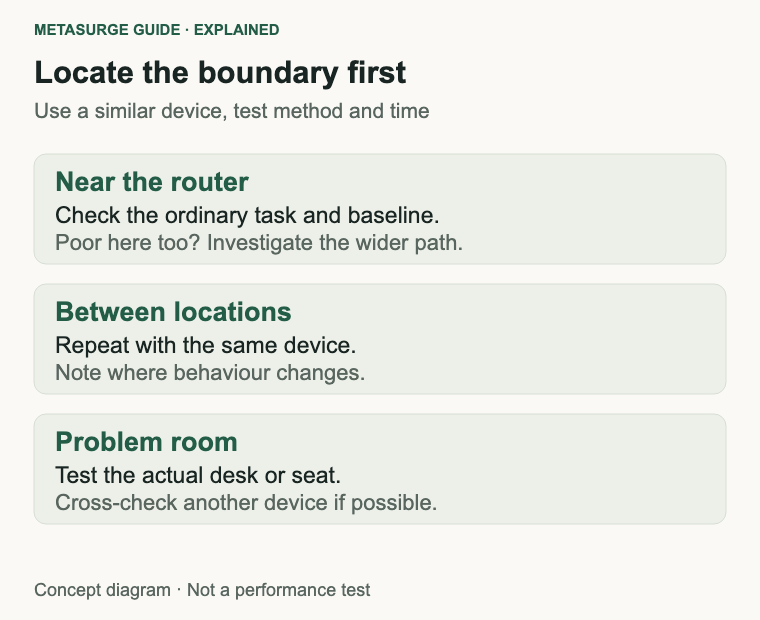
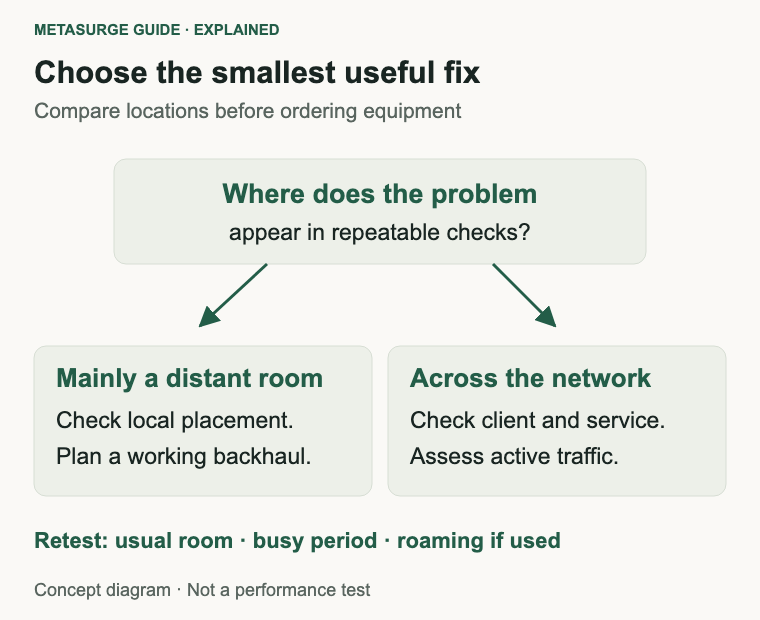
Start by comparing the same capable device near the router and in the problem room. If both locations perform poorly, check the service and wider network too. If the gap appears mainly as you move through the home, placement or a better route into that area may be the useful next step.
You don’t need to guess how many mesh units a floor plan requires. A simple set of repeatable checks can show whether to move existing equipment, use a supported wired connection or add carefully placed wireless coverage.
Map the problem before changing equipment
Choose an ordinary task that exposes the problem: a work call, a stream or a file transfer. Write down where it fails and whether it is slow, intermittent or unable to connect. Those descriptions suggest different investigations, even though they can all feel like “bad Wi-Fi”.
Use one device as your initial comparison tool. Check near the router, in a location partway towards the problem and at the usual desk or seat. Keep the test method, application and device similar so that the differences are easier to interpret.
Record the time and significant household activity. A test during an evening of simultaneous streaming isn’t directly comparable with one taken while everyone else is offline. You don’t need elaborate monitoring; a few consistent notes can reveal a pattern.
If practical, establish a supported wired baseline using a capable computer and suitable equipment. Ethernet removes the last wireless connection from that test, but the adapter, cable and ports still have their own limits. A poor wired result doesn’t automatically identify the internet provider as the cause.
Try a second device in the problem room. If only one laptop struggles while other devices work normally, investigate that client’s connection, updates and settings. Buying more shared network equipment is a weak first response to an isolated client problem.
Check what the router or mesh application says the device is connected to. In a multi-unit system, it may be using a different node from the one you expected. Signal bars on the client are only a limited clue; they don’t measure the complete path to the internet.
Keep your initial record small: location, device, connection, time and outcome. The goal is to identify the boundary of the problem, not to fill a spreadsheet with incomparable speed-test numbers. That boundary helps you decide which change is worth trying.
Improve the path from router to device
Look at the current router location before buying anything. A unit inside a cupboard, behind large objects or at one edge of the home starts with different obstacles from one in a sensible open position. Check the manufacturer’s ventilation and placement instructions as well as the appearance of the room.
Moving it a modest distance may be worth testing when the connection allows it. Try an accessible position with fewer immediate obstructions, then repeat the same checks. There is no universal height or distance that guarantees coverage in every building.
Consider the direction of the path. A signal reaching another room can encounter several walls, a floor or metal objects along the way. The nearest position on a simple floor-plan drawing isn’t always the easiest radio path.
A home internet connection point can constrain where the router sits. Don’t assume the provider’s equipment or fixed cabling can simply be moved. Ask the provider or a suitable installer about the arrangement if relocation needs work beyond connecting supported patch leads.
For a fixed desk, a supported Ethernet connection can avoid the final wireless hop altogether. It can also provide a useful diagnostic comparison. Use an appropriate installation and a safe cable route rather than creating a trip hazard as a permanent solution.
If the router has adjustable antennas, follow its model-specific instructions. Randomly changing several antenna positions, settings and locations at once makes it harder to identify what helped. Manufacturer examples for one design don’t necessarily apply to another.
Recheck the rooms that already worked after moving equipment. Improving the study at the cost of making the television unreliable isn’t a complete fix. Choose a change that serves the household’s important locations, and keep the earlier settings available until you have confirmed the result.
Sometimes placement is the main answer. If the existing router remains supported and the new position handles normal use, there may be no need for a replacement or an added node. Keep the result rather than continuing to optimise a number that no longer affects your tasks.
Test bands, devices and busy periods
Wi-Fi bands provide different operating options, not guaranteed room-by-room outcomes. Lower-frequency 2.4 GHz connections can be useful across obstacles, while 5 GHz or 6 GHz can offer other capacity advantages where supported. Building layout, interference and the exact equipment still matter.
Your device may choose a band automatically. If the router provides a supported way to inspect or temporarily test alternatives, compare them with the same task. Avoid making permanent changes you don’t understand just to force a preferred label to appear.
Don’t confuse 5 GHz Wi-Fi with a 5G mobile service. They describe different things. Similarly, a newer Wi-Fi generation doesn’t guarantee that a signal will travel through a particular wall more effectively than your current arrangement.
Interference and shared airtime can vary through the day. Nearby networks and other equipment may change the experience even when you haven’t moved the router. Use supported automatic settings or documented troubleshooting before choosing channels based on a generic internet recommendation.
Check the client side when results are inconsistent. A desktop computer placed under a desk, an adapter tucked behind a metal case or a device using an unexpected connection can produce different results from a phone held in an open position. Compare realistically rather than assuming every client has the same capabilities.
Busy internet traffic is another variable. If the whole household struggles during a large upload or download, the problem may involve available capacity rather than a room-specific coverage gap. Pause non-urgent traffic for a controlled comparison, then test again under normal use.
Multiple access points also introduce roaming behaviour. Apple documents that the client participates in deciding when to move between access points. A shared network name or a mesh label doesn’t guarantee an invisible handover for every device and application.
If a call drops as you walk between rooms, test both stationary use and movement. Those are different requirements. Record which one fails so that advice about adding coverage doesn’t get mistaken for a guarantee about roaming.
Choose a working route into the problem room
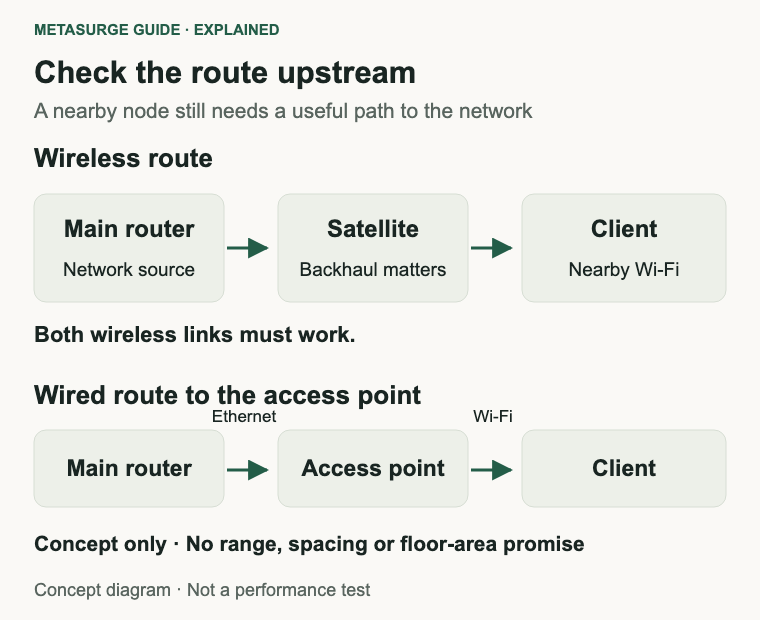
If placement and client checks aren’t enough, decide how the problem area will connect back to the main network. The route upstream is as important as the nearby wireless connection. A new device in the room doesn’t help if it can’t obtain a useful connection itself.
A wired access point is one option where Ethernet is available or can be appropriately installed. The cable carries traffic back to the network, and the access point provides local wireless coverage. Confirm power, operating mode and the rest of the topology before purchasing.
A mesh system can use wireless or wired backhaul depending on the exact products and setup. Backhaul is the path between units and the wider network. Wired support, compatible switches and required wiring arrangements need to be checked against the manufacturer’s instructions.
For wireless backhaul, place a satellite where it still has a suitable connection to its upstream unit. Putting it in the centre of an existing dead zone may give your phone a nearby signal without providing the node with a reliable route onwards.
Use the mesh application’s connection information where available, then test real use. A strong client-to-node link doesn’t establish a strong node-to-network link. Nor does a vendor’s floor-area figure tell you exactly where units belong in your particular home.
An extender can be useful for a limited need, but it also needs a workable upstream connection. Check its compatibility, network-name behaviour and performance in the intended mode. Don’t assume that every extender and mesh product can become one coordinated system merely because they share a brand.
Powerline adapters are another possible route, with results dependent on the electrical installation and the equipment involved. Treat them as an option to verify rather than a guaranteed substitute for Ethernet. Check the manufacturer’s setup guidance and your purchase conditions.
Choose equipment around the path you can provide. More units, wider radio channels and a larger advertised Wi-Fi class don’t remove the need for a sound layout. Add only what addresses a demonstrated gap, then assess the network as a whole.
Verify the fix with your normal activities
Return to the original test locations with the same device where practical. Repeat the task that exposed the problem and compare it with your earlier notes. Check that the new arrangement improves the outcome you care about, rather than just producing more signal bars.
Test at an ordinary busy time as well as during a quiet period. The study call needs to work while the household uses the connection normally. A setup that performs well only when all other traffic stops may still need a capacity or service investigation.
For a fixed desk, check the usual working position, not just a point beside the new access point. Furniture, a closed door or the laptop’s placement can be part of normal use. Evaluate the arrangement you intend to keep.
For moving devices, walk the route where the connection previously dropped. Include the application that matters to you because a browsing session and a live call can expose different interruptions. Mesh and roaming features can help in suitable combinations without guaranteeing that every handover will be unnoticeable.
Check the rest of the household’s equipment. A changed network name, security setting or operating mode can affect devices that previously worked. Keep important printers, televisions and smart devices in the acceptance check rather than assuming that a better laptop result proves everything is complete.
Make one change at a time where possible, and keep a record of the final settings. If a result becomes worse after a setting change, being able to return to the previous state is more useful than continuing with a growing set of untracked adjustments.
If the problem remains poor on wired and wireless connections across several devices, take the evidence to your provider or equipment support. Explain what was tested, when and under what conditions. This gives them a better starting point than a complaint that an advertised speed wasn’t seen everywhere.
Stop when the important tasks work reliably enough for your household. You don’t need identical speed-test numbers in every corner. The useful goal is a dependable connection where you use it, achieved through a layout and level of equipment you can maintain.
Frequently asked questions
Will a faster internet plan fix a Wi-Fi dead zone?
It doesn’t repair a weak local wireless path. A faster plan can help when the service capacity is the relevant constraint, but compare near-router and problem-room behaviour before deciding which issue you have.
Should I put a mesh unit in the room with no signal?
Only if it has a workable upstream connection, such as an appropriate Ethernet path. For wireless backhaul, it generally needs a location where it can still connect adequately to the network while extending coverage towards the problem area.
Does adding more mesh units always help?
No. The number and placement should address the layout and connection paths. Extra units aren’t a universal remedy for interference, an inadequate backhaul or a client-specific problem. Follow exact-model guidance and test.
Is Ethernet backhaul the same as connecting my laptop by cable?
They are different links. Ethernet backhaul connects network units, while a wired client connection connects a particular device. Either can be useful, but improving one doesn’t automatically establish that every other part of the path is adequate.
Relevant examples to explore
Editorial examples, separate from Best Sellers rankings. Within each group, products are ordered by Amazon Best Sellers position captured 17 October 2026; positions can change.
As an Amazon Associate MetaSurge Guide earns from qualifying purchases. Check current details, price and availability on Amazon before buying. Country detection by DB-IP.
Sources and editorial approach
The guide draws on TP-Link’s placement guidance, Ethernet-backhaul documentation and Apple’s client-roaming explanation, checked on 16 October 2026. Layouts and checks are editorial examples, not measured coverage maps. No universal range, node count or speed gain is claimed.
Where to go next
Use the Wi-Fi Routers guide if your checks identify a need for different network equipment. Treat the separate examples as alternative designs to investigate, and confirm compatibility, operating mode and the upstream path before buying.