
A mouse that double-clicks or skips may need a settings change, a better connection, cleaning or service. Start by separating the button fault from the movement fault. Replacing the mouse immediately can leave an application, surface or receiver problem unchanged.
One physical click opening a file isn’t necessarily an unintended double-click: the application may be configured to open items with one click. Similarly, a pointer that moves too far is different from one that stops tracking, jumps or appears uneven because the computer is struggling.
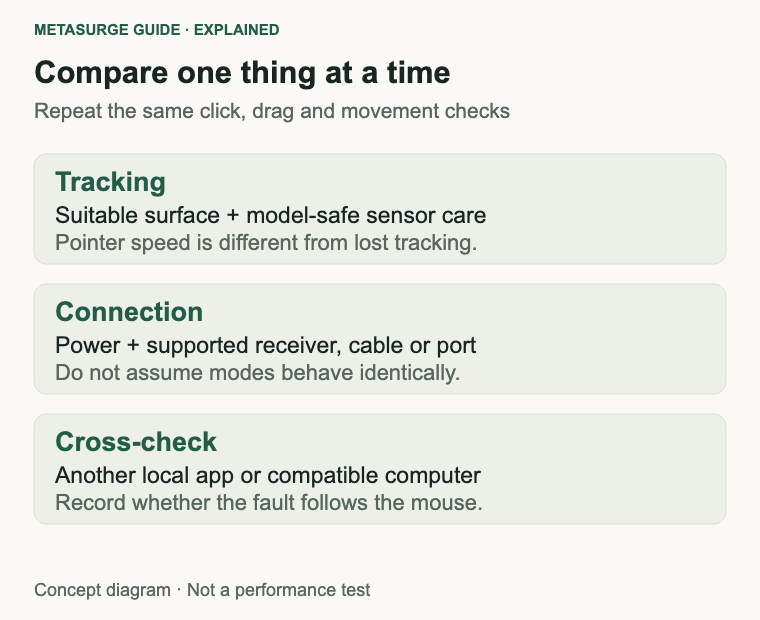
Choose a short, repeatable test and change one thing at a time. If the fault follows the mouse across suitable surfaces, supported connections and compatible computers, you have stronger grounds for a repair or replacement discussion.
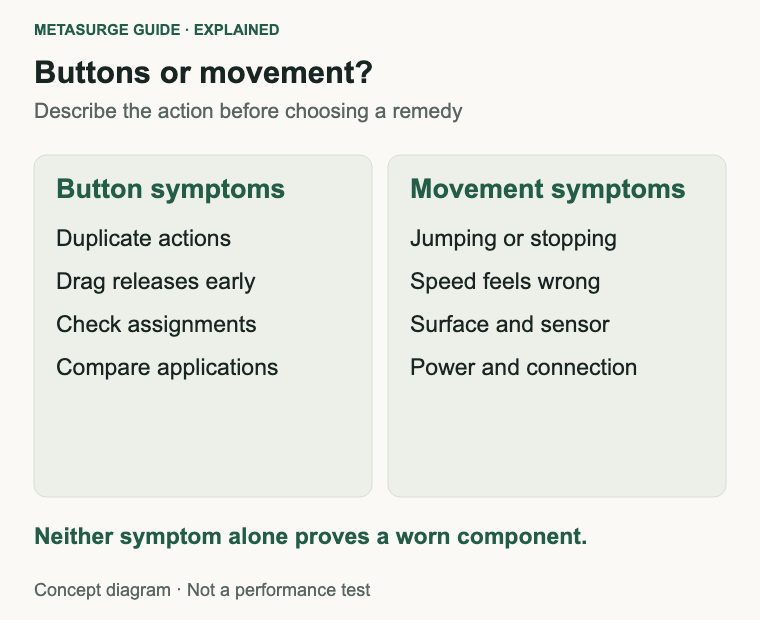
Separate button faults from movement problems
Describe exactly what happens. Does one deliberate press create two actions, does a held drag release unexpectedly, or does the pointer jump while the buttons work normally? Those observations point towards different checks.
Use an ordinary local document or a harmless test item. Try a single click, a deliberate double-click and a short drag separately. Avoid using a destructive button or an important file as your test target.
A folder opening after one click can reflect an intentional interface setting. A text selection behaving differently inside one application can also reflect its own controls. Don’t count every unexpected action as evidence that the physical switch has generated duplicate events.
Dragging is useful to observe because it involves maintaining a button state while moving. If a selection or dragged item releases early, record whether the button feels different and whether it happens consistently. That symptom can help support, but it doesn’t identify the exact internal cause by itself.
For movement, distinguish a jump from a speed preference. If the cursor follows your motion smoothly but travels too far, sensitivity may be the relevant setting. If movement stops, misses a section or behaves unpredictably, investigate tracking and the connection as well.
Whole-screen stutter can feel like mouse lag even when the pointer device is reporting normally. Note whether animation, typing or other activity stalls at the same time. A remote desktop or online game also introduces parts of the system beyond the mouse.
| Symptom | First useful check |
|---|---|
| One click opens an item | Application and single-click settings |
| One deliberate press creates duplicate actions | Assignments and repeatability across applications |
| A drag releases unexpectedly | Button behaviour and connection |
| Pointer speed feels wrong | Sensitivity and acceleration preferences |
| Pointer jumps or stops | Surface, sensor, power and connection |
Keep the description separate from the diagnosis. Saying “the left button releases during a drag on two computers” is more useful than deciding immediately that a particular switch type has failed.
Check application settings and button assignments
Review what the button is assigned to do. Mouse configuration software can map a physical press to a double-click, a macro or another command. Logitech explicitly includes assignment checks in its button troubleshooting guidance.
Compare a second application with ordinary default behaviour. If the symptom appears only in one programme, look at that programme’s shortcuts, extensions or input settings before buying hardware. A problem limited to one workflow may not be a mouse fault.
Check whether a particular profile becomes active with an application. Some mice or configuration tools store several profiles, so the same button may perform a different action in a game and a document. Preserve the settings before making a temporary comparison.
Windows also distinguishes single-click-to-open behaviour from the timing used to recognise a deliberate double-click. Those settings answer different questions. Check the one that matches the observed action rather than treating every click option as interchangeable.
Double-click speed affects how separate events are interpreted. Changing it can make intentional clicks easier to use, but it doesn’t repair a worn contact or a damaged button mechanism. If physical duplicate events remain, record them instead of assuming the slider has restored the hardware.
For a useful assignment test, follow the manufacturer’s supported configuration method. If a different command produces the same unexpected duplication, that is another clue. Don’t remove software required by your employer or disable settings you depend on just to run a generic test.
Compare with a basic configuration where practical and reversible. Keep a record so you can restore useful shortcuts. Avoid installing several overlapping mouse tools, since another layer can make it harder to see which software is changing the input.
If the mouse worked correctly for a long time and then developed a repeatable fault without a known settings change, hardware becomes one reasonable possibility. It still deserves the surface, power and connection checks, particularly when click and movement problems appear together.
Test tracking, surface, power and connection
Inspect the sensor area using the manufacturer’s cleaning guidance. Dust or debris near the lens can affect tracking, but don’t scratch the lens or introduce liquid into the device. An obvious crack or physical damage is a reason to seek service rather than continue cleaning experiments.
Try a suitable mouse mat or another supported surface. Reflective, transparent or uneven materials can behave differently with different sensors. A mouse that fails on one surface but works reliably on another may not need replacing.
Keep the test simple: move slowly across the same area, then make the ordinary motions that previously caused trouble. Changing sensitivity and surface at the same time makes the comparison less useful.
For wireless use, check the battery or charge status and use the supported power arrangement. Replace a user-replaceable battery or recharge as directed for that model. A brief improvement after charging is useful information, not proof that every underlying problem is solved.
Check receiver placement and the connection path. A receiver behind a computer, inside a crowded hub arrangement or far from the mouse may behave differently from the manufacturer’s recommended placement. Use supported extension or positioning advice rather than assuming any spare receiver will pair.
Where appropriate, compare another supported port or a direct connection. A hub or adapter is another part of the path, and a problem there can affect a healthy mouse. Change only one stage before repeating the test.
For a wired mouse, inspect the cable and connector for damage without pulling or bending them to provoke a failure. Detachable cables can be compared only when the device supports a suitable replacement. A permanently attached cable is not an invitation to open the case.
If a mouse supports several connection modes, compare them according to its instructions. Don’t transfer performance or troubleshooting expectations from dedicated receiver wireless to Bluetooth. A mode-specific fault calls for a different investigation from one that persists across all supported modes.
Use repeatable checks before considering repair
Repeat the original short test after each change. Check single clicks, deliberate double-clicks, dragging and movement separately. A cursor that now tracks correctly doesn’t establish that an intermittent button problem has disappeared.
If practical, try the mouse on another compatible computer with appropriate settings. A fault that follows the mouse is stronger evidence of a mouse-side problem. A problem confined to one host may involve that computer’s software, adapter or configuration.
You can also compare another known-working mouse on the original computer. This is especially helpful when the whole interface seems to stall. It gives you a way to distinguish the behaviour of one device from a wider system issue.
Record how often the problem occurs during a short normal session without inventing a laboratory failure rate. “Three unexpected releases while dragging this document” is a useful observation. It doesn’t need to become a claim about switch endurance or every example of the model.
A brief demonstration may help support if it shows the fault clearly. Keep private documents, accounts and notifications out of the recording. You don’t need to install an unfamiliar click counter or grant broad device permissions to provide evidence.
Check for relevant official software or firmware guidance for the exact model. An update can address a documented issue, but it isn’t a universal repair for wear or damage. Follow the supported process and preserve any settings it affects.
Avoid opening the switch, bending internal parts or spraying contact cleaner into the mouse as a routine first response. Those steps can damage equipment and complicate support. The cost and practicality of a professional repair depend on the design and the actual fault.
A changed double-click setting or software filter can alter what you observe without resolving the cause. If the mouse still behaves unreliably in ordinary use, treat the result as unresolved rather than relying on a workaround that interferes with intentional input.
Choose service or replacement for a defined problem
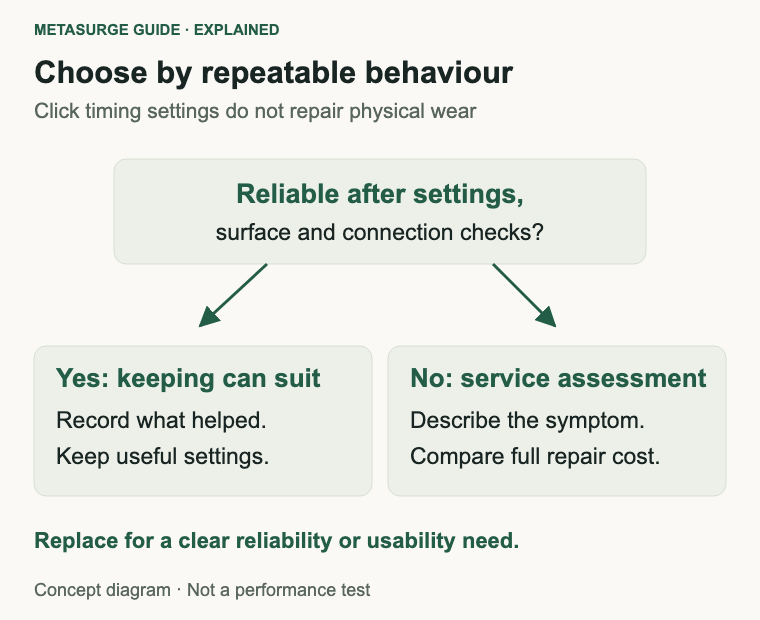
Ask the seller or manufacturer about service when a fault remains repeatable after reasonable checks. Provide the model, connection mode, relevant settings and results on another application or computer. Describe the symptom without assuming you already know which part needs replacing.
Check purchase records and support terms before modifying the device. An advertised click rating is not a guarantee about the entire mouse, cable, wheel or wireless electronics. It also doesn’t establish a universal number of years before replacement.
Repair can be sensible for a valued design when the part, skill and service are available. Compare the complete cost and likely interruption with a suitable replacement. A cheap internal component doesn’t automatically make the repair cheap or straightforward.
Replacement becomes more reasonable when input is unreliable, faults recur or a practical service path isn’t available. If the mouse is essential to your work, dependable clicking can matter more than preserving a particular specification or appearance.
Define what the new mouse must improve. It may need a comfortable shape, a simpler connection, reachable buttons or better fit for the desk. Choosing a more expensive sensor won’t necessarily address the button or cable problem you actually encountered.
Be careful with switch labels and endurance figures. Optical switches and other designs can have useful characteristics, but they don’t make the whole device immune to faults. No technology label replaces checking the exact product’s support and your practical requirements.
During setup, repeat the same acceptance test with the replacement. Check normal clicks, dragging, scrolling, movement and reconnection after sleep. Use a suitable surface and sensible settings so that you aren’t carrying the original setup problem into the new device.
If a surface, assignment or connection change restores reliable operation, keep the working mouse. Save the useful settings and the observation that identified the problem. A successful diagnostic result doesn’t have to end in a purchase.
Frequently asked questions
Does changing double-click speed fix a worn switch?
It changes how the system interprets click timing. It can help with a preference or recognition setting, but it doesn’t repair physical wear. Keep investigating if duplicate actions or unreliable dragging remain.
Why does the pointer skip while clicks work?
Tracking involves the surface, sensor, power, connection and host behaviour. Check those separately from button assignments. One working part of the mouse doesn’t establish that every part of the input path is healthy.
Are optical switches guaranteed never to double-click?
No switch label guarantees that the complete mouse will remain fault-free. Configuration, electronics and other components can still affect behaviour. Compare the exact product and diagnosed symptom rather than relying on a universal promise.
When is replacement justified?
When a fault remains repeatable after reasonable checks and service is unavailable or impractical for your needs. Replace for a defined reliability or usability requirement, not simply because the mouse reaches an assumed age.
Relevant examples to explore
Editorial examples, separate from Best Sellers rankings. Within each group, products are ordered by Amazon Best Sellers position captured 17 October 2026; positions can change.
As an Amazon Associate MetaSurge Guide earns from qualifying purchases. Check current details, price and availability on Amazon before buying. Country detection by DB-IP.
Sources and editorial approach
The guide uses Logitech’s button troubleshooting, double-click guidance, pointer-movement guidance and Microsoft’s mouse settings, checked on 16 October 2026. Checks and scenarios are editorial reasoning, not hands-on failure testing, measured switch life or a guarantee of repair.
Where to go next
Visit the Mice guide if you need a replacement after diagnosis. The separate examples illustrate wired and receiver-wireless arrangements; neither is presented as a guaranteed cure or reliability winner.