
A basic office mouse is enough for browsing, documents and ordinary desktop work when it tracks reliably, fits your hand and has the controls you need. A gaming mouse is worth considering when adjustable input behaviour, particular buttons, lower weight or performance evidence for a demanding task provides a benefit you will use.
The label doesn’t decide the price or the quality. Some office mice offer sophisticated scrolling and device switching, while some gaming mice are simple and affordable. Compare the actual designs rather than assuming that office means cheap and gaming means expensive.
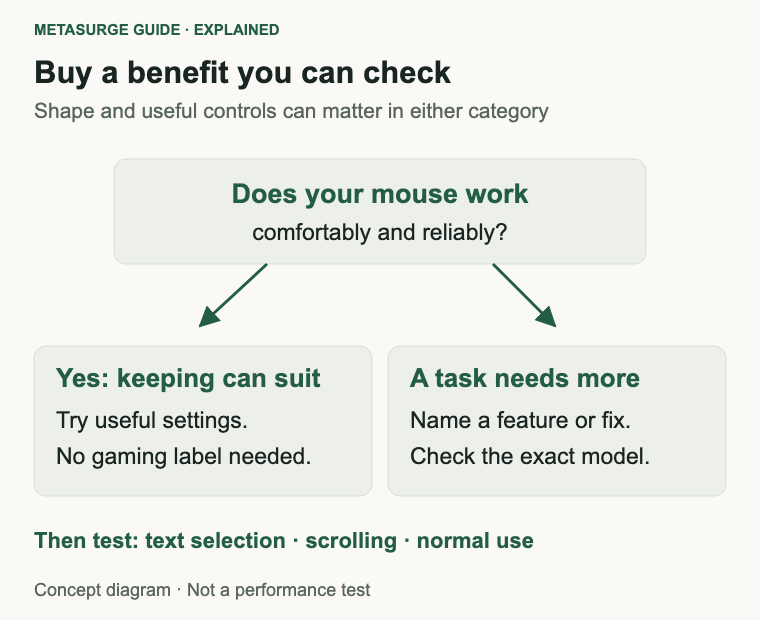
If your present mouse works comfortably, you don’t need to replace it because your computer is powerful or your monitor has a high resolution. Start with the task that feels awkward, then look for a feature that could improve it.
Start with the work your mouse must do
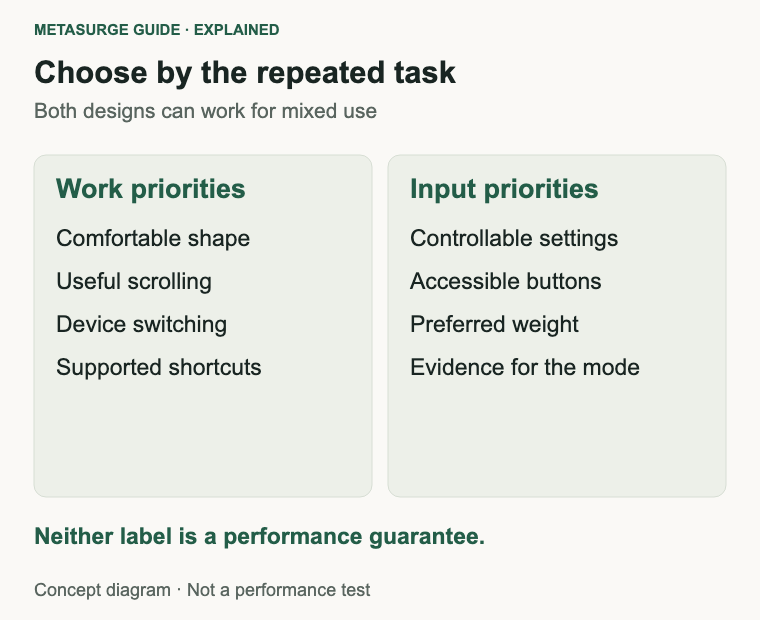
List the actions you repeat most. Selecting text, scrolling reports, moving through spreadsheets and switching between computers place different demands on a mouse from rapid aiming or managing many game commands. The useful features follow from those actions.
For ordinary office work, dependable tracking, comfortable buttons and a suitable wheel can be sufficient. You may value quiet operation, easy travel or a simple battery routine more than a high maximum sensitivity setting. None of those priorities requires a gaming label.
Some office workflows do justify extra controls. A horizontal wheel or a button assigned to a frequent shortcut can remove repeated movements. Check software support and application compatibility before counting that function as part of the purchase.
Gaming also covers different tasks. A game with many commands can reward accessible extra buttons; a task involving repeated large movements may make weight and shape more noticeable. There isn’t one configuration that every game or player needs.
Consider mixed use honestly. A gaming mouse can work well with documents, and an office mouse can be adequate for casual play. The trade-off might be a missing scroll feature, a less convenient connection or a shape that doesn’t suit long sessions, rather than an inability to perform the task.
Be specific about a complaint. “My cursor skips on this surface” is something you can investigate. “My mouse isn’t gaming-grade” doesn’t identify a fault. The second statement can encourage an upgrade without helping you evaluate whether it worked.
For a replacement, write three requirements and separate them from nice-to-have features. That keeps an attractive specification sheet from taking over the decision. It also helps you recognise when a modest model is already enough.
Understand what gaming features can change
DPI usually describes nominal movement counts per inch, although the more precise term is CPI. It affects how much movement the mouse reports for a given physical distance. The operating system and application then help determine how that input moves a pointer or view.
Higher maximum DPI is not automatically greater accuracy. A useful setting is one you can control comfortably for the task. Changing the sensitivity of a working mouse may solve an awkward pointer movement without changing the hardware at all.
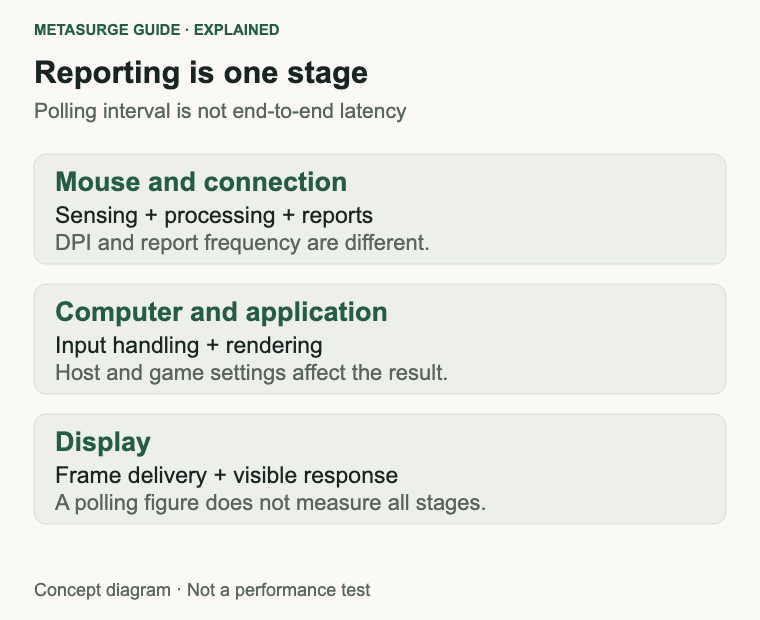
Polling rate describes how often reports can be sent to the computer. For example, 125 Hz corresponds to a nominal interval of 8 milliseconds, while 1000 Hz corresponds to 1 millisecond. That is interval arithmetic, not a measurement of total click-to-screen latency or a guaranteed seven-millisecond improvement.
The rest of the system still contributes to the result. Mouse processing, the connection, application input handling, rendering and display behaviour all matter. NVIDIA’s latency guidance treats the peripheral as part of a larger path rather than equating one polling number with the complete response.
A higher report rate can be useful in appropriate workloads, but check the supported connection mode and host behaviour. Don’t assume that a setting advertised for a receiver connection also applies to Bluetooth. Use model-specific evidence when performance is the reason for spending more.
Programmable buttons change access to commands. Their value depends on where they sit, whether you can reach them without accidental presses and whether the configuration works on your device. More buttons can be unnecessary if you never use them.
Weight is another preference rather than a universal ranking. A lighter mouse can feel easier to reposition, while some people prefer a more substantial feel or a particular balance. Shape, grip and the surface can matter as much as the number of grams.
RGB lighting doesn’t establish input performance. It may be something you enjoy, but it shouldn’t stand in for evidence about tracking or latency. Treat appearance, control features and measured performance as separate reasons to choose a product.
Compare comfort, controls and connections
Start with dimensions and shape. Notice where your fingers rest, whether the shell supports the way you hold the mouse and whether the side buttons interrupt that grip. A shape marketed as ergonomic is still a design you need to assess for your own hand and desk.
Try ordinary actions if you can: drag an item, select a sentence, scroll a long page and lift or reposition the mouse. A brief grip in a shop can identify obvious problems, but longer use may reveal preferences that don’t appear immediately.
Check handedness and button placement. A symmetrical shell doesn’t necessarily provide equally accessible controls on both sides. If you use the mouse with the other hand, confirm the exact arrangement rather than relying on a general product image.
The wheel can be a major work feature. Compare its feel, the effort required for long pages and any horizontal-scrolling function you need. A wheel suitable for deliberate game selection may feel different from one intended for fast document navigation.
Connection choice changes the routine. A wired mouse avoids charging or replacing a battery, but the cable needs a clear path. Receiver wireless frees the cable but requires a suitable port and power management. Bluetooth can be convenient for a laptop, with behaviour dependent on the exact implementation.
Device switching deserves a separate check. Some mice can pair with several devices, but the method of switching and supported combinations vary. Check whether you need a bottom button, software or a particular receiver. An elegant feature on paper may be awkward if you switch many times a day.
Look at configuration software before buying extra controls. Confirm your operating system, access to installation and whether settings remain available on a managed work computer. A feature that depends on software you cannot install may not serve the intended task.
Include the desk in the assessment. The mouse needs enough usable space alongside the keyboard, and the receiver or cable should not force an awkward position. Changing a crowded layout can be a more useful first step than buying a mouse with a more impressive sensor specification.
Check your current setup before replacing it
If movement is unreliable, start with the surface and the sensor area. Follow the manufacturer’s cleaning instructions and try a suitable mouse mat or another supported surface. Tracking problems on reflective or unsuitable material don’t necessarily mean the mouse has reached the end of its life.
Check the connection and power state. For a wireless mouse, replace or recharge the battery as directed and inspect receiver placement. If the manufacturer provides connection troubleshooting, work through it before assuming that a more expensive wireless model is the answer.
Compare another USB port or a supported direct connection where practical. A hub, adapter or distant receiver can be part of the problem. Change one thing at a time so that a successful result tells you something useful.
For pointer movement, review operating-system settings. Microsoft exposes pointer and scrolling controls, and applications can apply their own sensitivity behaviour. A small adjustment can be enough when the complaint is that the cursor travels too far or too slowly.
If you work across several displays, check that the speed suits your preferred physical movement. High screen resolution doesn’t require the largest DPI setting available. Start with a controllable setting and adjust it while repeating a normal task.
For a game, keep its sensitivity and input options consistent while comparing settings. Otherwise, a change in the game can overwhelm the difference you are trying to assess in the mouse. Don’t treat a setting copied from another player as a universal answer.
If a button registers repeated clicks or stops registering, record the behaviour in more than one application. A hardware fault may justify repair or replacement, but it is a different reason from wanting extra performance features. Choosing a gaming model won’t automatically prevent every future switch fault.
After those checks, decide whether the current mouse remains suitable. Keeping a reliable, comfortable device is a valid result. The purpose of troubleshooting is to identify the problem, not to produce a reason to purchase something.
Spend on a specific benefit
A basic office model is a sensible starting point when your tasks are straightforward and it meets the requirements. Prioritise a usable shape, dependable connection and the buttons you actually need. Check the exact seller and support arrangements alongside the price.
Pay more for office features when they remove a repeated inconvenience. Multi-device switching, a wheel you prefer or well-supported shortcuts can be valuable over a long workday. The relevant comparison is the time and friction they remove for you, not how many gaming specifications they lack.
Consider a gaming mouse when you can explain the desired change. You might want a particular grip shape, accessible controls or credible performance evidence for the connection mode you use. Match the purchase to that change rather than buying the largest number in every category.
For performance claims, look for measurements of the exact model and mode under stated conditions. Manufacturer specifications establish supported features, but a maximum setting doesn’t describe every aspect of real use. Avoid transferring a reputation from one product in a range to another.
Compare current total costs. A receiver, replacement battery, cable arrangement or optional accessory can affect the purchase. Product categories don’t create fixed price bands, and a gaming model may cost less than an elaborate productivity design.
Try a short acceptance test during setup: select text accurately, scroll the documents you use, reach the side controls and reconnect after sleep. For games, add your normal movement and command sequence. Keep the settings consistent enough that you can judge the result.
Avoid changing several peripherals at once if you want to understand the improvement. A new display, different sensitivity and another mouse can all affect how input feels. Isolating the change makes your conclusion more useful.
Choose the simplest model that meets the job comfortably, or spend more for a benefit you can describe and check. You don’t need to justify an office mouse through a competitive-game benchmark, and you don’t need to buy a gaming mouse merely to move a cursor across a large screen.
Frequently asked questions
Can I use an office mouse for games?
Yes, when it provides the controls and behaviour you need. Casual play may not justify another device. More demanding tasks can make particular shapes, connection modes or performance characteristics worth investigating.
Is a gaming mouse more accurate for spreadsheets?
The label alone doesn’t establish that. A comfortable shape, controllable sensitivity and reliable tracking are useful in a spreadsheet. Higher maximum DPI doesn’t automatically make cell selection more precise.
Does a 1000 Hz mouse have one millisecond of total latency?
No. One millisecond is the nominal reporting interval at 1000 Hz. The complete input-to-display path includes other stages, and measured latency depends on the particular system and mouse behaviour.
Should I choose wired, receiver wireless or Bluetooth?
Choose around ports, cable preference, power management and any performance requirements. Check the exact model in the mode you intend to use. Performance information for receiver wireless shouldn’t be assumed to describe Bluetooth mode.
Relevant examples to explore
Editorial examples, separate from Best Sellers rankings. Within each group, products are ordered by Amazon Best Sellers position captured 17 October 2026; positions can change.
As an Amazon Associate MetaSurge Guide earns from qualifying purchases. Check current details, price and availability on Amazon before buying. Country detection by DB-IP.
Sources and editorial approach
This guide uses Microsoft’s mouse settings, Logitech’s feature guide and NVIDIA’s system-latency explanation, checked on 16 October 2026. Polling intervals are arithmetic examples. Buying scenarios and comfort checks are editorial reasoning, not hands-on testing or a measured comparison between the product examples.
Where to go next
Visit the Mice guide after identifying the feature or fault you want to address. Use the separate examples to inspect different designs, then confirm shape, software support and your intended connection mode before buying.