
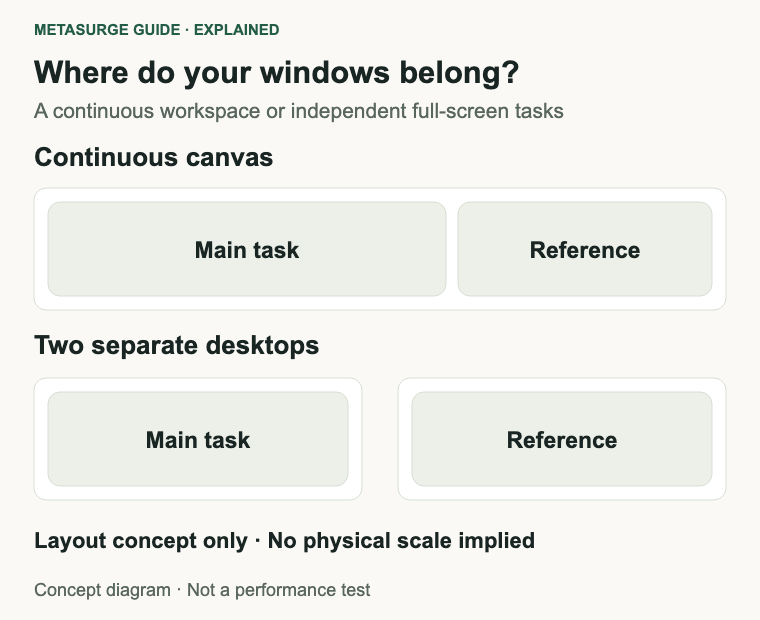
An ultrawide suits work that benefits from one uninterrupted canvas. Dual monitors suit work that benefits from two distinct spaces, especially when you regularly maximise an application on one screen and keep reference material on the other. Neither arrangement automatically makes you more productive.
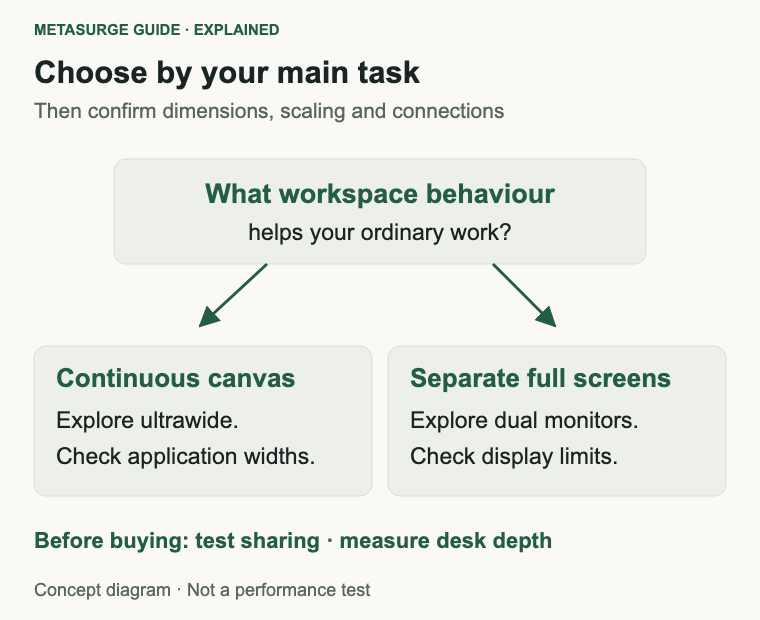
The useful question is what you need visible together. A spreadsheet beside a browser is different from a long editing timeline, and both differ from presenting slides while reading private notes. Choose around those jobs before choosing a diagonal measurement.
For a desk that already has one good monitor, adding a second can be a sensible incremental change. For a fresh setup, an ultrawide can simplify the physical arrangement. In either case, check the computer’s display limits, the space behind the desk and the way your meeting software shares content.
Start with the windows you actually use
Write down three typical tasks and the windows each needs. For example, preparing a report might involve a document, a source page and a chat window. Working through invoices might involve two applications that each need a comfortable minimum width. Video editing might benefit from seeing a longer timeline within one application.
An ultrawide gives those windows a continuous desktop without a bezel in the middle. You can divide it into zones, keep a main window central and place supporting tools to either side. The benefit depends on those applications remaining usable at the width you allocate. Three narrow panes are not useful if every toolbar wraps or the text becomes too small.
Dual monitors provide a natural boundary. Maximise the main application on one, then leave a browser, call or preview on the other. You can change the arrangement later or rotate a suitable second display for a tall document. Rotation requires a stand or mount that supports it; do not assume every monitor can pivot.
Consider what happens when you focus. Some people prefer a wide central workspace with reference windows temporarily hidden. Others rely on a dedicated second screen staying unchanged as the first switches between tasks. Reproduce that behaviour using your current display before deciding that more width is the missing ingredient.
Window management matters in both arrangements. Microsoft’s FancyZones can organise applications into custom regions on Windows. Your operating system may already provide enough snapping and tiling for your work, so try the built-in controls first. A screen boundary is convenient, but it is not the only way to keep windows organised.
Keep a short record over several ordinary work sessions. Note whether you run out of width inside one application or simply lose track of a reference window. Those are different problems, and that small distinction gives you a better buying criterion than a photograph of someone else’s desk.
Compare resolution and usable space, not diagonal size
A 34-inch ultrawide and a 27-inch conventional monitor are measured diagonally across different shapes. The larger number does not tell you how much taller text will be, how many spreadsheet rows fit or whether two documents remain readable side by side.
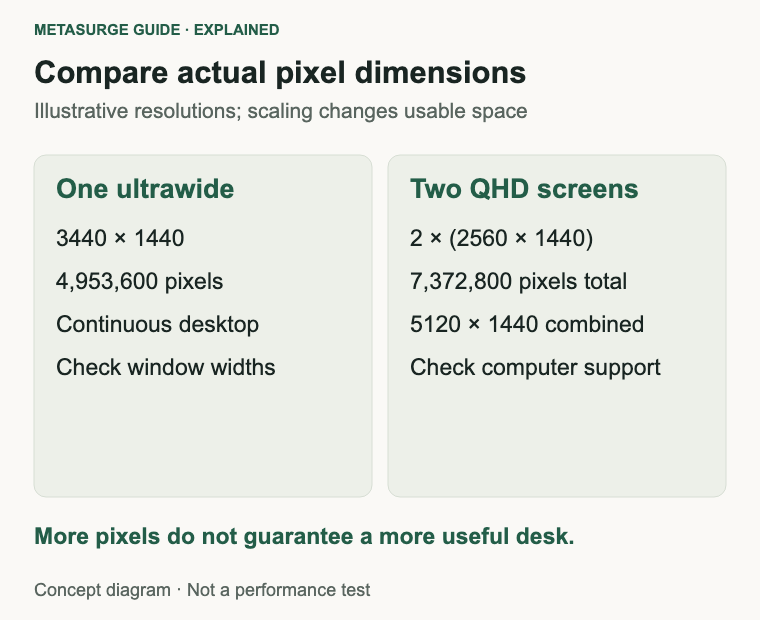
Compare the actual pixel dimensions and your intended scaling. A common ultrawide example is 3440 × 1440. Two 2560 × 1440 displays arranged horizontally provide a combined 5120 × 1440 desktop before accounting for bezels, positioning and scaling. That is arithmetic about those resolutions, not a claim that every dual-monitor setup has more useful space than every ultrawide.
The ultrawide example has 4,953,600 pixels. The two QHD screens together have 7,372,800. More pixels can support more detail, but those numbers do not measure comfort or productivity. A physically large desktop that requires tiny text or frequent head turns may work worse for your particular task.
Scaling changes the practical comparison. Two high-resolution displays running at larger interface scaling do not necessarily expose twice the usable application area of a lower-resolution alternative. Mixed scaling can also make windows appear different in size as you move them. Check your real applications, including older utilities and remote-desktop sessions.
Do not confuse the continuous width of an ultrawide with having two full conventional screens. A 3440-pixel-wide desktop split evenly provides about 1720 pixels per half before borders and application furniture. That can be plenty for some documents and restrictive for a complex design application. Check the required window width instead of assuming that any wide panel replaces two monitors.
Text clarity deserves a separate assessment. Pixel density, panel structure, scaling and viewing distance all contribute. A gaming-focused ultrawide and an office-focused pair can differ in far more than shape. Compare the exact models rather than attributing every difference to ultrawide versus dual.
Check connections before ordering either setup
Start at the computer, then follow the complete connection path: computer port, cable, dock or adapter, monitor input. Every stage must support the intended resolution and refresh rate. Having a matching connector at each end is not enough to establish that the complete mode will work.
For two displays, confirm the number of independent external screens your exact computer supports. Apple explicitly directs Mac users to the display-support section of their model’s technical specifications. Similar checks apply to laptops with graphics or dock limitations. A dock with two sockets does not by itself prove that your computer can extend the desktop across both.
Distinguish extending from mirroring. Two screens showing the same image do not create the two independent workspaces most buyers expect. Read the dock documentation for your operating system, and check any required software or trade-offs before relying on it for a work computer.
For an ultrawide, verify its native resolution at the refresh rate you intend to use. A machine that drives a conventional office monitor comfortably may face a different connection requirement at a high refresh rate or wider resolution. Check the manufacturer’s supported timing tables when the headline specifications leave the combination unclear.
USB-C needs particular care. A USB-C port might provide video, charging, USB data or a particular combination. Do not infer laptop charging from the connector shape, or assume a monitor’s downstream USB-C socket accepts a video signal. If one-cable docking is important, confirm video input, power delivery and peripheral connections separately.
Budget for the complete setup. Dual displays may need another cable, an additional connection path and a suitable mount. An ultrawide may need a different arm or enough depth for its stand. Include the equipment required to make the arrangement work, even if your current desk photo makes it look straightforward.
Keep the existing cable and display available during setup. Change one connection at a time and confirm normal operation after sleep, docking and a restart. A configuration that works once but needs daily reconnection is a poor match for a desk you depend on.
Think through meetings, media and games
Screen sharing can be easier with a dedicated conventional display because you can share one whole screen while keeping notes and messages elsewhere. An ultrawide can still work well: sharing a specific application window often avoids sending an unusually wide desktop to people watching on smaller screens.
Test the meeting software you actually use. Check what participants see, whether text is readable at their end and whether you can access meeting controls without exposing other material. Window sharing, region sharing and presenter modes vary between applications. Do not assume that a layout which looks spacious locally will be clear to someone viewing it on a laptop.
For games, ultrawide support depends on the individual title and its modes. Some games use the extra width; others introduce borders, restrict the field of view or handle menus and cutscenes differently. Check the games you spend time with before making immersion the deciding argument.
Two monitors are useful for keeping a guide, call or monitoring tool beside a game, but most people will play on one main display. Spanning a game across two screens can place the centre of the image at the bezel, which deserves a practical check rather than an assumption that more total width is always desirable.
Video has its own aspect ratio. A wide screen does not make every film or streaming programme fill the panel, and conventional content may appear with unused space at the sides. That is a consequence of the content and display shapes, not necessarily a fault.
Creative work can favour either setup. A timeline can benefit from continuous width, while a dedicated preview screen can benefit from physical separation. Neither choice establishes colour accuracy, HDR performance or suitability for print work. Those remain model-specific requirements and may matter more than the number of panels.
If you share the desk with a console or another computer, check input switching and supported resolutions as well. Picture-by-picture and KVM functions are optional features with their own limitations; they are not standard promises attached to the word ultrawide.
Fit the layout to your desk and choose
Measure the space you can actually use, including stand depth, the gap to the wall and room for the keyboard and mouse. Compare manufacturer dimensions with the stand attached. A wide panel that technically fits across the desk can still leave the screen too close or the keyboard pushed towards the front edge.
Think about the main viewing position. With two monitors, decide whether one is primary or both are equally important. Put the main task where you can view it comfortably, then position the supporting screen around it. There is no need to place a bezel directly in front of you simply because the arrangement looks symmetrical.
For an arm, confirm the exact mounting pattern, supported weight, size constraints and desk-clamp requirements. Check whether the desk can take the mount and whether a curved panel creates clearance issues. Two displays also need room for adjustment without colliding with a wall or each other.
Choose an ultrawide when your work benefits from continuous space, your computer supports the desired mode and you are comfortable managing windows within one large desktop. Choose dual monitors when separate full-screen tasks, a dedicated shareable screen or the ability to reuse an existing display matter more.
Neither option needs to be bought all at once. If your existing screen is adequate, try a borrowed second display or temporarily use a laptop screen for reference. If the problem is window organisation rather than space, a tiling workflow might solve it without new hardware.
Before committing, make a simple acceptance checklist: the main document is readable, the secondary application fits, calls share clearly, connections survive sleep and the stand leaves enough working space. These are observable requirements you can evaluate during setup. They are more useful than an unsupported promise that one arrangement doubles productivity.
Frequently asked questions
Does one ultrawide replace two monitors?
Sometimes, but compare resolutions and application widths. A 3440 × 1440 ultrawide does not have the same horizontal pixel count as two 2560 × 1440 displays. It may still be the better workspace if your main application benefits from a continuous canvas.
Can a laptop run two external monitors through one dock?
It depends on the exact laptop, operating system, dock and display modes. Check independent external-display support and the dock’s documented compatibility. Two physical outputs alone do not guarantee two extended desktops.
Is an ultrawide harder to use for screen sharing?
Sharing the whole desktop can make text small for viewers on conventional screens. Sharing an application window can help. Test your meeting software and normal presentation workflow before choosing.
Must dual monitors match?
No. Matching size, resolution and scaling can simplify alignment, but a useful existing screen may be a good secondary display. Check how your applications behave as windows move between them and whether the height adjustment suits the arrangement.
Relevant examples to explore
Editorial examples, separate from Best Sellers rankings. Within each group, products are ordered by Amazon Best Sellers position captured 17 October 2026; positions can change.
As an Amazon Associate MetaSurge Guide earns from qualifying purchases. Check current details, price and availability on Amazon before buying. Country detection by DB-IP.
Sources and editorial approach
This guide uses Apple’s external-display guidance, Microsoft’s FancyZones documentation and Dell’s layout comparison. Sources were checked on 15 October 2026. Pixel totals are explicit arithmetic; the workflow scenarios and buying checklist are editorial interpretation. No hands-on comparison or productivity measurement is claimed.
Where to go next
Use the Monitors guide to compare options after deciding on your layout, resolution and connection requirements. Treat the separate product examples as starting points for specification checks, then confirm the exact variant and complete setup before buying.