
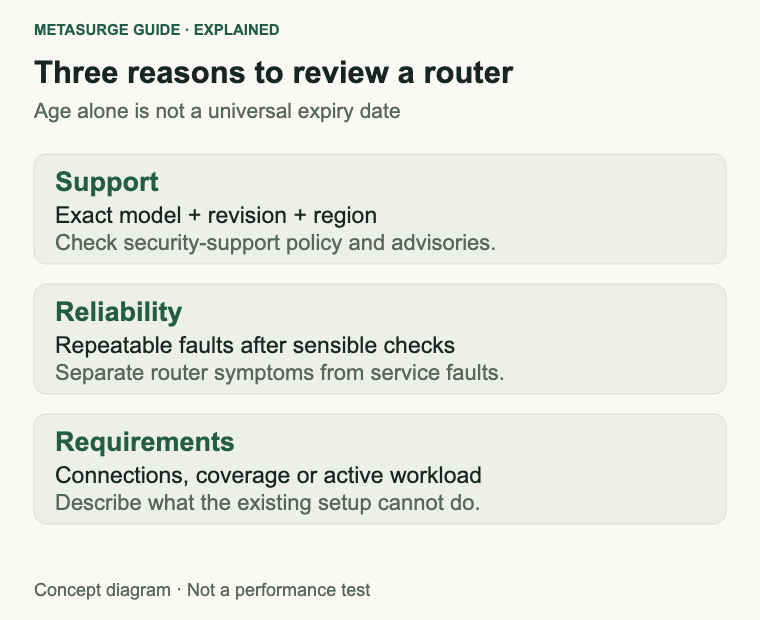
Replace an old router when it no longer receives the security support you need, develops a persistent fault or cannot meet a clearly identified requirement. Age alone is a useful reminder to check it, not a reliable expiry date.
A newer router can improve parts of your home network, but it cannot repair every slow internet connection. Poor placement, a service fault, an overloaded connection or a limited client device may remain after an expensive upgrade. Work out which problem you are paying to solve.
For your home, also check how the router connects to your internet service. A standalone Ethernet router does not automatically replace a combined DSL modem-router, a provider’s phone functions or a provider-supplied connection box. Plan the change before unplugging equipment you still need.
Start with security support, not the birthday
Find the exact model, hardware revision and regional version on the router label or management page. These details matter because similarly named products can have different firmware and support schedules. Save them somewhere useful before looking for updates.
Visit the manufacturer’s official support page for that exact version. Check its security-support policy, any published end-of-support date and relevant advisories. Do not treat a familiar brand name or the presence of a download page as evidence of continuing support.
There is a difference between end of sale and end of security support. A product can disappear from shops while still receiving updates, or remain available through a seller after its support position has changed. Use the manufacturer’s model-specific statement rather than the retail listing alone.
A recent firmware file is helpful information, but its absence does not establish an end-of-support date. If the policy is unclear, ask the manufacturer or your provider. Likewise, one exceptional patch for an older product does not necessarily mean active support has resumed.
TP-Link’s end-of-service advisory provides a useful example: it describes affected older products as no longer receiving active support, including security updates, despite listing particular patched downloads. The lesson is to read the support status as well as the download date, not to generalise that advisory to every router.
Some manufacturers publish regional support tables with dates for particular models. ASUS provides one such table. Check the current entry and its scope rather than assuming every router from that manufacturer has the same remaining period.
If security support has ended, plan replacement even when everyday browsing still works. Speed and ongoing maintenance are different requirements. Relegating unsupported equipment to another role also needs thought; using it as an access point is not automatically a remedy for unsupported software.
For a replacement, record the support commitment alongside the connection specifications. A newer Wi-Fi generation is not by itself a promise about update duration. Check how support is delivered, whether updates can be automated and what the manufacturer says about the exact model you are considering.
Distinguish router trouble from service trouble
Write down the symptom before restarting anything: slow transfers, poor performance in a particular room, complete dropouts or a problem limited to one device. Add the time, affected devices and whether the router’s local management page remains reachable.
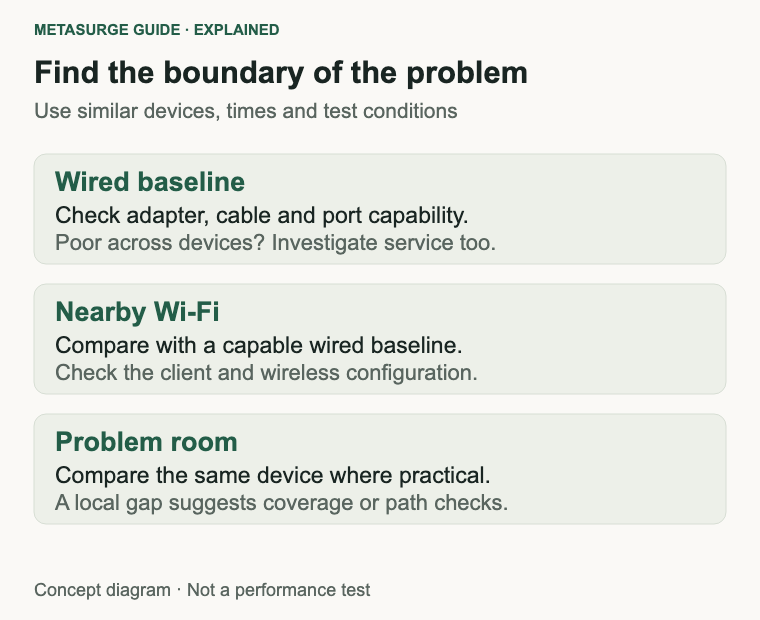
Compare a supported wired connection with Wi-Fi using the same capable computer where practical. Keep the test conditions similar and avoid large background transfers. A wired result that is healthy while a distant wireless result is poor points towards a different investigation from a problem affecting both.
Ethernet does not remove every possible bottleneck. The computer, adapter, cable and router port must support the test you are attempting. An old adapter can produce a misleading ceiling, especially after an internet-plan upgrade. Check the negotiated connection and equipment specifications before blaming the router.
Try another device as a cross-check. If only one laptop has trouble while several other devices work normally in the same place, replacing the shared router is a weak first response. Client software, power settings, drivers or wireless capability may deserve attention.
Time patterns are useful too. A repeatable evening slowdown is different from a connection that fails whenever a particular cable is moved. Keep notes you can give your provider rather than relying on a single speed-test screenshot taken at a different time.
Check for a known service outage and contact your provider if the connection fails across devices or the access equipment indicates a fault. Do not factory-reset the router before checking what credentials and settings would be needed to reconnect. A reset can turn a diagnosis into a larger recovery job.
A restart can be a troubleshooting step when the manufacturer or provider recommends it. Needing to restart repeatedly to make normal use possible deserves investigation, but it still does not prove that age is the cause. Firmware, configuration, power and the upstream service can all matter.
If you have overheating concerns, inspect the installation against the ventilation instructions and keep vents clear. Do not open power equipment or substitute an arbitrary adapter. A damaged power supply or router is a service question, not an invitation to keep experimenting with mismatched parts.
Check whether coverage or capacity has changed
A router that once suited a small flat may struggle with a different floor plan, an extension or a work desk behind several walls. That change does not necessarily mean the hardware has deteriorated. The job it needs to do may simply be different.
Start with placement where the service connection allows it. A router enclosed in furniture or placed at one end of the home gives you a different starting point from a sensible open location. Check the manufacturer’s installation guidance and assess the rooms you actually use.
A good signal indicator at the device is only part of the picture. If a mesh node uses a weak wireless link back to the main router, placing it in a dead zone may not provide the improvement you expected. The upstream path must work as well as the nearby client connection.
For coverage, consider relocating the router, adding a correctly planned access point or using a suitable mesh system. Wired backhaul can be useful where supported and practical. These are layout decisions; buying a more expensive single unit does not guarantee that walls and distance stop mattering.
Capacity is a separate question. A household can change from occasional browsing to simultaneous video calls, streaming, camera uploads and large downloads. Check whether the internet plan or the local network is becoming constrained during those periods.
More connected devices do not automatically mean a router is overloaded. A mostly idle smart plug is a different workload from a device sending continuous video. List the active tasks and observe when problems occur rather than buying according to an impressive device-count claim.
Separate local traffic from internet traffic as well. Moving large files to network storage can stress parts of the home network without requiring a faster internet plan. Streaming from an online service uses the internet connection and the local path to the device. Knowing which is slow helps target the upgrade.
If the existing router remains supported and reliable, improving the layout may be enough. If it also lacks needed connections or has a confirmed persistent fault, replacement can solve more than one problem. Describe those requirements explicitly before comparing hardware.
Know what a new router can actually improve
Check port speeds first if you have upgraded the internet connection or move large files locally. A slower WAN port can constrain traffic entering from the internet, while slower LAN ports can constrain wired devices. The full path matters, including adapters and any intermediate switch.
Advertised Wi-Fi class numbers need different treatment. They can combine theoretical rates across bands and do not describe a guaranteed download speed for one laptop. A larger figure is not a substitute for checking client compatibility, placement and realistic requirements.
Newer wireless features also require support across the relevant devices and modes. A new router cannot make an older client acquire capabilities it lacks. You may still gain other benefits, but choose them deliberately rather than assuming every connected device will receive the same speed increase.
For ordinary online use, the internet service remains a ceiling. Replacing a capable router does not change the plan you buy from your provider. It may help you reach more of that service in suitable conditions, but it cannot turn a lower-speed plan into a faster one.
Latency deserves its own check. A router feature marketed for gaming does not control the distance to a game server or every part of your provider’s network. Traffic management may help in particular congestion scenarios, but it does not establish a universal reduction in ping.
Look at the functions you depend on: guest networks, parental controls, VPN arrangements, provider support and phone service. Some features require subscriptions, particular operating modes or a manufacturer account. Check the ongoing arrangement as well as the purchase.
Avoid paying to fix a problem you cannot describe. “The study needs a reliable call connection” is a useful requirement. “I want a larger number on the box” is much harder to validate. Keep a short list of tests the replacement should pass in your home.
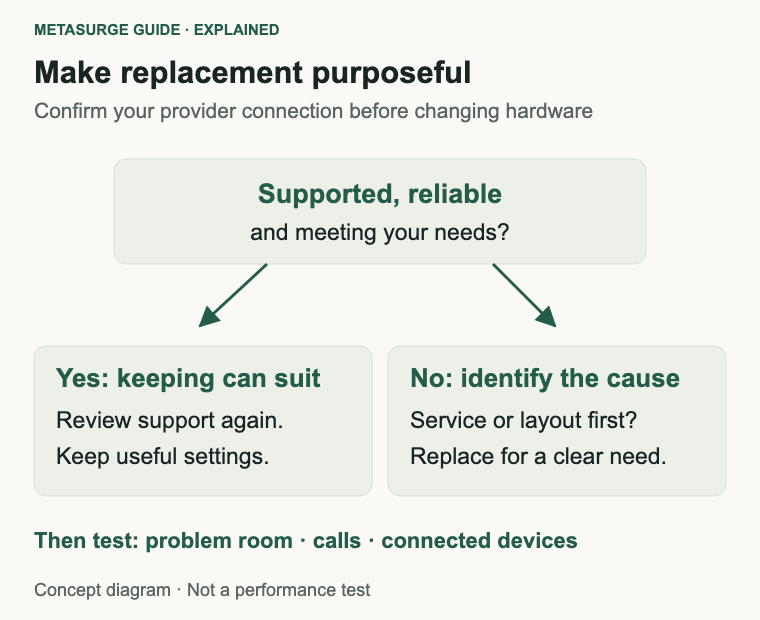
There is also a sensible keep option. If the router has continuing support, the connection is stable, rooms work adequately and the hardware meets your plan, a newer generation is optional. Waiting can preserve both money and a setup you already understand.
Plan the replacement and verify the result
Ask your provider what equipment and settings your connection requires. Confirm whether the current box includes a modem, phone functions or provider-managed features you need to preserve. The connection technology and the provider’s configuration both affect the replacement path.
Record the current network names, important settings and any manual arrangements such as reserved addresses. Use the manufacturer’s supported backup process if appropriate, but do not assume a configuration file from one brand or model can safely be restored to another.
Schedule the change when the household can tolerate an interruption. Have setup instructions, account access and provider contact information available before disconnecting the working equipment. For a work-from-home household, avoid starting just before an important call.
Follow the official installation sequence. Set a suitable administrator password, install the correct firmware and confirm the security settings supported by your devices. If a provider must activate or configure part of the service, resolve that dependency before treating setup as finished.
Test the tasks that motivated the purchase. Check a wired baseline, the problem room, the usual video call and simultaneous household use. Use comparable devices and times where possible. A faster reading beside the router does not establish that the far bedroom problem has been solved.
Check phone functions and important connected devices separately. Reusing a network name can simplify reconnection, but some devices may need attention when security modes or settings differ. Keep the old configuration details available until the new arrangement is stable.
Then decide what happens to the old router. If it is being sold, recycled or returned, follow the manufacturer’s reset and account-removal instructions. Do not keep an unsupported unit connected merely because it still powers on.
The replacement decision is complete when the new setup addresses the identified problem and preserves the services you need. Keep the support details and a short record of the final settings so the next review starts with evidence rather than guesswork.
Frequently asked questions
Should I replace a router every three or five years?
There is no universal interval. Check security support, reliability and your requirements. A supported router that works well may remain suitable, while unsupported or faulty equipment can justify replacement sooner.
Does old firmware prove a router is unsupported?
No. Check the official support policy and model-specific notices. The date of the latest download alone does not establish the future update position. Ask the manufacturer if the status is unclear.
Will a new router fix slow internet everywhere?
Only if the router or local network is the relevant constraint. Service faults, plan limits, client limitations and coverage layout require different responses. Compare wired and wireless behaviour before buying.
Can I replace my provider’s modem-router with any Wi-Fi router?
No. Confirm the modem, connection, settings and phone requirements with your provider. A standalone Ethernet router does not automatically replace every function of the existing equipment.
Relevant examples to explore
Editorial examples, separate from Best Sellers rankings. Within each group, products are ordered by Amazon Best Sellers position captured 17 October 2026; positions can change.
As an Amazon Associate MetaSurge Guide earns from qualifying purchases. Check current details, price and availability on Amazon before buying. Country detection by DB-IP.
Sources and editorial approach
Support checks draw on TP-Link’s end-of-service advisory and ASUS’s regional support table. Sources were checked on 15 October 2026. The replacement checklist is editorial interpretation; no hardware failure rates, universal service life or hands-on speed improvement is claimed.
Where to go next
Visit the Wi-Fi Routers guide once you know whether you need support, reliability, different connections or better coverage. Treat the separate examples as alternatives to investigate, and confirm provider compatibility and the exact support position before buying.