
The short answer
For a 27-inch work monitor, 1440p is still the practical value choice for many people, while 4K is the sharper choice if text clarity matters to you and you are comfortable using display scaling.
At the same physical screen size, 4K packs far more pixels into the panel. That can make text, icons and fine interface details look cleaner, especially when the operating system scales the interface so it stays a comfortable size. But 1440p is not a poor work resolution: at 27 inches it gives a useful amount of desktop space, usually works comfortably at native sizing, and asks less of the computer and display connection.
If your day is mostly email, web apps, spreadsheets and ordinary office work, a good 27-inch 1440p monitor can be all you need. If you spend hours reading text, coding, editing detailed documents or simply notice jagged text easily, 27-inch 4K is easier to justify.
What changes between 1440p and 4K at 27 inches?
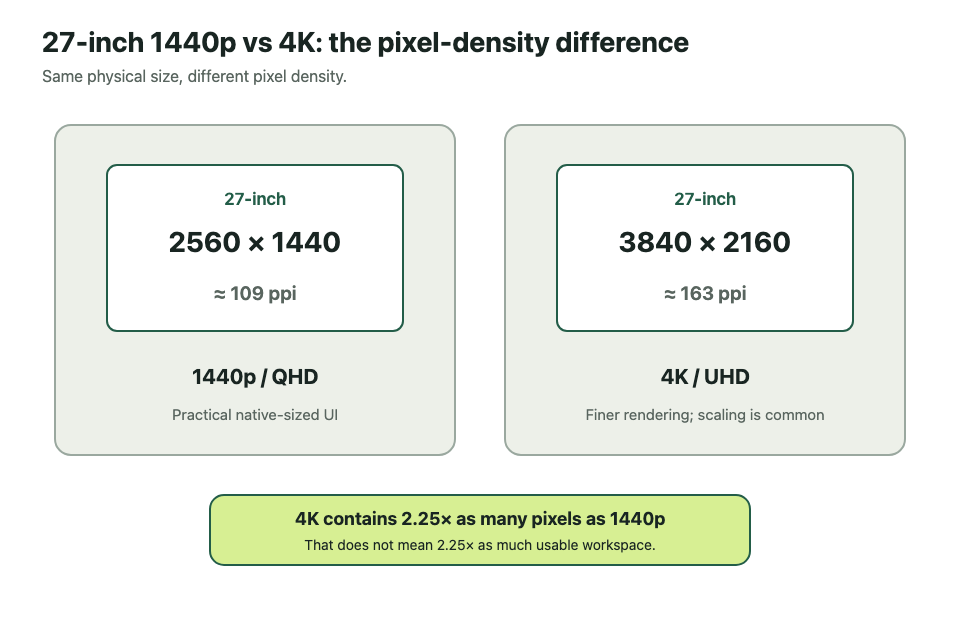
The physical size stays roughly the same. The difference is how many pixels are fitted into that 27-inch diagonal.
| 27-inch resolution | Pixel dimensions | Approx. pixel density | Practical effect |
|---|---|---|---|
| 1440p / QHD | 2560 × 1440 | 109 ppi | Comfortable desktop density with relatively large native UI |
| 4K / UHD | 3840 × 2160 | 163 ppi | Finer text and interface detail, commonly paired with scaling |
A 4K panel contains about 2.25 times as many pixels as a 1440p panel. That does not mean it gives you 2.25 times as much useful workspace, because text and interface elements would become very small if you tried to use all those pixels at native 100% sizing on a 27-inch screen.
What the extra pixels mainly buy you is the option to render the same-sized interface with more detail.
Sharpness: where 4K has the clearest advantage
Text is made from pixels. When more pixels are packed into the same physical area, the edges of letters and icons can be represented more finely.
That is why 27-inch 4K can look noticeably cleaner for text-heavy work. Small fonts, thin lines, spreadsheet grids and interface elements can have smoother-looking edges. The improvement is most obvious to people who sit reasonably close to the monitor or who are sensitive to text rendering.
The difference is not the same for everyone. Viewing distance, eyesight, font size, operating-system rendering and the individual monitor all affect what you notice. A 1440p screen at 27 inches is not inherently fuzzy; it simply has lower pixel density than a 4K screen of the same size.
Resolution also tells you nothing about colour accuracy, contrast, brightness, panel uniformity or viewing angles. A higher-resolution monitor can still be worse for your work if the rest of the display is poorly suited to it.
Workspace: more pixels do not always mean more usable space
It is tempting to look at 3840 × 2160 and assume 4K gives dramatically more room for windows than 2560 × 1440. Technically, there are more addressable pixels. In practice, most people do not want menus, text and icons to become dramatically smaller just to fit more on screen.
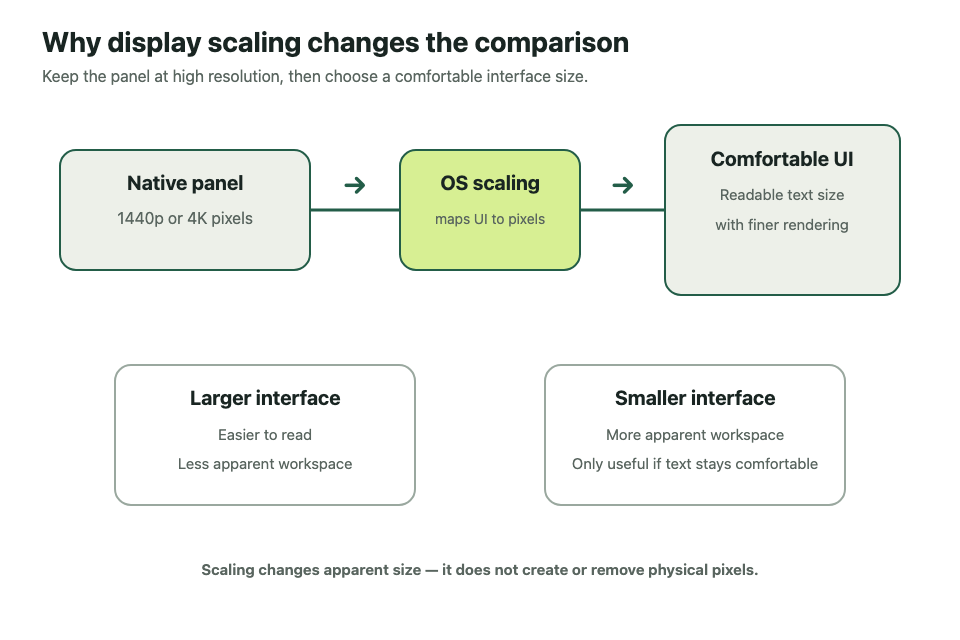
That is where scaling changes the comparison.
A 27-inch 1440p monitor is often comfortable at its normal native interface size. You get a useful canvas for a browser beside a document, a code editor with side panels, or a spreadsheet with plenty of visible rows and columns.
A 27-inch 4K monitor is commonly used with the interface enlarged. You may end up with similar effective workspace to a lower-resolution display, but with finer rendering. Depending on your scaling choice, you can also trade some sharpness-friendly UI size for extra room.
So the question is not simply, “How many pixels do I get?” It is, “How much workspace can I use comfortably at the text size I prefer?”
Why display scaling matters
Windows and macOS both let you change how large interface elements appear without simply forcing the monitor to run at a low physical resolution.
On Windows, the Display settings separate resolution from scaling. Microsoft generally recommends using the monitor’s recommended resolution, then adjusting Scale if text and apps are too small. This preserves the panel’s native pixel grid while changing how large interface elements are drawn.
macOS takes a similar user-facing approach through its display resolution choices: you can choose a mode that makes text larger or provides more apparent space. Apple also notes that scaled modes can have a performance cost in some situations.
The important idea is simple: 4K does not require you to live with tiny text. Scaling exists specifically so you can use the extra pixel density for cleaner rendering while keeping the interface readable.
When 1440p is the better work monitor
Choose 27-inch 1440p when you want a straightforward productivity screen without paying primarily for extra pixel density.
It makes particular sense if you already find 27-inch QHD text comfortable, do not spend your day examining very small type, and would rather spend the budget on other features such as a better stand, USB-C docking, a higher refresh rate or a stronger panel.
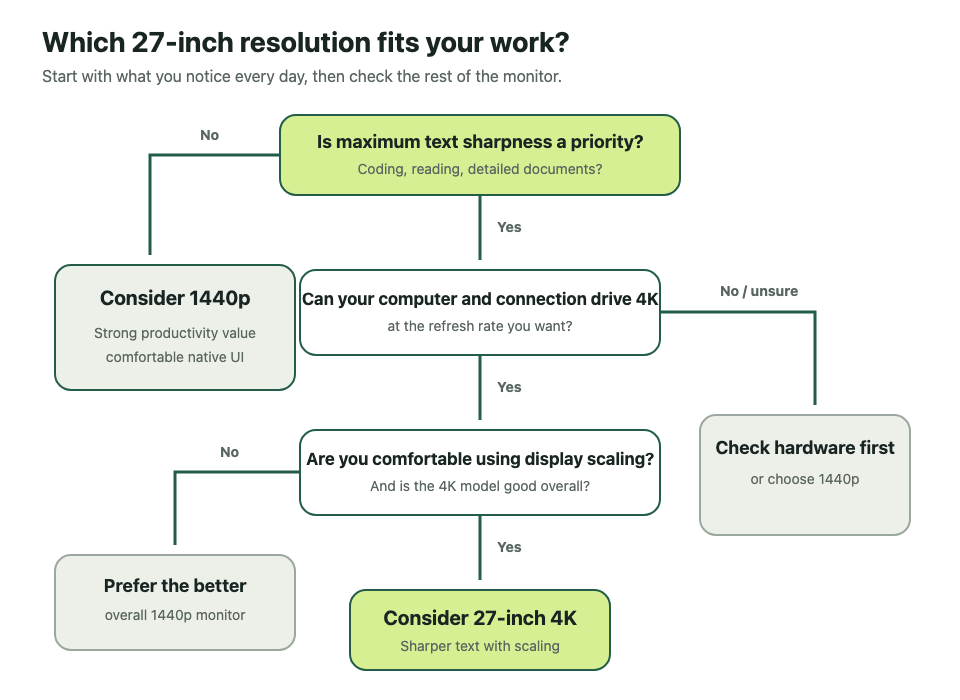
It can also be the simpler option for older laptops, docks and cables. 1440p requires less display bandwidth than 4K at the same refresh rate. That does not mean modern computers struggle with ordinary 4K desktop work, but it does mean there are fewer ways for older hardware or adapters to become the limiting factor.
For a multi-monitor setup, 1440p can also be attractive when you want several screens at a sensible cost and consistent interface sizing.
When 4K is worth paying for
Choose 27-inch 4K when sharper text is something you will appreciate every working day.
Developers, analysts, writers and anyone who spends long sessions reading small text can benefit from the higher pixel density. The same applies if you work with high-resolution photos, dense diagrams, detailed design assets or documents where fine lines and type matter.
4K becomes more compelling when the price difference is modest and the monitor already has the other features you need. It is less compelling when reaching 4K forces you to give up something more important, such as ergonomic adjustment, useful ports, a suitable refresh rate or a better-quality panel.
If you are buying a monitor you expect to keep for many years, paying more for the sharper 27-inch option can be reasonable. But “4K” on the box should not override the rest of the specification.
Coding, spreadsheets and documents
For coding, the main 4K advantage is not that you can necessarily cram far more code onto the screen. It is that fonts can be rendered with more detail at a comfortable size. If you prefer small editor fonts, that can be especially noticeable.
For spreadsheets, raw workspace can matter more. A 1440p monitor already gives you substantially more room than 1080p, and at 27 inches it is often easy to use without aggressive scaling. A 4K monitor can show more cells if you choose a smaller effective UI, but there is little value in fitting more columns on screen if you have to lean forward to read them.
For Word documents, PDFs, research and browser-heavy work, both resolutions are productive. The deciding factor is usually whether you value the additional text refinement of 4K enough to justify the cost and scaling setup.
Mac vs Windows: what to check
Do not buy purely from the monitor resolution. Check how your actual computer will drive it.
On Windows, confirm that the laptop or desktop, dock and cable can deliver the resolution and refresh rate you want. Then plan to use the monitor at its recommended native resolution and adjust scaling for comfortable text size rather than lowering the panel resolution just to make things bigger.
On a Mac, check the supported external-display resolutions and refresh rates for your specific Mac model and connection. macOS offers several display-size choices, but the available scaled modes and refresh-rate combinations can vary with the Mac and display.
If you use the same monitor with both Windows and macOS, test your preferred scaling and application mix before assuming one setup will feel identical on the other.
Do not forget refresh rate, ports and ergonomics
Resolution is only one part of a good work monitor.
A higher refresh rate can make scrolling, window movement and general interaction feel smoother even if you never play games. USB-C can simplify a laptop desk by carrying video and, on supporting monitors, power and USB data over one cable. A height-adjustable stand can matter more to daily comfort than the jump from one resolution to another.
Also check the inputs your computer and dock actually provide. A monitor advertised at a particular resolution and refresh rate may need a suitable DisplayPort, HDMI or USB-C connection to reach that mode.
For work, prioritise the complete setup: readable text, comfortable positioning, reliable connectivity, sensible refresh rate and a panel suitable for your tasks.
A quick decision checklist
Choose 27-inch 1440p if most of these sound like you:
- you want strong productivity value rather than maximum pixel density;
- 27-inch QHD text already looks comfortable to you;
- you prefer simple native-sized UI;
- you are building a multi-monitor setup on a tighter budget;
- you would rather spend extra on USB-C, ergonomics, refresh rate or panel quality.
Choose 27-inch 4K if most of these sound like you:
- text sharpness is a high priority;
- you read, code or work with detailed content for long periods;
- you are comfortable using display scaling;
- your computer, dock and cable support the resolution and refresh rate you want;
- the 4K model does not force you to compromise on more important features.
Frequently asked questions
Is 1440p enough for a 27-inch office monitor?
For many people, yes. Around 109 ppi gives a useful balance of workspace and readable native-sized UI. The main reason to move to 4K at the same size is finer rendering rather than a requirement for ordinary office work.
Is 4K too small on a 27-inch monitor?
The pixels are small, but the interface does not have to be. Windows and macOS both provide scaling options so text and applications can remain comfortably sized while the monitor runs at high resolution.
Does 4K give me more workspace than 1440p?
It can, but the real answer depends on scaling. If you enlarge the 4K interface substantially, the effective workspace may be similar to a lower-resolution setup while looking sharper. If you choose a smaller interface, you can gain workspace at the cost of smaller text and controls.
Is 4K harder for a computer to drive?
A 4K display requires the graphics system and connection to handle more pixels than 1440p. For ordinary desktop work, many modern systems can do this comfortably, but you should still verify the supported resolution and refresh rate of your computer, dock and cable.
Should I choose resolution before refresh rate?
Not automatically. If you spend all day scrolling through documents, code or web pages, a higher refresh rate can improve perceived smoothness. Compare the whole monitor rather than treating resolution as the only specification that matters.
Relevant examples to explore
Editorial examples, separate from Best Sellers rankings. Within each group, products are ordered by Amazon Best Sellers position captured 17 October 2026; positions can change.
As an Amazon Associate MetaSurge Guide earns from qualifying purchases. Check current details, price and availability on Amazon before buying. Country detection by DB-IP.
Where to go next
Want to compare current models? Explore the full MetaSurge Monitors category for current products, filters and buying tools.