
You need enough internet capacity for the activities your household runs at the same time, plus a reliable local connection in the rooms where those activities happen. The number on a router box cannot tell you either of those things on its own.
Start with the busiest ordinary period: perhaps a television stream, two work calls and a game download. Check download and upload separately, then look at whether your current connection struggles with that combination. There is no single speed that is right for every household.
Also separate a slow connection from an unstable one. A larger plan can help when simultaneous traffic fills the available capacity, but it will not automatically fix a weak signal in the study, repeated disconnections or a distant game server. The best upgrade is the one that addresses the actual limit.
Separate the internet plan from the Wi-Fi link
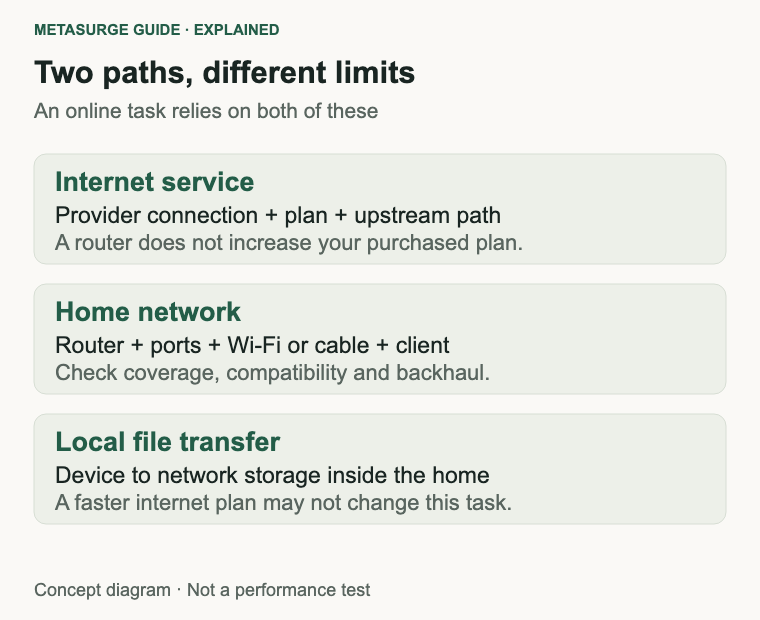
Your internet plan describes the service you buy from a provider. Your Wi-Fi connection carries traffic between a wireless device and the home network. Online activity depends on both paths, and performance can be constrained by either one.
A laptop may show a high wireless connection rate while an online download remains limited by the internet service. Equally, a fast plan can be difficult to use from a distant room if the wireless path is poor. Neither result means the two speed figures should match.
Advertised router classes can combine theoretical rates across bands. They are not guaranteed speeds for one device, and they are not a statement of the broadband plan included with the router. Check what a specification measures before comparing it with your provider’s Mbps figure.
The path also includes ports, adapters, cables and any mesh backhaul. A strong connection to a nearby mesh node is not enough if that node has a poor path to the rest of the network. A capable wired baseline helps distinguish these possibilities.
Local transfers are different again. Copying files between a computer and network storage can use the home network without relying on the internet connection. A faster plan will not necessarily speed up that transfer, although suitable local equipment and connections may.
Use consistent units. Mbps means megabits per second; file sizes are often shown in megabytes or gigabytes. At the simple decimal arithmetic level, eight bits make one byte. A 100 Mbps connection therefore corresponds to an ideal 12.5 megabytes per second before overhead and other limitations.
That conversion is useful for understanding a download estimate, not for promising a result. Server limits, shared activity, protocol overhead and the actual connection all affect completion time. Compare like with like and allow real measurements to overrule the theoretical maximum.
Add the activities that overlap
List active tasks rather than just counting connected devices. An idle appliance contributes a different workload from a television streaming video or a laptop sending a backup. The important question is what happens together during your normal busy period.
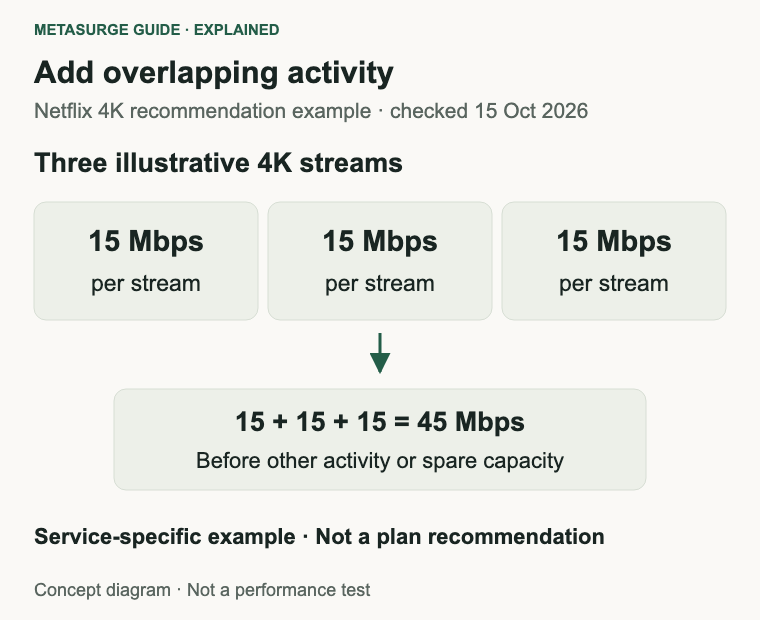
For each task, check the service’s current requirements at the quality setting you use. Netflix, for example, recommends a stable connection of 3 Mbps for 720p, 5 Mbps for 1080p and 15 Mbps for 4K. Those are Netflix’s figures, not universal requirements for every video service.
A simple illustration makes the addition clearer. Three Netflix 4K streams, each using the service’s 15 Mbps recommendation, add to 45 Mbps. That arithmetic is not a complete household-plan recommendation: it excludes other activity and does not guarantee stable delivery to every screen.
Leave room for concurrent work and normal variation rather than selecting a plan exactly equal to a calculated minimum. There is no universal headroom percentage that works for every household. A small household with steady streaming differs from one with unpredictable uploads and frequent large downloads.
| Activity in your busy period | What to check |
|---|---|
| Video streaming | Service, resolution and number of simultaneous streams |
| Video calls | Both upload and download requirements for the chosen call mode |
| Online multiplayer | Connection stability, latency and background traffic |
| Cloud gaming | Service-specific video-stream bandwidth and latency requirements |
| File downloads and backups | File size, desired completion time and traffic direction |
Distinguish an occasional peak from an everyday requirement. You might choose to schedule a large backup outside work calls instead of buying more capacity solely for that overlap. Another household may value finishing transfers quickly enough to justify the higher service level.
Check your provider’s actual download and upload offering, address eligibility and expected performance information. Access technologies and available services differ by market. A plan label is not a promise that every premises, device and time of day will produce the same measured speed.
Revisit the list when your use changes. Moving to cloud-based work or adding another person working from home can matter more than adding several mostly idle smart devices. Base the review on the work being done, not a generic claim that a particular number of gadgets requires a premium router.
Streaming, gaming and work need different checks
Streaming video mainly needs sustained download capacity and a stable path to the screen. Once there is enough capacity for the chosen quality and other activity, buying a faster plan does not necessarily make that stream look better. The service, subscription, content and playback device also influence available quality.
Online multiplayer is a different workload from downloading a game. Downloads can benefit substantially from more available throughput when the server and equipment allow it. During play, responsiveness also depends on latency, variation in delay and packet loss, so a headline Mbps result is incomplete.
Cloud gaming is different again because the game’s rendered video is delivered as a live stream. NVIDIA lists 25 Mbps for a 1080p, 60 fps GeForce NOW stream in its requirements, alongside separate latency and connection guidance. Check the requirements for your exact platform and mode rather than applying that figure to every game.
More speed does not shorten the physical distance to a server. A service upgrade may help if traffic is filling your connection, but it does not establish a universal improvement in ping. Test during the conditions that cause trouble, especially while other household activity is running.
Video calls need upload as well as download. If your camera or screen share is being sent to other participants, the upstream side matters. Check the application’s requirements for the meeting size, video quality and sharing mode you use; there is no single number that covers every work call.
Large uploads can be easy to overlook. Photo synchronisation, a work backup or cameras sending footage may overlap with a meeting even when nobody is actively browsing. Investigate whether a background task is running before assuming the call application or router has failed.
For work, reliability can matter more than reducing an occasional download by a few minutes. A practical goal is that the call remains clear while the household’s ordinary tasks continue. Test that outcome instead of choosing solely by the largest possible speed-test result.
Where convenient and supported, compare a wired connection for a fixed desk or console. It can remove part of the wireless path from the investigation, but it cannot fix an upstream service fault. Use it to identify the constraint, then decide whether wiring, placement, traffic scheduling or more capacity addresses it.
Balance download, upload and waiting time
Think about what you are trying to improve. If streaming and calls already work, a faster plan may mainly shorten transfers. That can still be valuable, but it is a different benefit from fixing an unreliable connection.
Use explicit arithmetic for a rough waiting-time comparison. A decimal 10 GB file contains 80 gigabits. At a constant 100 Mbps devoted entirely to that transfer, the ideal time is 800 seconds, or 13 minutes 20 seconds. This assumes decimal units, no overhead and no competing traffic.
At a constant 200 Mbps under the same assumptions, the ideal time halves to 400 seconds, or 6 minutes 40 seconds. Real downloads can take longer, and doubling the plan does not guarantee doubling the speed from a particular server. The calculation describes a model, not a benchmark.
Make the same distinction for uploads. A fast download figure does not tell you how quickly a large work file can leave your home. Compare the actual upstream rate of the services available to you, especially if several people share files or run backups.
Then attach the waiting time to your routine. Saving minutes on a transfer you perform several times every day can matter. Saving the same minutes on an occasional overnight download may not justify a recurring cost. That is a household preference, not a technical requirement.
Look for scheduling opportunities before spending more. Pausing a large non-urgent transfer during a call, moving a backup to a quieter period or using an application’s supported bandwidth controls can reduce conflict. Keep any changes simple enough that the household can use them consistently.
Router traffic-management features may help prioritise particular activity when a connection is busy, but their behaviour depends on the model and configuration. They do not create extra internet bandwidth. Verify the actual improvement in your workload rather than relying on a gaming label.
Finally, include the devices and ports in the comparison. If your test computer or connection path cannot use the higher rate, a plan upgrade may be difficult to evaluate. Confirm the complete path before concluding that a service is underperforming or that a new router is required.
Test your busy period and choose the smallest useful change
Take an initial measurement with a capable device near the router or through a supported wired connection. Pause avoidable background transfers and record the time, connection mode and test method. This gives you a baseline, not a guarantee of performance throughout the house.
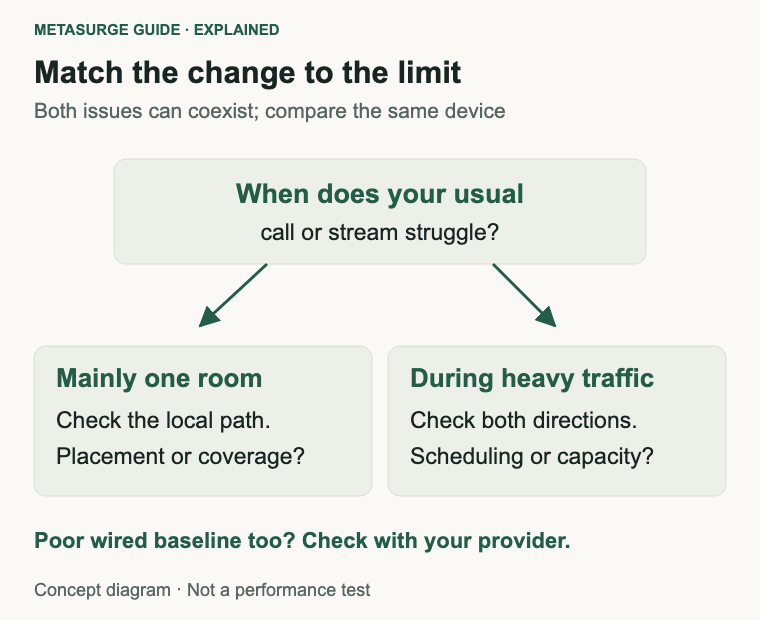
Repeat in the room where you have a problem using the same device where practical. A large difference between the baseline and that room suggests that local coverage or the wireless path deserves attention. Repeating the test with another device can help reveal a client-specific limitation.
Now test during normal household use. Check the actual call, stream or game that matters to you, then observe whether the problem appears as other traffic starts. Do not infer a capacity problem from a single quiet-period speed test.
If wired and near-router results are poor across devices, compare them with your provider’s service information and ask for help where appropriate. An outage, line issue or provider-side problem needs a different response from buying more wireless equipment.
If the main issue is a distant room, investigate placement, access points or mesh layout. A faster internet plan cannot reliably carry a weak local signal through an obstacle. Choose additional equipment around a workable upstream connection rather than simply placing a node where reception is already worst.
If the connection works well until simultaneous activity starts, assess the relevant direction of traffic. An upload-heavy task can disrupt work even when the download side looks generous. Check whether scheduling solves the problem or a different service level offers a worthwhile improvement.
Choose the smallest change that meets your requirements: a clearer placement, a wired desk connection, better scheduling, a provider repair, additional coverage or more internet capacity. A new router is one possible tool, not the compulsory first step.
Keep your acceptance test concrete. For example, the usual call should remain usable while the household streams at its chosen quality. Recheck after making the change and keep the before-and-after conditions comparable. If you already meet that goal, there may be no need to upgrade at all.
Frequently asked questions
Is 100 Mbps enough for a household?
It depends on simultaneous activity, upload needs and the performance reaching each device. Add the services you actually use and test your busy period. A household doing ordinary streaming differs from one regularly moving large files while several people work.
Will Wi-Fi 7 make my internet plan faster?
It does not change the service you buy. Suitable equipment may improve the local path or support other network needs, but your internet service remains a constraint. Client support and the full connection path still matter.
Why does gaming lag when a speed test looks fast?
A throughput test does not capture every latency, packet-loss or stability problem. Test the game under the conditions that cause trouble, compare a supported wired connection and check competing household traffic before choosing an upgrade.
How much spare bandwidth should I allow?
There is no universal percentage. Use service-specific requirements as starting points, allow for your real concurrent activity and verify the result. Choose a level that handles normal variation without treating every theoretical device maximum as simultaneous demand.
Relevant examples to explore
Editorial examples, separate from Best Sellers rankings. Within each group, products are ordered by Amazon Best Sellers position captured 17 October 2026; positions can change.
As an Amazon Associate MetaSurge Guide earns from qualifying purchases. Check current details, price and availability on Amazon before buying. Country detection by DB-IP.
Sources and editorial approach
Service examples use Netflix’s speed recommendations and NVIDIA’s GeForce NOW requirements.Sources were checked on 15 October 2026. File-transfer and stream totals are labelled arithmetic examples; household scenarios are editorial reasoning, not measurements or guaranteed plan recommendations.
Where to go next
Explore the Wi-Fi Routers guide if testing identifies a local-network requirement. Compare the separate examples against that requirement, and check your existing equipment and internet service before paying for additional speed or coverage.