
Quiet and distorted sound are different problems, even though they can appear together. Quiet output usually points to a volume stage, a connection or a source that cannot drive the headphones properly. Distortion usually points to a signal being pushed too hard, a failing cable or connection, or a problem with the audio file or processing.
Start with the simplest checks: the application volume, the system volume, the selected output device and the cable or wireless link. If the problem is one-sided, comes and goes, or follows a particular cable movement, that narrows the cause. If your hearing has changed, treat that as a health question rather than a headphone fault.
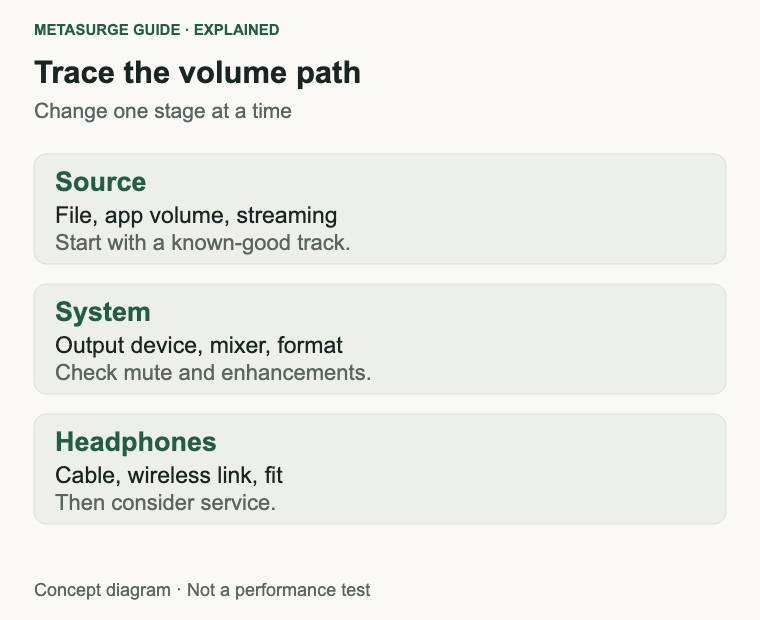
Check volume at every stage
Volume is not one setting. An application, the operating system, the playback service, a headset’s inline control and the headphones themselves can each affect the level. A muted app or a lowered per-app mixer can make the headphones seem faulty when the hardware is fine.
On Windows, Microsoft’s quiet-sound guidance starts with the volume mixer: check the system slider, the affected app’s slider and whether the app is muted. It then suggests turning off audio enhancements, trying a different default format, and updating or reinstalling the audio driver. Those steps are worth doing before you conclude that the headphones are failing.
Check the selected output device as well. A laptop may switch to its speakers, a monitor’s speakers or a virtual device after a dock is connected. Microsoft’s no-sound guidance covers choosing the correct output and setting it as the default, which is also useful when the headphones are connected but silent or very quiet.
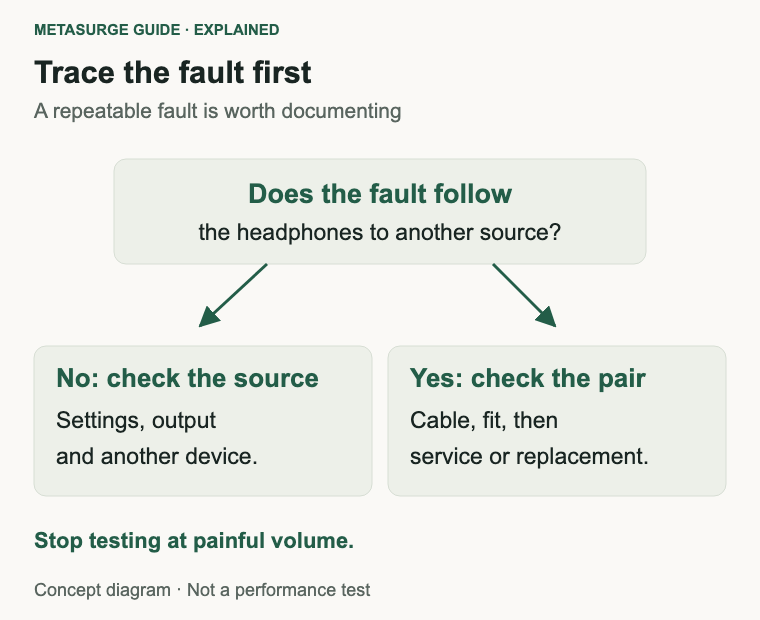
Confirm that the cable is fully seated at both ends and that any adapter is the right type. A loose 3.5 mm plug, a partial USB-C connection or a damaged adapter can reduce one channel or add noise. Try a different cable if the headphones allow it, and try the headphones with another source to see whether the problem follows them.
For wireless headphones, check the volume on both the source and the headphones. Some models have their own volume control, some rely on the source, and some use a combination. A model’s app may also have a volume limit or an equaliser setting that affects output. Check the exact model’s documentation rather than assuming another brand’s controls apply.
Distinguish quiet from distorted
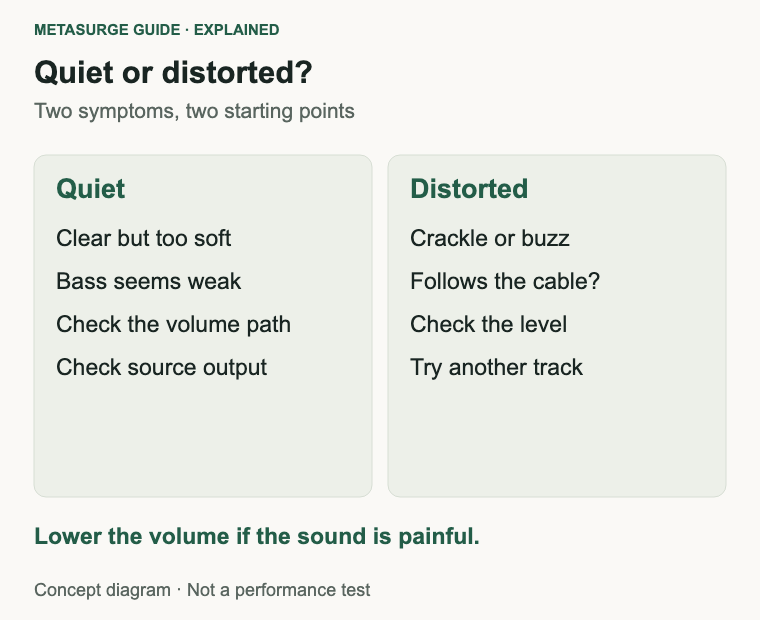
Quiet sound is a level problem: the audio is clear but too soft, or the bass seems weak. Distortion is a shape problem: the audio crackles, buzzes, sounds fuzzy or breaks up. The two can overlap when a quiet signal is turned up far enough to expose noise, but the first checks are different.
Distortion at high volume is often the headphones or the source being asked to do more than they can. Turn the volume down and see whether the distortion disappears. If it does, the headphones may simply have a limit, or the source may be clipping before the headphones do. Distortion that remains at low volume is more likely to come from the file, the connection or a fault.
Check the source material. A low-bitrate file, a distorted recording or a badly mastered track can sound rough on good headphones. Try a known-good track from another service or a local file. If the distortion only appears on one track, the headphones are probably not the cause.
Audio enhancements are a common culprit. Microsoft’s distorted-audio guidance suggests turning off enhancements, changing the default audio format, updating the driver and restarting the audio services. Equaliser presets, spatial audio, “loudness” features and third-party sound software can all change the signal, sometimes pushing it into clipping.
A cable or connector fault often announces itself through movement. Wiggle the plug gently, move the cable near the jack and see whether the sound cuts out or crackles. Do not bend the cable sharply or open the headphones to investigate. If the fault follows the cable, replace the cable where the model allows it.
Bluetooth adds its own failure modes. Interference can cause dropouts or stuttering rather than true distortion. Moving closer to the source, removing obstacles and checking the codec or connection mode can help. A codec that is supported but poorly implemented, or a source that struggles to encode in real time, can also cause artefacts. Compare with a wired connection where the model offers one.
| What you hear | Where to look first |
|---|---|
| Clear but too quiet | App and system volume, output device, source output |
| Crackle when the cable moves | Cable, plug, adapter or jack |
| Fuzzy or rough at high volume | Volume level, source clipping, enhancements |
| Distortion only on some tracks | The recording or file, not the headphones |
| Dropouts or stutter on wireless | Range, interference, codec and battery |
| One side quieter or distorted | Fit, wax, cable channel or driver |
Investigate one-sided and intermittent problems
A one-sided problem is a useful clue. Check the balance setting in the operating system, then swap the cable ends if the cable is detachable, and try another source. If the same side remains quiet with a different cable and source, the headphone’s driver or internal wiring is a stronger suspect. If the problem moves with the cable, the cable is the likely cause.
Earwax and fit can also make one side seem quieter. A blocked ear reduces what you hear, and a poor seal on an over-ear cushion reduces bass and perceived level. Do not use cotton buds or homemade tools to clean your ears; healthdirect advises against putting anything inside the ear and suggests a pharmacist or doctor for troublesome wax. If hearing remains different after the obvious checks, have it assessed.
Intermittent problems need a pattern. Does it happen only when the cable is moved, only when the battery is low, only in one app, or only at a certain distance from the source? A wired connection that cuts out when the plug is touched points to the jack or cable. A wireless connection that stutters when you walk away points to range or interference.
Listen for the difference between a dropout and a distortion. A dropout is a gap or stutter; distortion is a change in the shape of the sound. A failing driver often produces a rattle or buzz on certain frequencies, while a failing cable tends to produce crackle or a lost channel. These are tendencies, not a diagnosis.
Stop testing at high volume if the sound is harsh or painful. Loud distortion can be damaging, and a driver that is being overdriven will not improve with more power. Lower the level, rest your ears and try again later.
Match the source and connection to the headphones
Wired headphones need a source that can supply enough voltage for their impedance and sensitivity. The Sennheiser HD 560S, for example, is documented at 120 ohms. That is not an unusually high figure, but a weak phone output, a low-output dock or a passive adapter may struggle to reach a comfortable level compared with a desktop headphone jack. The result can be quiet sound with little headroom, not necessarily distortion.
Do not assume that a particular impedance requires an amplifier. Sensitivity matters as much as impedance, and many devices drive many headphones well. The practical test is whether you can reach a comfortable listening level with the source you own, without maxing out the control or hearing noise. If you cannot, a different source or a dedicated amplifier may help; it is not a universal fix.
Wireless headphones depend on the Bluetooth implementation of both ends. Codec support, volume handling and latency vary. A source that supports a basic codec may sound fine but add noticeable delay for video, while a device with a better codec may still struggle with range. Check the model’s documented codecs and the source’s support rather than assuming the newest standard is active.
Wired mode on a wireless headphone is not always equivalent to a pure wired design. Some models require power for the wired mode, some bypass noise cancelling, and some do not offer a wired mode at all. Check the exact model before relying on a cable as a fallback when the battery is flat.
The room matters too. Open-back headphones leak sound and let room noise in, so a noisy room can make them seem quiet or thin. Closed-back designs isolate more, but a poor cushion seal reduces bass and can make the sound seem weak. Fit and environment are part of the volume chain.
Decide whether service or replacement makes sense
Keep the headphones when a settings change, a different cable, a different source or a better fit solves the problem. Those are the cheapest and most common fixes, and they do not require service. Record what changed so you can repeat it later.
Ask for service when the fault is repeatable and isolated to the headphones: a dead channel, a rattle at normal volume, a broken jack or a battery that no longer holds useful charge. A manufacturer or repairer can tell you whether the model has replaceable parts, whether the repair is economic and what the warranty covers. Do not open sealed cups or attempt a driver swap on the basis of a forum post.
Replacement becomes more reasonable when the repair is unavailable, the cost approaches a suitable new pair, or the headphones no longer meet your needs. A newer model is not automatically better; compare the connection, fit, comfort and support you actually use.
If the headphones are wireless and the battery is ageing, check the manufacturer’s battery or service arrangements. A battery that has lost capacity is a different problem from distortion, and a firmware reset will not restore chemical capacity. Some models support service; others are effectively sealed.
Finally, protect your hearing. Persistent tinnitus, muffled hearing or pain after a loud session deserves professional advice rather than more testing. Headphones are tools for listening, not a reason to ignore a health signal.
Frequently asked questions
Why is one ear quieter than the other?
Check the balance setting, the cable and the source first. If the same side stays quiet with another cable and device, wax, fit or the headphone driver are possible causes. Persistent hearing differences should be assessed by a health professional.
Does a DAC or amplifier fix quiet headphones?
Only if the source cannot supply enough output for your headphones at a comfortable level. Many devices already drive many headphones well. A DAC or amplifier is not a universal cure for quiet sound, distortion or a poor recording.
Why does the sound distort only at high volume?
The headphones, the source or the recording may be reaching a limit. Turn the volume down and test a known-good track. If the distortion disappears, you have found the practical limit; if it remains, check the cable, connection and audio processing.
Can distorted headphones be repaired?
It depends on the model and the fault. Cables, pads and some connectors can be replaced; sealed drivers often cannot. Ask the manufacturer or a repairer for a diagnosis before assuming a repair is available or economical.
Relevant examples to explore
Editorial examples, separate from Best Sellers rankings. Within each group, products are ordered by Amazon Best Sellers position captured 17 October 2026; positions can change.
As an Amazon Associate MetaSurge Guide earns from qualifying purchases. Check current details, price and availability on Amazon before buying. Country detection by DB-IP.
Sources and editorial approach
This guide uses Microsoft’s guidance on low or quiet sound, distorted or crackling audio and missing audio output, plus healthdirect’s ear-wax advice, Sennheiser’s HD 560S documentation and Sony’s WH-CH720N documentation, checked on 17 October 2026. Product examples illustrate connection types and are not ranked. No measured output, distortion or hearing tests are claimed.
Where to go next
Browse the On-Ear and Over-Ear Headphones guide if your checks point to a replacement. Compare the connection, impedance and support that suit your source, rather than assuming a more expensive pair will fix a volume or settings problem.