
The short answer
Choose mesh when your home needs several well-placed Wi-Fi access points and you want to manage them as one system. A single router can be enough if it sits in a useful position and already reaches the rooms you use. If Ethernet connects those rooms, a router with wired access points is another strong option worth comparing.
A large floor area alone doesn’t decide this. Floors, walls, the internet connection’s location and the route between Wi-Fi units all matter. Before replacing a router that works well nearby, establish whether the actual problem is coverage, a weak link between rooms or a slow connection to the house.
What changes when you add mesh?
A single wireless router combines network routing with a Wi-Fi access point in one place. Mesh systems distribute the Wi-Fi access points across several units, often called nodes. One usually connects to the internet service, while the others extend the network into different parts of the home.
The nodes still need to communicate. That connecting path is called backhaul. A device can have a strong signal to a nearby mesh node while the node itself has a weak connection to the rest of the network. Signal bars on the device don’t tell you the condition of that second link.
Mesh is primarily a coverage and management choice. It isn’t a promise to increase the speed supplied by your internet plan or fix an upstream service fault. A better local connection may let a distant room use more of the connection you already pay for, but it cannot raise the plan’s limit.
Nor does mesh mean every device talks directly to every other unit at once. The topology and path selection depend on the product and setup. You don’t need to master those details to shop sensibly, but you do need to ask how a satellite will get a reliable connection where you intend to put it.
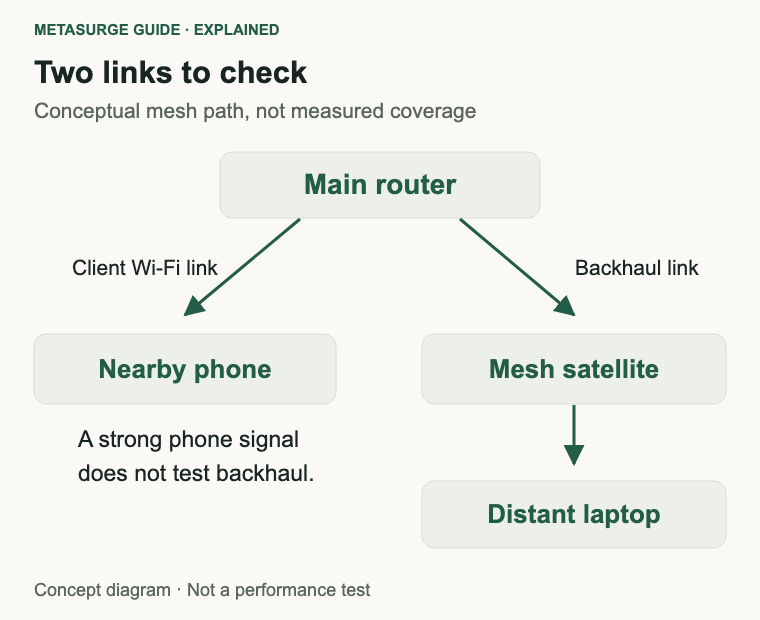
When a single router is enough
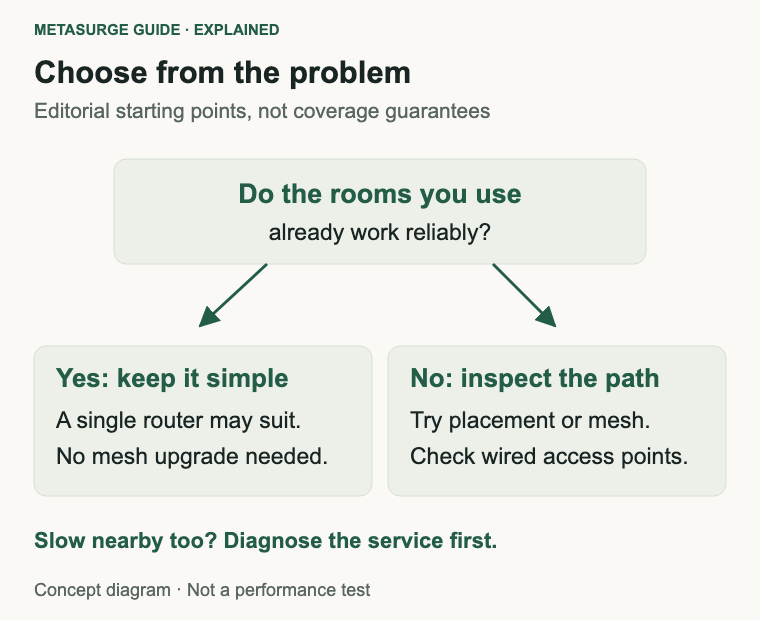
Start by checking the rooms you actually use. Try the same phone or laptop close to the router and in the problem room, using the same task. Repeat at another time rather than judging everything from one speed-test result. Note whether calls fail, streaming pauses or only a particular application struggles.
If the whole house feels slow, mesh may be solving the wrong problem. Compare a suitable wired connection where possible, or ask your provider to check the service. If nearby Wi-Fi is good and distant rooms are poor, coverage or the path through the building becomes a more plausible target.
A single router is attractive when it already covers the required rooms and gives you the features you need. There are fewer units, power supplies and locations to manage. Don’t buy a multi-pack merely because its coverage illustration looks reassuring if there is no recurring problem to fix.
Placement is worth trying before replacement. An exposed, reasonably central location can be more useful than a cupboard beside the entry point. Work within cable and installation constraints, and keep ventilation clear. A powerful specification doesn’t remove the obstruction created by hiding the router behind metal or inside furniture.
When mesh solves a real problem
Mesh becomes useful when one location can’t give satisfactory coverage to the areas you use. That may include upstairs bedrooms, a long layout or rooms separated by substantial walls. Extra units let you bring an access point closer to devices instead of asking one distant radio to reach through every obstacle.
It also gives you a coordinated management system. Instead of configuring unrelated routers separately, you can usually see and manage compatible units together. Check what the app actually exposes, especially if you need guest access, parental controls or local administration rather than an account-dependent setup.
Mesh is particularly appealing when you want several access points without designing a separate controller-based network. That convenience has value, but compare it with your existing equipment. A working router and a well-placed wired access point may solve one troublesome room without replacing everything.
Don’t begin with the largest kit available. Sketch the home, mark the troublesome areas and plan the connecting links. An extra node without a useful location can add expense without resolving the weak path. Follow the system’s own placement and topology guidance instead of assuming more boxes always mean better Wi-Fi.
Wireless backhaul versus Ethernet backhaul
Wireless backhaul avoids the need to run a cable between nodes. That makes installation convenient, but the inter-node link must travel through your building too. Its capacity is affected by distance, obstructions and radio conditions. On some systems it also shares radio resources with devices using Wi-Fi.
Some products provide an additional radio or band intended to help with backhaul. That can be useful, but “tri-band” by itself doesn’t tell you exactly how the backhaul operates. Check which bands the system can use and whether the intended layout can support them. An extra high-frequency band isn’t a guarantee of a strong link through a difficult wall.
Ethernet backhaul uses a cable for the connection between compatible units. This removes dependence on a wireless hop for that link and can make placement more flexible. It doesn’t remove the need for a good Wi-Fi connection between the access point and your device, or increase the speed of the internet service.
Check that the exact units, operating mode and firmware support the arrangement. An Ethernet socket doesn’t automatically establish every mesh backhaul feature. Follow the manufacturer’s wiring diagram, including switch placement where relevant, rather than joining ports experimentally and assuming the system will choose the topology you intended.
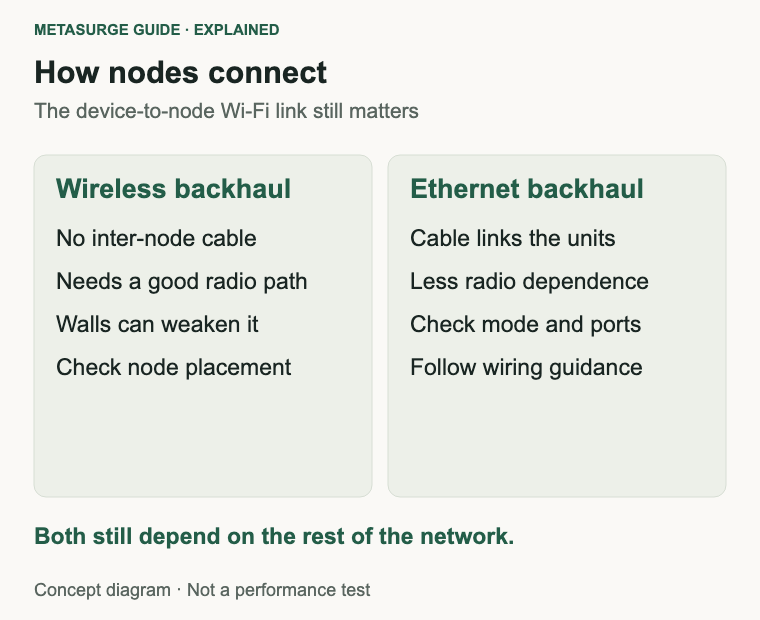
Where should the satellite go?
For wireless backhaul, place the satellite where it still receives a useful connection from the main unit or another supported upstream node. Putting it at the far end of an existing dead zone can leave it with the same poor incoming signal that affected your laptop.
A practical starting point is an open location between the strong and weak areas. Use the manufacturer’s signal-quality display to check the connecting link, then test the device in the room you want to improve. The correct position is a balance between reaching that room and maintaining a good upstream path.
For a double-storey home, consider the floor between nodes and the path around stairs or open spaces. Don’t assume that placing two units directly above each other is always best, or that keeping them on opposite ends is always best. Building materials and available locations differ too much for a universal spacing rule.
With Ethernet backhaul, you can put the access point nearer the intended users without relying on the same wireless route back to the router. You still need power, suitable cabling and a sensible exposed location. Consider those practical requirements before buying the kit, particularly if its design has no mounting option for your preferred spot.
One network name doesn’t guarantee perfect roaming
Compatible mesh units commonly provide one network name, so you don’t have to manually select an upstairs network and a downstairs network. Roaming is the process of a device moving its connection between access points as you walk around.
The device participates in that decision. Network features can help it find and move to another access point, but don’t assume every phone, printer and laptop behaves identically. Apple documents how its devices evaluate roaming candidates; the details aren’t a universal promise about every client on your home network.
Test the behaviour that matters to you. Walk the normal route during a call and check whether it remains usable. Also test a stationary work laptop after it reconnects. Strong coverage and smooth roaming are related goals, but a product’s marketing phrase doesn’t establish either result in your building.
Check your modem, connection setup and existing router
Determine which device currently provides the internet connection and routing. A replacement Wi-Fi router may still need a separate modem or the existing provider connection equipment, depending on your service. Check your provider’s requirements rather than assuming a mesh kit replaces every box at the wall.
If an existing router remains, investigate whether the mesh system should operate in access-point mode or whether the provider supports another arrangement. Two devices both routing can create double NAT, an extra layer of address translation that can complicate some applications. Access-point mode may change which features remain available.
Don’t change provider equipment settings solely because a generic diagram says to. Confirm any telephony, authentication or support requirements first. A useful buying checklist includes compatibility with your service and your intended operating mode, not just wireless generation and antenna count.
Also check mesh-family compatibility. Products from one manufacturer can belong to separate mesh systems. “Mesh compatible” on two boxes doesn’t establish that they form one coordinated network together. The router and kit examples near the end illustrate alternatives, not components you should automatically combine.
A decision checklist for your home
| Your situation | Start with | Main check |
|---|---|---|
| Required rooms already work well | Keep the single router | No recurring issue to solve |
| Poor signal in distant rooms | Better placement or mesh | Strong upstream link to each node |
| Ethernet reaches the weak area | Wired access point or wired mesh | Compatible ports, modes and topology |
| Slow beside the router too | Diagnose service and local setup | Mesh is not a plan-speed upgrade |
| Calls fail while moving rooms | Coverage and roaming checks | Actual device behaviour |
Make the plan before the purchase: mark the router, the rooms that need help, available Ethernet and usable power points. Compare a single-router reposition, a wired access point and a mesh kit against that same plan. This makes the cost comparison about the problem being solved rather than the number of units in a box.
Frequently asked questions
Will mesh make my internet plan faster?
No. It can improve the local connection in a poorly covered room. The speed delivered to the home still depends on the service, plan and upstream conditions.
Should I put a node in the room with no Wi-Fi?
Not automatically. A wireless satellite needs a useful incoming connection too. Try a location between the strong and weak areas, or investigate Ethernet backhaul.
Is mesh always better than wired access points?
No. Wired access points can be a practical alternative when cabling is available. Compare setup, management, compatibility and placement rather than treating mesh as a mandatory upgrade.
Can I mix any mesh products from the same brand?
No. Check the exact supported family, models, hardware revisions and firmware. A shared brand or network name doesn’t prove unified mesh compatibility.
Relevant examples to explore
Editorial examples, separate from Best Sellers rankings. Within each group, products are ordered by Amazon Best Sellers position captured 17 October 2026; positions can change.
As an Amazon Associate MetaSurge Guide earns from qualifying purchases. Check current details, price and availability on Amazon before buying. Country detection by DB-IP.
Sources and editorial approach
Technical checks use TP-Link’s placement guide, Ethernet backhaul requirements, network deployment guidance and mesh-family compatibility explanation. Roaming explanations also use Apple’s deployment documentation. Sources checked on 15 October 2026. The home-layout recommendations are editorial interpretation; MetaSurge has not tested these systems or measured coverage in your home.
Where to go next
Use the MetaSurge Wi-Fi router category to explore options after deciding your layout and backhaul. The examples above illustrate a standalone router and a mesh kit, not a guarantee of coverage or a requirement to buy Wi-Fi 7.