
The short answer
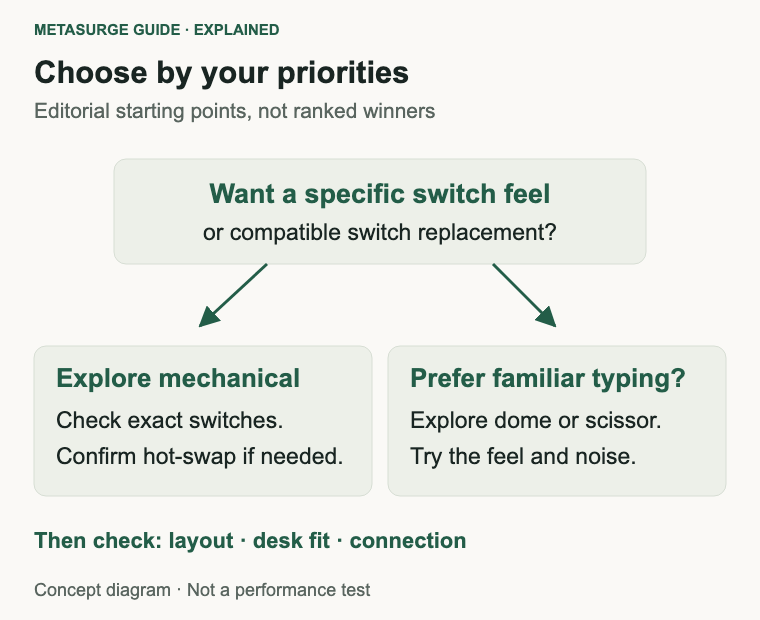
Choose a mechanical keyboard if you want a particular switch feel, enjoy a more deliberate keypress or want a board with replaceable switches. Choose a membrane or scissor keyboard if you prefer familiar, uncomplicated typing and don’t need to customise the mechanism. A well-chosen keyboard in either group can suit work, study and everyday gaming.
The useful question is what bothers you about the keyboard you already have. Noise, awkward shortcuts, a missing number pad and an uncomfortable front edge are different problems. Changing switch technology won’t automatically solve all of them, and a working keyboard that already feels right doesn’t need replacing just because mechanical models are popular.
What actually sits underneath the keys?
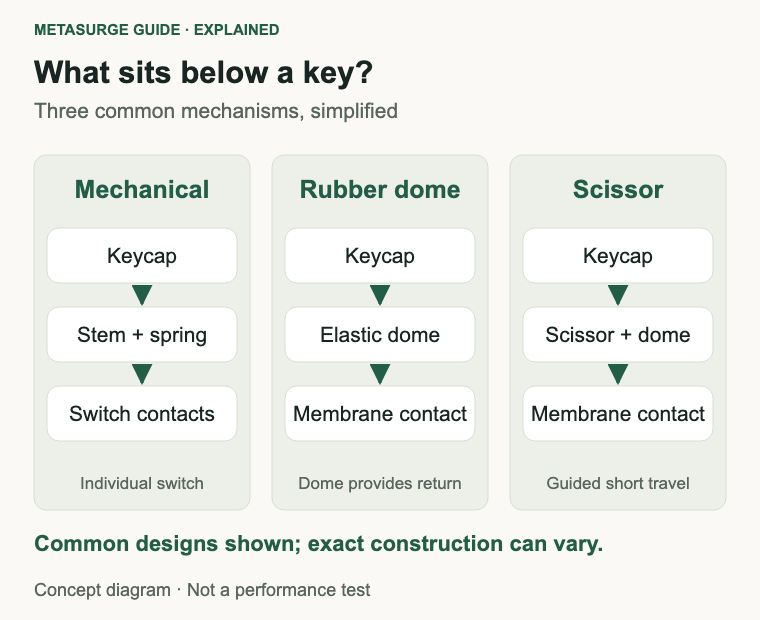
In a typical mechanical keyboard, each key has its own switch. Pressing the key moves a stem against a spring and, in a conventional contact switch, closes an electrical connection. The key can register before it reaches the end of its travel. That registration point is called actuation; hitting the end of travel is called bottoming out.
A common membrane keyboard uses a rubber dome beneath each key. The dome compresses to close a contact in the membrane assembly, then returns the key when released. The dome contributes much of the resistance and feel. This is a simplified comparison of common consumer designs, rather than a claim that every keyboard uses the same internal construction.
A scissor keyboard adds a small linked mechanism to guide the keycap above a dome and membrane contact. That allows a flatter key with shorter travel. It isn’t a miniature version of a conventional mechanical switch. If you like laptop-style typing, this third description matters more than forcing every board into a simple mechanical-versus-cheap distinction.
Mechanical, membrane and scissor at a glance
| Question | Mechanical | Rubber-dome membrane | Scissor |
|---|---|---|---|
| What determines feel? | Individual switch design | Dome and key construction | Dome plus guided short travel |
| Can it suit a quiet desk? | Yes, with a suitable build | Often a practical starting point | Often a practical starting point |
| Is switch replacement simple? | Only on compatible hot-swap models | Usually not a buying feature | Usually not a buying feature |
| What should you try? | Resistance and feedback | Consistency and bottom-out feel | Travel and key stability |
These are shopping checks, not rankings. A premium scissor board can cost more than an entry-level mechanical one. A compact mechanical board can take less desk space than a full-size membrane model. Compare the actual products after choosing the feel you want.
Linear, tactile and clicky: choose the feel first
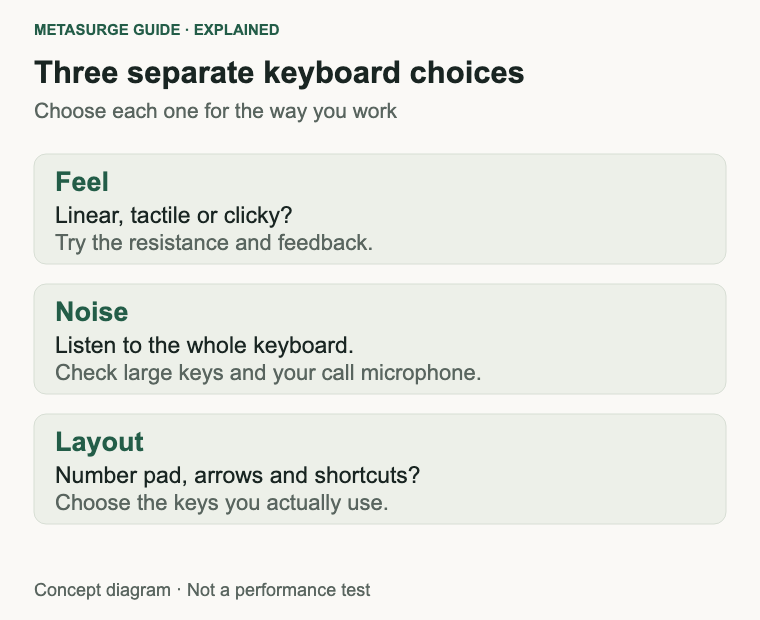
A linear mechanical switch has a relatively smooth press without a deliberate feedback bump. A tactile switch adds a bump you can feel during the press. A clicky switch adds a deliberate audible click as well as feedback. Those terms describe the mechanism, not the quality of your typing or a guaranteed gaming advantage.
Try typing a sentence, correcting a mistake and holding a key down. Someone who types lightly may enjoy a different resistance from someone who presses firmly. If light keys lead you to hit neighbouring letters, a stronger switch or different spacing may be more useful than a higher specification elsewhere.
Don’t buy by colour alone. Red, brown and blue are familiar labels in some switch ranges, but colours don’t provide a universal specification across manufacturers. Read the exact switch description. Low-profile and standard-height switches can also feel different even when both are labelled tactile.
If you’re buying online without trying the board, decide which uncertainty matters most. A short sound demonstration can help you reject an obviously clicky model, while a clear return policy can reduce the risk of choosing an uncomfortable feel. Check the seller’s conditions rather than assuming every opened keyboard can be returned for preference.
Which keyboard is quieter?
Treat quietness as a property of the whole keyboard. The switch, large-key supports, keycaps, case and the way you type all contribute. A non-clicky mechanical switch can still make noise when the key reaches the bottom or returns upwards. A “silent” label should prompt a closer look at the exact design, rather than an expectation of silence.
For a shared office or late-night desk, start with scissor, rubber-dome or explicitly damped mechanical options. Avoid deliberate click mechanisms if the sound itself is the problem. Listen to the space bar and Enter key as well as the letter keys, because you’ll use them frequently.
Then check the room. A keyboard that seems restrained in a shop may be distracting beside a sleeping partner or through a meeting microphone. Record a short passage using your actual call setup if you already own the board. That is a practical noise check, not a measurement that lets you rank other keyboards from videos recorded with different microphones.
Is mechanical better for typing or gaming?
Mechanical switches give you more ways to choose feedback. They don’t teach touch typing or guarantee fewer mistakes. For writing, coding and study, the best starting point is a layout you understand and keys you can press comfortably. You may prefer a tactile bump, or you may work more naturally on a flat scissor keyboard.
For gaming, check whether the board registers the combinations you actually use. Rollover describes how many simultaneous keys can be recognised, while ghosting refers to unwanted input in some key matrices. Individual mechanical switches alone don’t guarantee unlimited rollover; the board’s electronics, firmware and connection also matter.
Connection mode deserves its own check. A wireless keyboard may offer different behaviour over Bluetooth, a USB receiver and a cable. Confirm the relevant mode and any software requirements for your computer. A mechanical label doesn’t establish latency, and a gaming label doesn’t establish that the board suits your work shortcuts.
Adjustable actuation and rapid-trigger features belong to particular implementations, often using magnetic sensing. Don’t assume they come with every mechanical board, or that a magnetic board accepts ordinary mechanical replacement switches. Buy a feature because you understand its purpose, rather than because it appears in an enthusiast specification list.
Repairability: look for the exact hot-swap version
Hot-swappable switches fit into sockets and can be removed without desoldering. On a compatible board, that can make a switch change or an individual switch repair easier. A soldered mechanical board can require dismantling and soldering work instead. “Mechanical” and “hot-swappable” are separate claims.
Compatibility is the next hurdle. Standard-height, low-profile, optical and magnetic switches are not interchangeable simply because their names sound similar. Check the keyboard manufacturer’s supported switch family and the exact variant you’re buying. Some product ranges sell both fixed-switch and hot-swap versions.
Don’t confuse removable keycaps with removable switches either. A cap that lifts off does not prove that the switch beneath it can be pulled out. Follow the manufacturer’s instructions, disconnect power where directed and avoid forcing parts. If repairability matters, also check whether replacement caps, cables and other parts are obtainable.
A switch lifespan figure isn’t a promise that the complete keyboard will last that long. Connectors, batteries and other components can still fail. Judge repair options and warranty support alongside the switch specification, rather than converting a laboratory keystroke rating into a prediction of years on your desk.
Layout and desk fit can matter more than switches
Look at the keys before the switch specification. If you enter figures throughout the day, a number pad may save you a separate purchase. If you rarely use one, a narrower board may leave more room for the mouse. Check arrow keys, Home, End and function keys, because a compact layout may put familiar actions behind combinations.
For Mac use, check modifier labels and how the board handles media and function keys. For Windows, check the shortcuts you use and any configuration software you need. Basic typing compatibility and full software support are different things. That distinction is especially relevant on a managed work computer where you can’t install applications freely.
Try the board at your own desk height. Notice whether you reach forward, lift your wrists or crowd your mouse. Feet and wrist rests aren’t automatic fixes for a poor setup. A taller mechanical board may feel different from a laptop keyboard even before you press a key, so include front-edge height in your comparison.
Also check the physical layout variant. Online listings can offer different key arrangements or language versions under one product family. Inspect the Enter key, left Shift and punctuation positions, then confirm the selected option before checkout. Familiar labels in the listing title aren’t enough to establish the exact layout you’ll receive.
A quick buying checklist
- Identify the main problem: feel, noise, layout, connection or repairability.
- Choose the key feel you like; try a full passage rather than a single key.
- Check large-key noise if you share a room or join frequent calls.
- Confirm number pad, navigation keys and the exact physical layout.
- Verify computer support and the connection mode you intend to use.
- If you want switch replacement, confirm hot-swap and compatible switch types.
- Check seller, warranty and return conditions for the selected AU listing.
For mechanical vs membrane keyboard shopping, a useful stopping rule is simple: if the less expensive board meets these checks and feels good, you don’t need to spend more for the mechanism alone. If a particular mechanical feel makes daily typing more enjoyable, that can be a valid reason to choose it without inventing a productivity gain.
Frequently asked questions
Are membrane keyboards bad for gaming?
No. Check the combinations, connection and behaviour the actual keyboard supports. A suitable membrane board can be enough, while a mechanical board with the wrong layout or connection can still be a poor choice for you.
Can a mechanical keyboard be quiet?
Yes, but non-clicky doesn’t mean silent. Look for an appropriate switch and whole-board design, then check the sound of large keys and how it behaves in your room.
Is a scissor keyboard a membrane keyboard?
Common scissor designs use a dome and membrane contact with an extra mechanism guiding the keycap. Treat scissor as a useful description of its construction and short-travel feel, rather than assuming it behaves like a tall rubber-dome board.
Does every mechanical keyboard let me change switches?
No. Confirm the exact hot-swap variant and supported switch family. Removable keycaps and a mechanical product name do not establish that switches can be replaced without soldering.
Relevant examples to explore
Editorial examples, separate from Best Sellers rankings. Within each group, products are ordered by Amazon Best Sellers position captured 17 October 2026; positions can change.
As an Amazon Associate MetaSurge Guide earns from qualifying purchases. Check current details, price and availability on Amazon before buying. Country detection by DB-IP.
Sources and editorial approach
The mechanism explanations draw on CHERRY’s mechanical, membrane and scissor documentation. Repair checks use Keychron’s hot-swap guide and compatibility guidance. The ghosting explanation also uses QMK’s keyboard matrix documentation. Sources checked on 13 October 2026. Buying advice is MetaSurge’s editorial interpretation; this is not a hands-on test or a comparative latency benchmark.
Where to go next
Use your preferred feel, layout and connection as the starting point for the MetaSurge keyboard category. The examples above illustrate different designs; compare their exact variants before deciding.