
The short answer
Higher DPI doesn’t automatically make you more accurate. It makes the mouse report more movement counts for the same physical travel. How far the pointer or view moves also depends on operating-system and application settings. Choose a combination that lets you reach targets comfortably and make small corrections without repeatedly overshooting.
A huge maximum DPI is therefore a capability, not an accuracy score. If your current mouse tracks reliably and offers a setting you like, you don’t need a new sensor merely to increase that maximum. First learn which setting is making your pointer too fast, too slow or inconsistent.
What DPI means on a mouse
DPI stands for dots per inch. For a mouse sensor, counts per inch, or CPI, is a more literal description: how many movement counts it reports per inch of physical travel. The industry commonly calls this setting DPI, so that is the term you’ll usually see in the software and on the box.
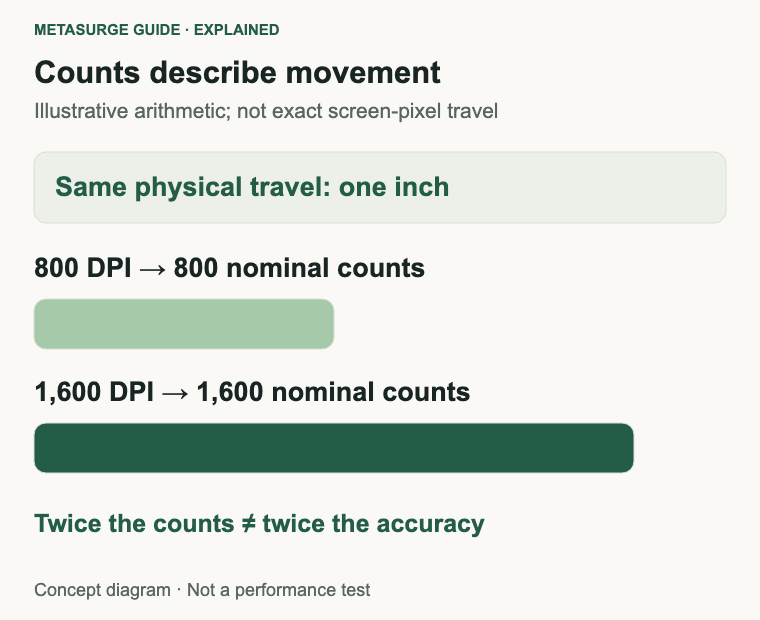
Think of those counts as input information, not a promise about screen pixels. The computer and application decide what to do with the reports. A mouse set to 800 DPI doesn’t necessarily move the visible pointer exactly 800 screen pixels when you slide it one inch across the desk.
In a simplified example, moving one inch at a nominal 800 DPI produces 800 counts. At 1,600 DPI, the same physical movement produces 1,600 counts. That is twice as many movement counts, not twice the player’s accuracy. Actual sensor behaviour and software processing still matter.
The distinction becomes clearer when you change settings. Increase the mouse’s DPI while leaving the rest of the setup unchanged, and the pointer or game view will generally travel further for the same hand movement. Reduce software sensitivity as well, and you may bring the overall movement back towards its earlier level.
DPI, pointer speed and game sensitivity work together
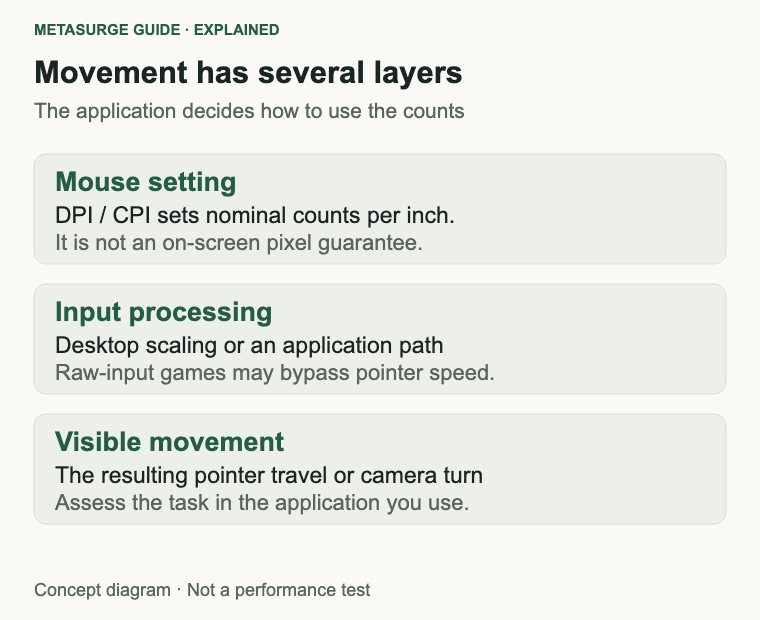
The sensor’s setting is one layer. The operating system may scale the resulting movement through pointer-speed settings and acceleration. An application can apply its own sensitivity, and a game may use raw mouse input rather than the same path that moves the desktop pointer.
That means a desktop adjustment may not change a game’s camera movement in the way you expect. Check how the application handles input instead of assuming one setting governs everything. It is perfectly possible to like your desktop pointer and still need to adjust a particular game’s sensitivity.
For a game using a simple sensitivity multiplier, doubling DPI and halving that multiplier can give a similar overall turn distance. It isn’t a universal conversion rule for every application or control. Zoom modes, different input paths and other processing can change the relationship.
Write down the original values before experimenting. If you change DPI, system pointer speed and game sensitivity together, you won’t know which change helped. Start with the environment where the problem occurs and adjust one layer at a time so you can return to a known setup.
Why very high sensitivity can feel less accurate
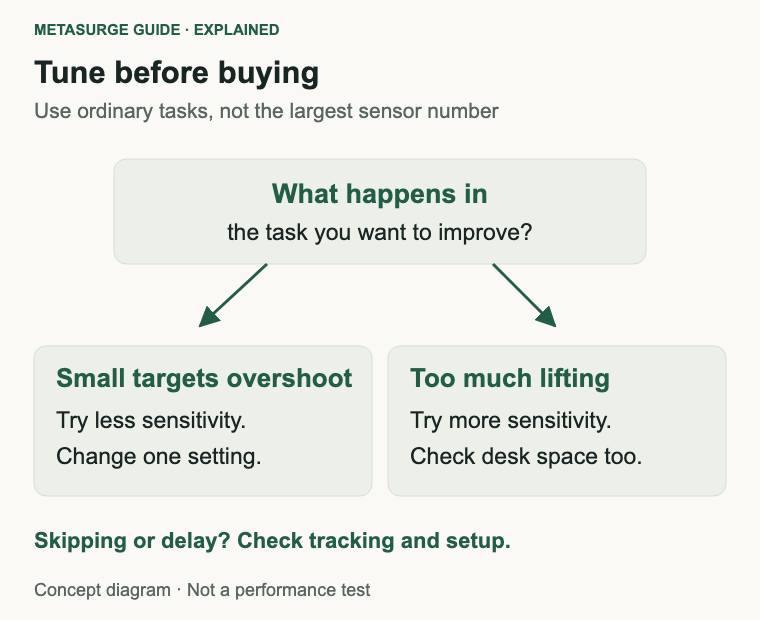
At high overall sensitivity, a small hand movement creates a larger movement on screen. That makes it easier to cross a large desktop quickly, but can make a small target harder to select if your normal movement repeatedly carries the pointer past it. The issue is control at your chosen setting, rather than a universal defect in high DPI.
Lower overall sensitivity gives more physical room for a small correction. It also means moving farther for a large change in direction or a long trip across the desktop. If your mouse mat is small or your available movement is limited, an extremely low setting can be inconvenient too.
Try a real task rather than a dramatic pointer sweep. Select a small spreadsheet cell, highlight a short piece of text or use a control you frequently miss. Notice whether you overshoot, hesitate or repeatedly lift and reposition the mouse. Those observations are more useful than copying a setting because somebody else calls it precise.
Don’t make the setting a test of endurance. If the movement feels awkward, change it or reconsider the desk arrangement. This guide isn’t prescribing a grip or a movement style; it is helping you find a setting that works with the way you actually use the mouse.
Does more DPI give the sensor more detail?
At a higher CPI setting, the sensor reports finer nominal increments of physical distance. That can be useful within a suitable overall sensitivity setup. But sensor resolution is only one part of tracking, and an advertised maximum doesn’t establish how the product behaves across every setting and surface.
Avoid assuming that the largest setting gives the cleanest tracking, or that every high setting is artificially generated. Those are product-specific questions. If very fine movement matters to your work or gaming, look for evidence about the exact sensor implementation at practical settings rather than judging by the largest number alone.
There is also a difference between reported movement and the result you can see. The application, frame rate and display influence how motion is presented. Increasing DPI doesn’t increase the monitor’s refresh rate, fix unstable frame delivery or automatically make a line-drawing tool behave as you want.
For most buyers, the useful requirement is an adjustable range that includes a comfortable setting, reliable tracking and controls that suit the hand. A sensor’s extreme maximum may never be used. Don’t pay for that number while accepting an awkward shape or a scroll wheel that makes daily work harder.
DPI is not polling rate or input latency
Polling rate concerns how frequently input is communicated to the computer. DPI concerns how much movement information is reported for a given physical distance. You can change one without assuming the other has changed.
Input latency is delay between an action and its result. It includes more than the sensor’s resolution setting: sensing, processing, the connection and the computer-to-display chain all contribute. NVIDIA’s latency guidance explicitly distinguishes sensitivity from latency and warns against treating higher DPI as a lower-latency guarantee.
If a mouse feels delayed, investigate the right problem. Check the connection, battery, receiver position and application performance before raising DPI. A faster-moving pointer can feel more immediate while the underlying delay is unchanged, which is why movement speed isn’t a substitute for an appropriate latency measurement.
Similarly, a high polling specification doesn’t tell you which DPI to use. Choose each for its own purpose and check what the exact mouse supports in the connection mode you intend to use. Don’t mix maximum-DPI and maximum-polling figures from different modes into an imaginary combined specification.
A practical way to set DPI for office work
Begin with your normal desktop and applications open. Use a familiar middle setting from the mouse’s available choices rather than jumping straight to the maximum. Keep the operating-system pointer-speed setting fixed while you try several ordinary tasks.
Move between the places you use most often: a toolbar, a browser tab and the far side of a spreadsheet. Then try selecting something small. If crossing the screen takes repeated lifts but small selections are easy, a modest sensitivity increase may be worth trying. If small selections repeatedly overshoot, try reducing overall sensitivity.
Repeat the same tasks after each adjustment. Give yourself enough time to use the setting normally instead of rejecting it after one movement. The goal is a comfortable compromise between travelling distance and fine control, not finding a magic DPI number.
If you use multiple displays, check both. Their arrangement, resolution and scaling can change how pointer travel feels across the workspace. A setting chosen on a laptop alone may feel different when connected to an external monitor. Test the setup you actually spend time using.
For a managed work computer, confirm whether you can install the manufacturer’s software. Some mice let you change DPI with a button or save settings in onboard memory, while others depend on software for particular options. Check the exact model rather than assuming every advertised setting follows you to another computer.
A practical way to set sensitivity for gaming
Use a repeatable practice area or a familiar offline task where possible. Start with your existing DPI, note it, and adjust the game’s sensitivity in small steps. Check both a broad turn and a small correction; optimising only one can make the other frustrating.
Keep enough room for the physical movement the setting requires. If you hit the keyboard or the edge of the mat during ordinary play, either adjust the setup or reconsider the sensitivity. Don’t copy a low professional-player setting without also considering the desk space and movement behind it.
Once the general sensitivity feels useful, check any separate aiming or zoom settings. They may have different scaling. Avoid changing everything at once, and avoid drawing conclusions from a different game whose controls use another scale.
The final setting doesn’t need to be a round number or a popular preset. It needs to stay consistent enough for you to use comfortably. If you have no recurring control problem, you don’t need to keep tuning it merely because the software offers more increments.
What eDPI can and cannot compare
Effective DPI, or eDPI, is often used to describe the product of mouse DPI and a game’s sensitivity multiplier. In a simple worked example, 800 DPI multiplied by 1.5 gives 1,200 eDPI. Another setup using 1,600 DPI multiplied by 0.75 also gives 1,200.
That arithmetic is useful only within an appropriate shared input system. It doesn’t mean those settings are interchangeable across different games, nor does it include every effect of zoom, acceleration or other processing. Treat eDPI as a shorthand for comparing a particular kind of setting, not a universal unit of aiming skill.
If you compare physical turning distance, use the same game, mode and conditions. Record what you changed so you can repeat the result. A reference is helpful only when it describes the setup clearly; a bare DPI number leaves too many other variables unstated.
Before buying a higher-DPI mouse
| What bothers you? | Check first | A new maximum DPI fixes it? |
|---|---|---|
| Pointer moves too far | Overall sensitivity | Not necessarily |
| Repeated lifting across the desktop | Sensitivity and desk setup | Usually a settings question first |
| Movement skips | Surface, sensor and connection | Not established by DPI |
| Game feels delayed | Latency and frame consistency | Not a guaranteed fix |
| Mouse feels awkward | Shape, grip and controls | No |
Keep the mouse you have if it tracks reliably, fits your hand and lets you select a comfortable setting. Consider a replacement when it fails a practical requirement, such as suitable adjustment, useful buttons or compatibility. That is a clearer reason to buy than reaching a maximum you don’t intend to use.
Frequently asked questions
Is 1,600 DPI twice as accurate as 800 DPI?
No. It represents twice the nominal movement counts for the same physical distance. Accuracy at a task also depends on overall sensitivity, tracking, the application and your control.
Does lowering pointer speed lower the sensor’s DPI?
Not necessarily. A system pointer-speed adjustment can scale movement without changing the sensor setting. Check the mouse’s own controls if you want to change DPI itself.
Should every game use the same sensitivity number?
No. Games can interpret their sensitivity scales differently. Compare the actual behaviour in the same game rather than assuming the displayed number is portable.
Does DPI affect internet ping?
No. DPI is a local mouse movement setting. Network ping concerns communication with a remote system and isn’t improved by changing the sensor’s sensitivity.
Relevant examples to explore
Editorial examples, separate from Best Sellers rankings. Within each group, products are ordered by Amazon Best Sellers position captured 17 October 2026; positions can change.
As an Amazon Associate MetaSurge Guide earns from qualifying purchases. Check current details, price and availability on Amazon before buying. Country detection by DB-IP.
Sources and editorial approach
Definitions and practical adjustments use Logitech’s sensitivity guide and Razer’s DPI controls. The latency distinction uses NVIDIA’s system latency guidance. Sources checked on 15 October 2026. Count and eDPI examples are explanatory arithmetic under stated assumptions, not product measurements. Task checklists are editorial advice; MetaSurge hasn’t tested aiming accuracy or declared a winning DPI.
Where to go next
Explore the MetaSurge mouse category if you need a different shape, connection or adjustment range. The examples above offer adjustable sensitivity; neither is included because its maximum DPI makes it a more accurate choice.