
A blurry monitor often needs a resolution, scaling or application check. A washed-out picture points towards a different set of checks, including HDR, signal range, picture presets and colour settings. Neither symptom automatically means the panel needs replacing.
Start by describing what looks wrong. Soft letters, grey-looking blacks, an obvious colour cast and smearing during movement are different problems. Changing every picture setting at once makes them harder to diagnose and can leave a previously sensible configuration further from what you want.
Use a familiar document and image, record the current settings and change one thing at a time. The aim is a clear, comfortable and consistent picture for your work, not the most dramatic demonstration image the monitor can produce.
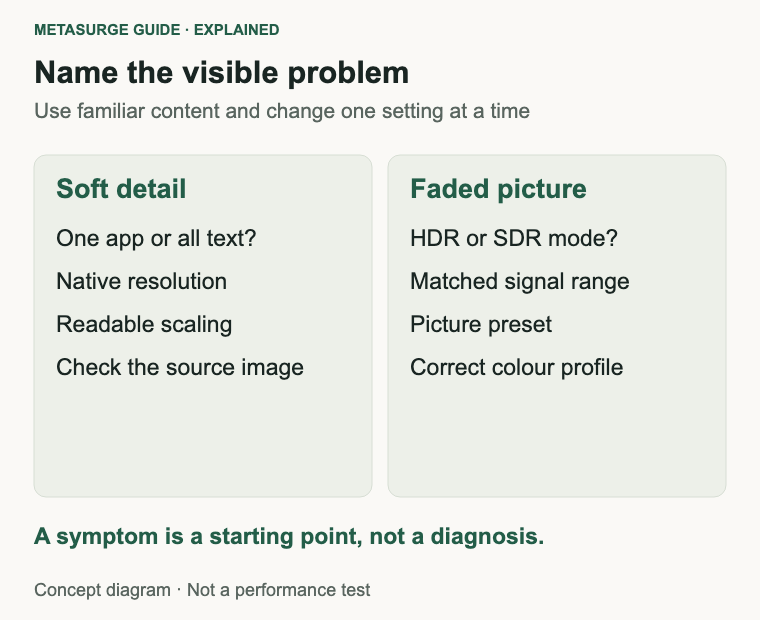
Separate blurry detail from faded colour
Look at ordinary text, a familiar photograph and the monitor’s own on-screen menu. Is the problem present everywhere, or only in a particular application, video or remote session? That distinction tells you where to begin.
If one application looks soft while the rest of the desktop is clear, investigate its zoom, display support and rendering settings. Enlarging a small image or an old application interface can expose limitations in that content without indicating a fault in the monitor.
If all text looks soft, check the selected resolution and scaling before adjusting sharpness. If stationary text is clear but moving objects smear, you’re investigating motion behaviour instead. A refresh-rate or response-time question won’t necessarily be answered by the fixes for static text.
Faded colour needs a different description. Grey-looking blacks suggest a contrast or signal interpretation issue; a warm or cool cast suggests colour settings or lighting. A photograph that looks different in two applications may involve colour management rather than a physical change in the screen.
The monitor’s menu is a useful comparison because the monitor generates it internally. A clear menu beside an unclear computer picture can focus attention on the incoming image path. It isn’t a complete panel diagnostic, and the menu’s font may differ substantially from the desktop text.
A screenshot can help compare application content on another display, but it doesn’t capture the physical appearance of your panel. Treat it as another clue, not a universal test that identifies the exact failed component.
| What you notice | Start by checking |
|---|---|
| One application has soft text | Application zoom and display behaviour |
| The whole desktop looks soft | Resolution, scaling and supported mode |
| Colours change when HDR is enabled | HDR mode and SDR-content settings |
| Blacks look unusually grey | Picture preset and matched signal range |
| Dropouts or coloured corruption | Connection path and supported timings |
Keep a simple record of the symptom and when it began. A problem appearing after a dock change or settings reset gives you a more useful starting point than a general impression that the monitor looks old.
Restore a sensible resolution and scaling baseline
Check that you’re changing the intended display. Multi-monitor settings can show several screens, and selecting the wrong one can make an otherwise useful adjustment appear ineffective. Use the operating system’s display identification feature where available.
Find the panel’s native pixel resolution in its documentation. On Windows, the recommended resolution is normally the appropriate starting point. Microsoft explains that lower-than-native modes can make text less sharp or change how the picture is fitted to the screen.
Keep resolution separate from interface scaling. Scaling changes the practical size of text and controls. Setting everything to 100 per cent isn’t a universal route to better text, especially when it makes the interface too small for comfortable work.
On a Mac, a scaled workspace and the panel’s physical pixel dimensions aren’t necessarily the same thing. Apple’s external-display guidance recommends checking resolution when a picture looks blurry. Compare supported settings rather than assuming a “looks like” workspace label always describes the transmitted pixel grid.
Use a readable text size, then check your usual applications. If you have mixed-resolution monitors, move the application between screens and see whether the problem follows the application or stays with one display. Some applications may need to be reopened after a display change.
Check browser or document zoom as well. A page enlarged far beyond its original image detail can look soft even when the desktop is operating correctly. Return to a sensible zoom before judging the monitor’s ability to show text.
Use platform-specific text tools only where they apply. A Windows font-adjustment workflow isn’t a setting you can copy to macOS, and it doesn’t address every cause of coloured text fringes or poor scaling. Follow the operating system’s current instructions.
After finding a useful baseline, pause and assess it. If text is clear and comfortably sized, there is no need to keep lowering the resolution or pushing sharpness higher. Excessive sharpening can add outlines without recovering missing detail in the original content.
Check the connection and supported display mode
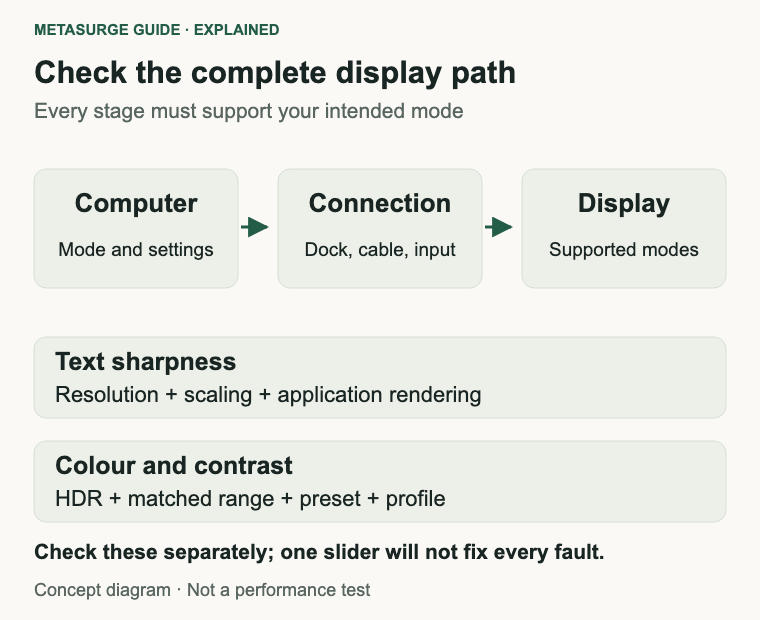
Follow the complete path from computer to display: computer port, adapter or dock, cable and monitor input. The combination must support the resolution and refresh rate you intend to use. Matching connector shapes don’t prove that every stage supports the required mode.
If the native resolution or expected refresh rate is unavailable, inspect the specifications for each stage. A dock, adapter or host limitation can restrict the modes offered. Confirm what the computer supports as well as what the monitor advertises.
Try a supported direct connection where practical. If the picture behaves differently when the dock is removed, you have narrowed the investigation without proving that the monitor is faulty. Preserve the original arrangement so you can make a meaningful comparison.
A digital connection doesn’t normally work like an analogue cable that adds a little softness as quality declines. Link faults can cause interruptions or corrupted output, while a bandwidth or compatibility limit can lead you to use a different display mode. Don’t diagnose a bad cable solely from a soft-looking font.
A known-working suitable cable can still be a useful test. Check its documented capability, the selected input and whether it is fully seated as directed. Avoid buying an elaborate cable before establishing what the connection actually needs.
Duplicating a desktop across unlike displays can introduce a different constraint from extending it. Check each screen’s selected mode and try the supported extended-desktop arrangement if duplication is producing an unsuitable compromise.
For intermittent faults, record the exact conditions: after sleep, at a particular refresh rate or only through one input. Lowering a setting temporarily can help isolate a mode-dependent problem, but it doesn’t prove which part of the path caused it.
Use firmware or driver updates only through the relevant manufacturer’s instructions for the exact equipment. A generic download or a monitor file intended for a similar model is a poor substitute for confirming the configuration you actually have.
Investigate HDR, signal range and colour settings
HDR changes how the operating system and display handle compatible content. It isn’t an automatic improvement for every desktop task. If the picture changes when you enable HDR, compare the HDR configuration and the way ordinary SDR content is being presented.
Microsoft provides separate guidance for HDR settings and SDR brightness within an HDR desktop. Dell also documents washed-out appearances in that context. Use a supported SDR baseline for comparison rather than trying to compensate with several unrelated monitor controls.
Check the monitor’s picture preset. A mode intended for a bright showroom, a particular game or a specific colour space may not suit document work. Record the current preset and try a documented general-purpose option before attempting detailed colour adjustments.
Signal range is another possible issue. Some combinations expose Full and Limited RGB choices at the source and corresponding input settings at the display. The important point is compatible interpretation at both ends, not forcing Full on every screen regardless of its requirements.
A mismatch can change the appearance of black and white detail. Use the computer and monitor documentation to check the intended combination. If those settings aren’t exposed, don’t assume a hidden adjustment must exist or that an unsupported workaround is necessary.
Colour profiles need the same care. Use the correct display association and preserve any calibration that was deliberately created for the setup. A profile copied from another person’s monitor doesn’t guarantee accurate results on yours, even when the model name matches.
Keep room lighting and screen reflections in mind while comparing. A bright reflection can change how dark areas appear without changing the signal. Compare the picture from your usual seat under ordinary working conditions.
If you need dependable colour for paid creative work, distinguish visual preference from measured calibration. A picture that looks pleasing isn’t proof of colour accuracy. Seek a suitable documented calibration workflow rather than treating a contrast slider or a generic downloaded profile as a measurement.
Know when the display needs service or replacement
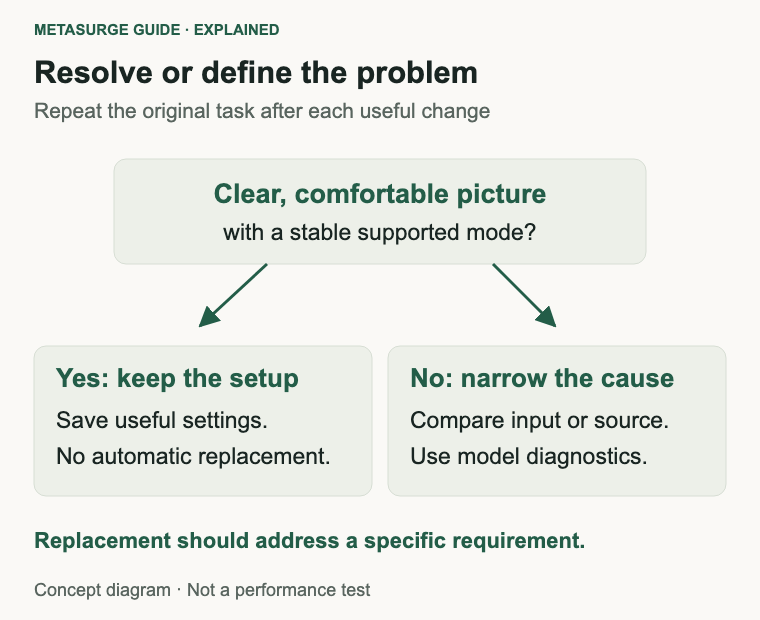
Once you have a sensible configuration, repeat the original test. Use the same document, image and viewing position. Check the normal applications rather than relying only on a test pattern you won’t use in everyday work.
If possible, compare another compatible source or monitor. A problem that follows a computer across displays points towards a different investigation from one that remains with a particular monitor across supported inputs. Neither comparison replaces the manufacturer’s diagnostics, but it can make a support request much clearer.
Consult model-specific self-test instructions if available. Note whether the issue is visible in the monitor’s own diagnostic display, whether it affects one input and whether changing modes alters it. Give support the observations rather than an assumed diagnosis.
Some limitations are characteristics of the design rather than new faults. Pixel density, panel structure and motion behaviour can influence the experience. A working display may still be unsuitable for the text size or workload you prefer, but first establish that settings aren’t creating the complaint.
A replacement can be reasonable when a confirmed fault makes repair impractical or when a documented design requirement isn’t met. Define that requirement: clearer text at a preferred size, a supported connection mode or a specific colour workflow.
Don’t choose a replacement solely because it supports HDR or has a larger diagonal. Those features don’t automatically resolve a scaling or connection problem. Confirm that the computer, cables and normal applications can use the setup you intend to buy.
If the existing monitor now works well, keeping it is a valid outcome. Save the final settings and a short note about the change that helped. That makes future troubleshooting easier after a driver update, dock change or accidental reset.
A useful finish is a repeatable result: readable text, familiar images rendered consistently and stable operation through normal sleep and reconnection. That matters more than finding one impressive setting that makes a demonstration look vivid.
Frequently asked questions
Should I lower the resolution to make text bigger?
Try appropriate interface scaling or text sizing first. Lowering the panel’s input resolution can reduce sharpness. The useful combination is a supported display mode and a comfortable interface size.
Will a more expensive HDMI or USB-C cable sharpen text?
Not automatically. Check whether the full path supports the required mode. A suitable known-working cable can help isolate a connection fault, but price alone doesn’t establish a sharper picture.
Why does the desktop look different with HDR enabled?
HDR changes the presentation path, including how SDR material appears. Check supported HDR settings and SDR brightness, and compare with a sensible SDR baseline. Don’t assume that enabling HDR improves every desktop.
Can I fix colour by downloading someone else’s profile?
A copied profile isn’t a guaranteed calibration for your unit or setup. Check the correct display profile and preserve any existing measured calibration. Accurate colour work may need a suitable measurement-based workflow.
Relevant examples to explore
Editorial examples, separate from Best Sellers rankings. Within each group, products are ordered by Amazon Best Sellers position captured 17 October 2026; positions can change.
As an Amazon Associate MetaSurge Guide earns from qualifying purchases. Check current details, price and availability on Amazon before buying. Country detection by DB-IP.
Sources and editorial approach
This guide uses Microsoft’s resolution guidance, Apple’s external-display troubleshooting, Windows HDR documentation, Dell’s HDR advice and NVIDIA’s signal-range reference, checked on 16 October 2026. The troubleshooting sequence is editorial reasoning, not measured display testing or a guaranteed diagnosis.
Where to go next
Use the Monitors guide if your checks identify a replacement requirement. The separate examples illustrate specifications to verify, rather than promising that a new panel will fix a configuration problem.