
A keyboard that repeats letters or misses presses may have a switch fault, but the same symptoms can also come from application settings, accessibility options, remapping or an unreliable connection. Start with a repeatable test before ordering switches or replacing the whole board.
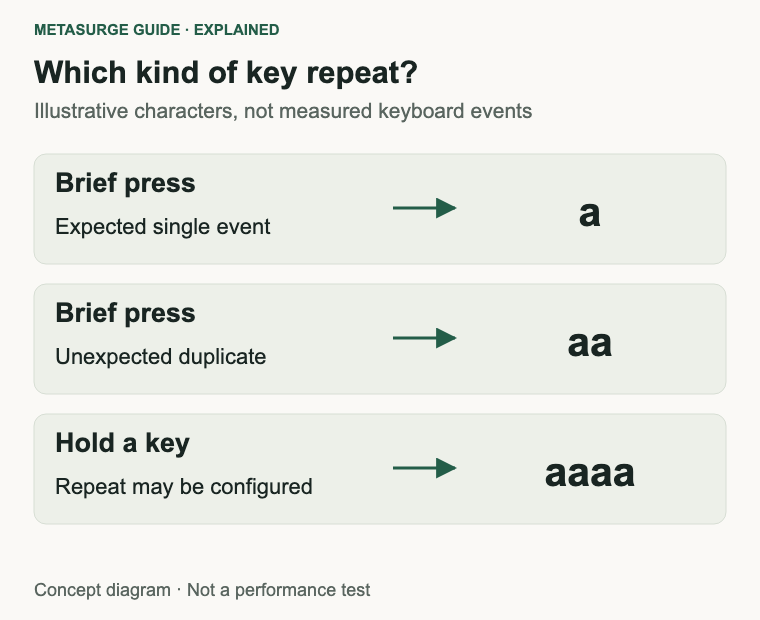
One deliberate press producing two characters is different from normal repetition when you hold a key down. A few affected keys are also different from the whole keyboard freezing, disconnecting or releasing a burst of delayed input. Describe that pattern first.
You can usually make useful progress with a local text document, a supported connection and another application or device. Those checks won’t identify every failed component, but they can show whether a repair, a settings change or a support request is the sensible next step.
Describe the input fault before changing settings
Open a plain text document and use harmless test words. Press the suspect key separately, release it and observe the result. Then type a short ordinary sentence. You don’t need to enter passwords or private information into an unfamiliar online keyboard tester.
Note the difference between an electrical repeat and a physical feel problem. A key that sticks down, a cap that catches and a key that feels normal but registers twice can require different investigations. Large keys may also have stabilisers that affect movement.
Record whether the problem affects one key, several keys or the whole board. If letters, lighting and connection all freeze together, treating each affected key as an independent worn switch is unlikely to be a useful starting assumption.
Check whether the symptom appears immediately, after waking the computer or after a period of wireless use. A pattern linked to a connection event points you towards different checks from a key that fails consistently on every device.
Don’t confuse delayed input with missing input. If the application pauses and then inserts several characters, the keyboard may not have dropped them at all. System load, a remote session or the input path may be part of the experience.
The word chatter is often used for unintended repeated switch events. It can describe a useful suspicion, but seeing a doubled letter doesn’t establish that diagnosis. Keep the symptom separate from the explanation until the comparison tests support it.
| Pattern you observe | Useful first comparison |
|---|---|
| One key duplicates deliberate presses | Another application and compatible device |
| Many keys pause or arrive together | Connection and host behaviour |
| Only held keys repeat too quickly | Repeat delay and rate settings |
| Brief presses are ignored | Accessibility and application settings |
| A particular shortcut fails | Mapping and documented key combinations |
Keep a short record rather than repeatedly changing random settings. A few clear observations will also help a seller or manufacturer understand the problem if you need service.
Compare applications, devices and connections
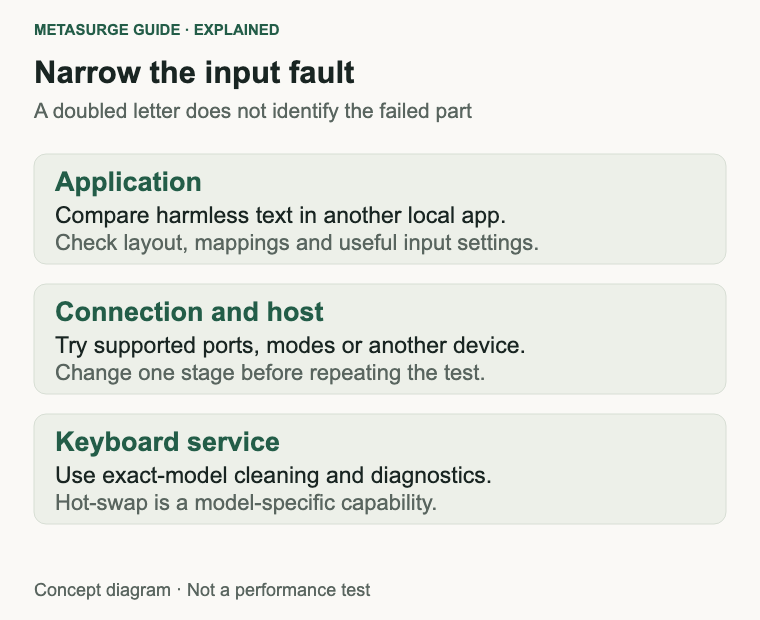
Try another ordinary application without changing the hardware. If the issue appears only in one programme, inspect its shortcuts, text expansion or input settings. A single application result is weak evidence that a physical switch needs replacing.
Check keyboard layout and input method if the wrong characters appear. A layout mismatch can make a healthy keyboard look incorrect, particularly for punctuation and symbols. Wrong characters are not the same symptom as duplicate or missing events.
Temporarily compare without optional remapping or macro software if you can do so safely. Preserve the configuration and restore it afterwards. Don’t disable a work-required tool or an accessibility feature you depend on merely to complete a generic checklist.
For a detachable wired connection, use a known-working compatible data cable and a supported port. A cable that supplies power doesn’t necessarily carry keyboard data. If an adapter or hub is involved, a supported direct connection can narrow the path being tested.
For wireless use, check charge or battery status, the selected device and the supported receiver or Bluetooth arrangement. Follow the manufacturer’s connection instructions. Re-pairing, changing receivers or switching modes isn’t a universal fix and may affect saved settings.
Where supported, compare wired and wireless behaviour. A fault confined to one mode deserves attention to that path before you dismantle keys. A repeatable fault across supported modes is more informative, but still doesn’t identify the exact internal part.
If practical, try another compatible computer or device. A problem that follows the keyboard is stronger evidence of a keyboard-side issue than one limited to a single host. Confirm that both devices use suitable settings so that the comparison remains meaningful.
Change one item at a time and repeat the same short test. If you replace the cable, change repeat settings and update firmware together, a successful result won’t tell you which change mattered or which settings should be restored.
Review repeat behaviour and supported software
Operating systems deliberately repeat some keys while they are held. They may provide separate controls for the delay before repetition begins and the rate afterwards. Apple documents these as distinct adjustments on a Mac.
Those settings can help when intentional held-key behaviour feels too fast or slow. They don’t prove that a doubled character from one short press is normal, and changing them isn’t a physical repair for a damaged contact.
Accessibility settings can also change which input is accepted. Microsoft’s Filter Keys options can ignore brief or repeated presses, while other platforms provide their own input-delay features. Review whether the current behaviour is intentional before changing it.
If you rely on those features, preserve a usable configuration. The aim is to understand the interaction, not remove helpful settings. A diagnostic comparison can be temporary and should be practical for the person using the keyboard.
Check application-level repetition, macros and text expansion separately. A command can insert multiple characters even when the keyboard sends a single event. If a test key behaves normally in a local document but unexpectedly in a particular workflow, that distinction matters.
Some keyboards store profiles or remapping internally. Check the selected profile, operating-system mode and documented functions. Switching a board between Mac and Windows modes can affect modifier behaviour without indicating a worn switch.
Firmware changes require exact identification. Confirm the model, hardware revision, layout and update instructions, and preserve settings as directed. Don’t flash a file for a similar-looking board or apply a random reset combination from another product.
Be cautious about software advertised as an automatic chatter cure. Filtering duplicate events can alter the input you receive without repairing the underlying hardware, and a poorly chosen delay can interfere with intentional fast repeats. Ask the manufacturer about a supported remedy before hiding an unresolved fault behind another layer.
Clean conservatively and check repair options
If loose debris or a catching cap seems relevant, follow the exact model’s cleaning guidance. Disconnect or switch off power as instructed and use the recommended gentle method. Don’t pour liquid into switches or assume that stronger solvents make a better repair.
Keycap removal is model-specific. Some caps, stabilisers and low-profile mechanisms need particular handling. A method suitable for one mechanical board may damage another keyboard, so confirm the instructions before pulling on a key.
A removable keycap doesn’t establish that the switch is hot-swappable. Mechanical keyboards can use soldered switches, supported removable switches or other mechanisms. Optical and magnetic designs may have their own compatibility restrictions.
For a confirmed hot-swap model, the manufacturer may suggest comparing a suspect switch with a known-working compatible one. Keychron documents that kind of check for appropriate keyboards. Follow the exact procedure, with power handled as directed, rather than treating this article as a universal disassembly guide.
The observation is whether the fault follows the switch or stays with the original key position. Either result is information for the next diagnostic step. It isn’t a guarantee that every fault can be repaired by buying a bag of switches.
If the fault stays at a position, the socket or another part of the board may need assessment. Avoid forcing a switch or repeatedly changing parts when the result is unclear. Damage introduced during an unsupported repair can make the original issue harder to resolve.
Soldered-switch work changes the tools, skill and cost involved. A professional service assessment may be more appropriate than a home experiment. Check seller or manufacturer support before opening a case or modifying components.
For a spill, visible damage or unusual battery behaviour, stop treating the problem as ordinary dust under a key. Follow the manufacturer’s support advice. Continuing to reconnect damaged equipment is not a useful way to diagnose an intermittent letter.
Decide when to ask for service or replace it
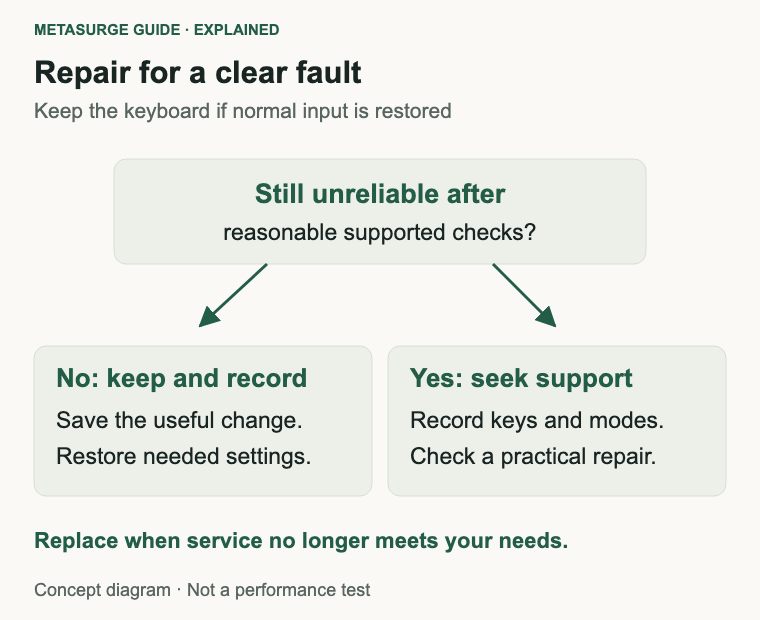
Ask for support when the fault remains repeatable after reasonable software and connection checks, or when repair would require work outside the documented owner procedure. You don’t need to identify the exact failed component before reporting a clear symptom.
Provide the model, connection mode, affected keys and results on another application or device. Include relevant photos or a short demonstration if the support process accepts them, without exposing private text or account information.
Keep warranty, purchase records and component ratings separate. An advertised switch-actuation count doesn’t define the whole keyboard’s service life or the support remedy available to you. Use the actual product and seller information.
A limited repair can make sense when the keyboard otherwise suits your work and a compatible part or service is available. Compare the total cost, likely interruption and confidence in the diagnosis rather than the price of the smallest component alone.
Replacement becomes more reasonable when faults recur, several functions are affected, parts are unavailable or the repair path no longer serves your needs. That is a condition-based decision, not a universal age at which all keyboards should be discarded.
If replacing, define the job the new board must do. Layout, key feel, connection and documented serviceability can matter more than the largest endurance figure. Confirm the exact variant rather than assuming every version of a model offers the same repair features.
Keep a reliable spare if it is useful and you have room for it. If you retire the faulty keyboard, follow suitable electronics reuse or recycling arrangements and the relevant instructions for any battery. Don’t pass an unresolved intermittent fault to someone else as if the board were dependable.
If a settings or connection change resolves the issue, save the result and stop there. A healthy keyboard that works comfortably doesn’t need replacement simply because a diagnostic search introduced you to newer switches.
Frequently asked questions
Is double-typing always switch chatter?
No. A duplicated character can involve remapping, an application, connection behaviour or a physical switch. Compare a deliberate single press in another local application and, where practical, another compatible device before deciding.
Can repeat settings fix every duplicate key?
No. Repeat settings primarily control what happens when keys are held. They may explain some behaviour, but they aren’t a physical repair for a worn or damaged component.
Can I swap a switch on any mechanical keyboard?
No. Confirm hot-swap support, exact switch compatibility and the manufacturer’s procedure. Removable keycaps don’t establish removable switches, and soldered or other switch systems need different handling.
When should I stop troubleshooting?
Stop when the next step requires unsupported disassembly, when damage is apparent or when repeated reasonable checks haven’t narrowed the issue. A clear symptom record is enough to start a useful support or repair discussion.
Relevant examples to explore
Editorial examples, separate from Best Sellers rankings. Within each group, products are ordered by Amazon Best Sellers position captured 17 October 2026; positions can change.
As an Amazon Associate MetaSurge Guide earns from qualifying purchases. Check current details, price and availability on Amazon before buying. Country detection by DB-IP.
Sources and editorial approach
The guide uses Keychron’s duplicate-input troubleshooting, Microsoft’s input-accessibility guidance, Apple’s repeat-setting explanation and Logitech’s cleaning advice, checked on 16 October 2026. The sequence is editorial reasoning, not hands-on repair testing or a promise that one component causes every symptom.
Where to go next
Explore the Keyboards guide if you identify a replacement requirement. The separate examples illustrate different designs; keep a suitable working board and check exact repair instructions before buying parts or another keyboard.